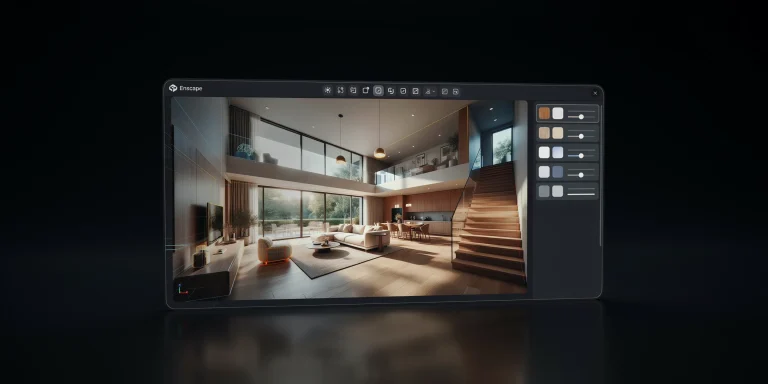
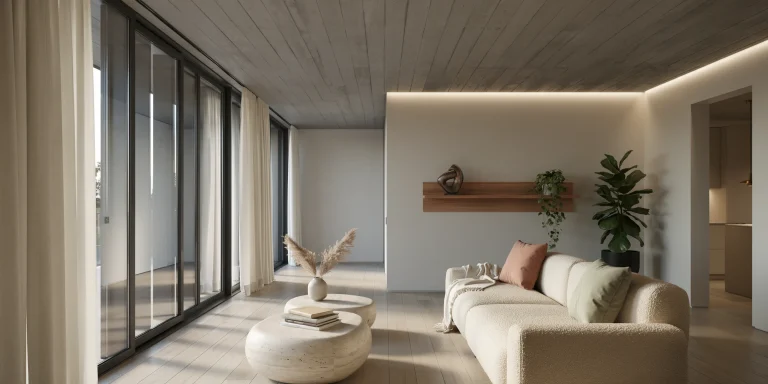
Octane Render is a GPU-accelerated, unbiased, spectrally correct render engine that lets architects produce physically accurate interior and exterior visuals at speeds a CPU engine cannot match. For architectural work, it pairs real-time feedback with photoreal materials and lighting, making it a strong fit for fast design iteration and final client imagery alike.
Most architects come to Octane after hitting render-time walls in CPU engines. The appeal is direct: an interior that took forty minutes to clear on a CPU can resolve in a fraction of that time on a modern NVIDIA card. This guide covers how Octane fits an archviz pipeline, the settings that matter for buildings, how it runs inside Cinema 4D, Blender, and 3ds Max, and how it compares to V-Ray for architectural visualization.
What Is Octane Render and Why Use It for Architecture?
Octane Render is OTOY’s GPU render engine, described by the developer as the first and fastest unbiased, spectrally correct GPU renderer. Unlike CPU engines that calculate light on processor cores, Octane runs on NVIDIA CUDA hardware on Windows and Linux (Octane X uses Metal on macOS), treating the graphics card as the rendering workhorse. For architecture, that translates into a live viewport where you can move a sun position, swap a glass material, or adjust a camera and see a near-final result update in real time.
The engine is unbiased by default, meaning it simulates light transport without the shortcuts and approximations that biased engines use. Reflections, refractions through glazing, and soft contact shadows resolve physically rather than through cheats. For an architect presenting a curtain-wall facade or a daylit atrium, that physical accuracy reads as believability, which is exactly what wins a client over. If you want a primer on what separates a convincing image from a flat one, our breakdown of what makes a great architectural render covers the fundamentals that any engine has to deliver.
📌 Did You Know?
Octane Studio+ subscriptions ship with integration plugins for 21 different DCC applications, according to OTOY. That breadth means an architect can keep the same render engine whether the office models in Cinema 4D, Blender, or 3ds Max, without relearning a new lighting and material system per tool.
How Does GPU Rendering Change an Archviz Workflow?

GPU rendering moves the math from a handful of fast CPU cores to thousands of smaller GPU cores working in parallel. For the ray tracing that drives architectural lighting, that parallelism is a natural fit, since each pixel sample can be computed independently. The practical result is shorter render times and a viewport that stays interactive while you light a scene.
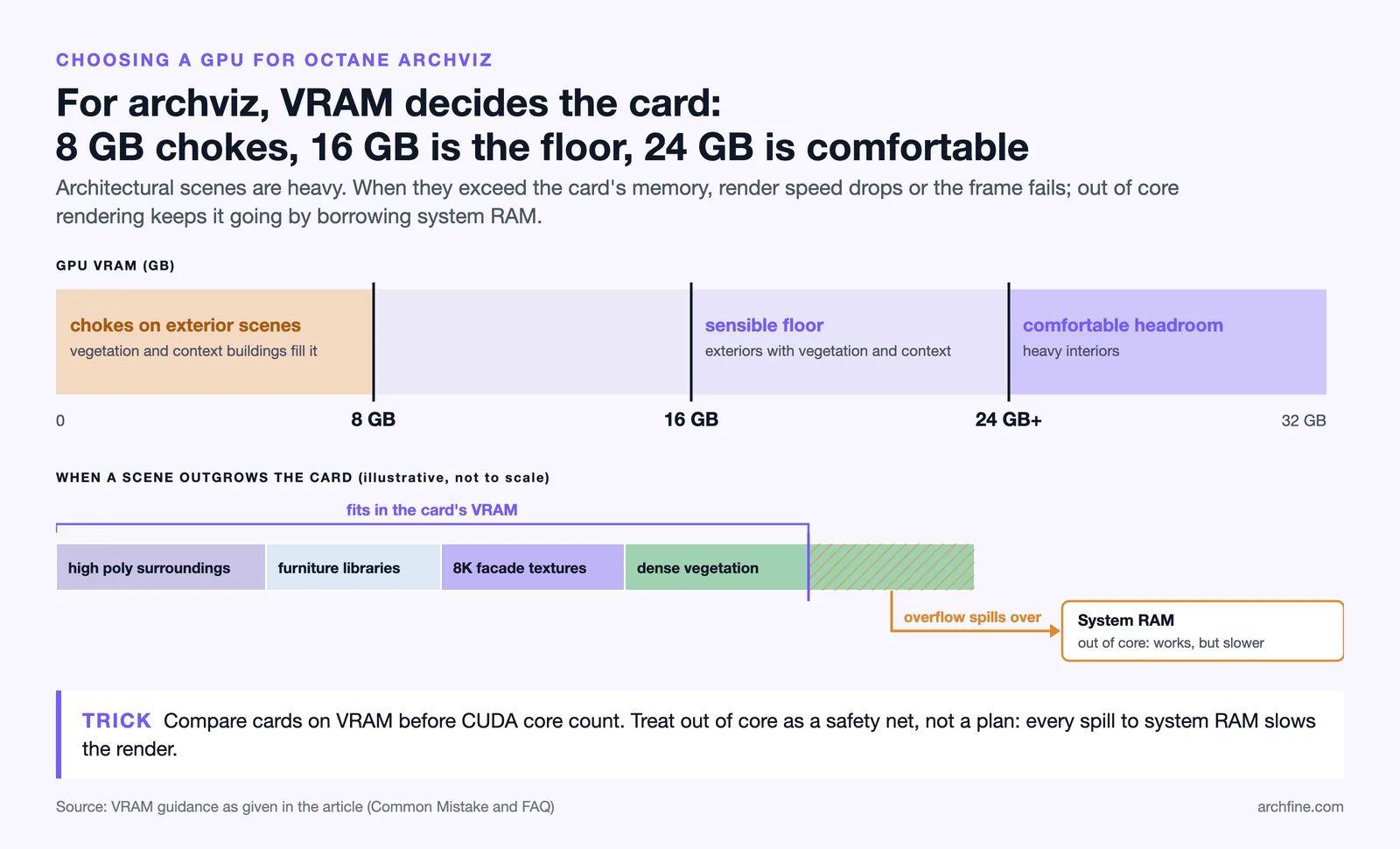
The trade-off is memory. A GPU is limited by its onboard VRAM, and architectural scenes are heavy: dense vegetation, 8K facade textures, furniture libraries, and high-poly surroundings add up quickly. When a scene exceeds available VRAM, render speed drops or the frame fails. Octane addresses this with out-of-core rendering, which spills geometry and textures into system RAM when the card runs out, and with RTX hardware acceleration that uses the ray-tracing cores on modern NVIDIA cards.
⚠️ Common Mistake to Avoid
Many architects buy a card based on CUDA core count alone and ignore VRAM. For exterior scenes with vegetation and context buildings, an 8GB card will choke long before the cores are the bottleneck. Prioritize VRAM capacity (16GB or more) for archviz, and rely on out-of-core only as a safety net, not a primary strategy, since spilling to RAM slows things down.
Octane Render Settings That Matter for Buildings
Octane exposes fewer knobs than many biased engines, which is part of its appeal, but a handful of settings make a real difference for architectural scenes. The goal is a clean, noise-free image at a sample count that keeps render times reasonable.
Kernel and sampling
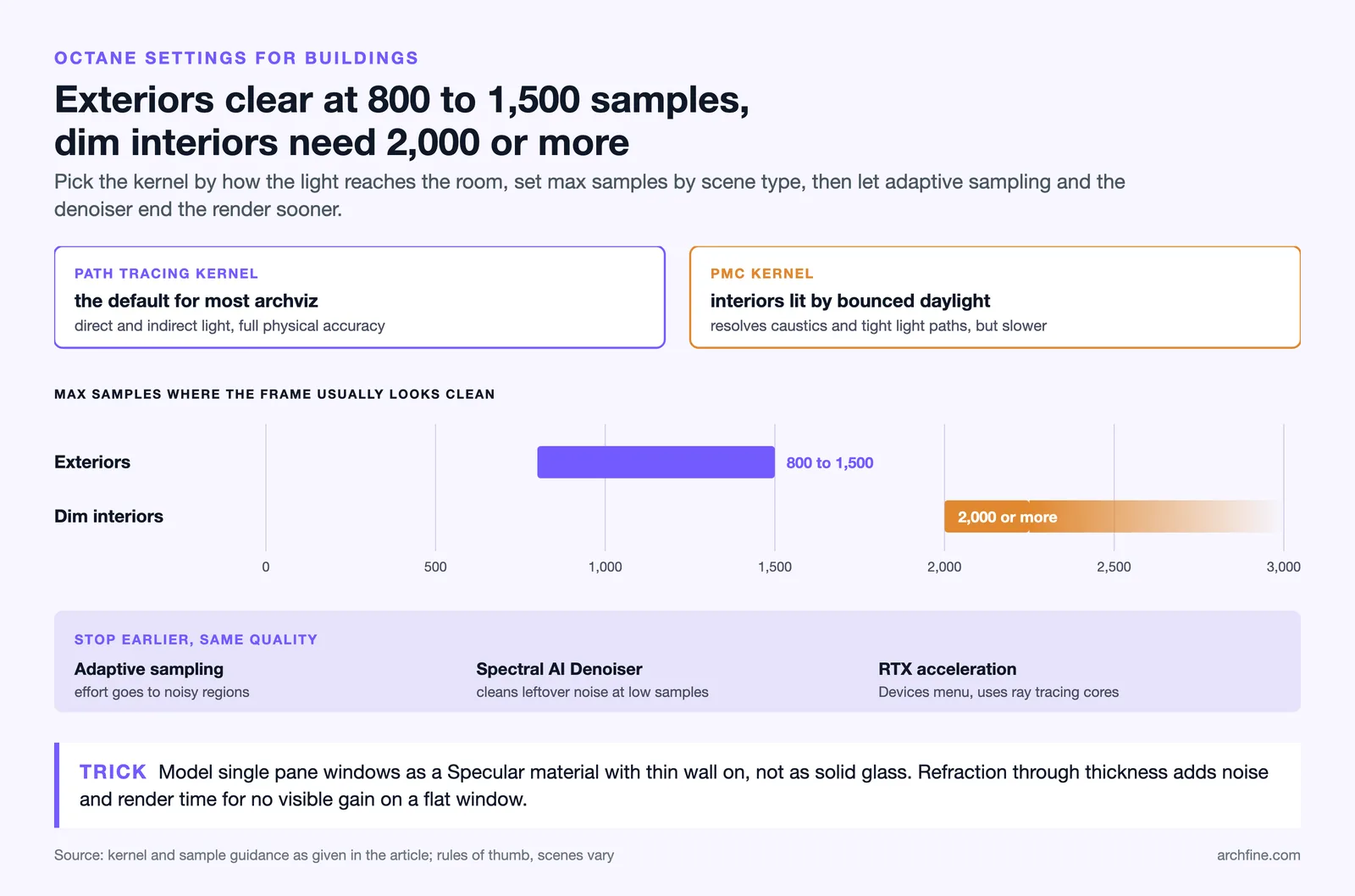
The Path Tracing kernel is the default choice for most archviz, since it handles direct and indirect light with full physical accuracy. For interiors that depend on bounced daylight, the PMC kernel resolves difficult caustics and tight light paths better, at the cost of speed. Max samples controls how clean the final frame is: exteriors often look clean by 800 to 1500 samples, while dim interiors may need 2000 or more. Adaptive sampling concentrates effort on noisy regions and lets you stop earlier without a quality penalty.
Denoising and RTX acceleration
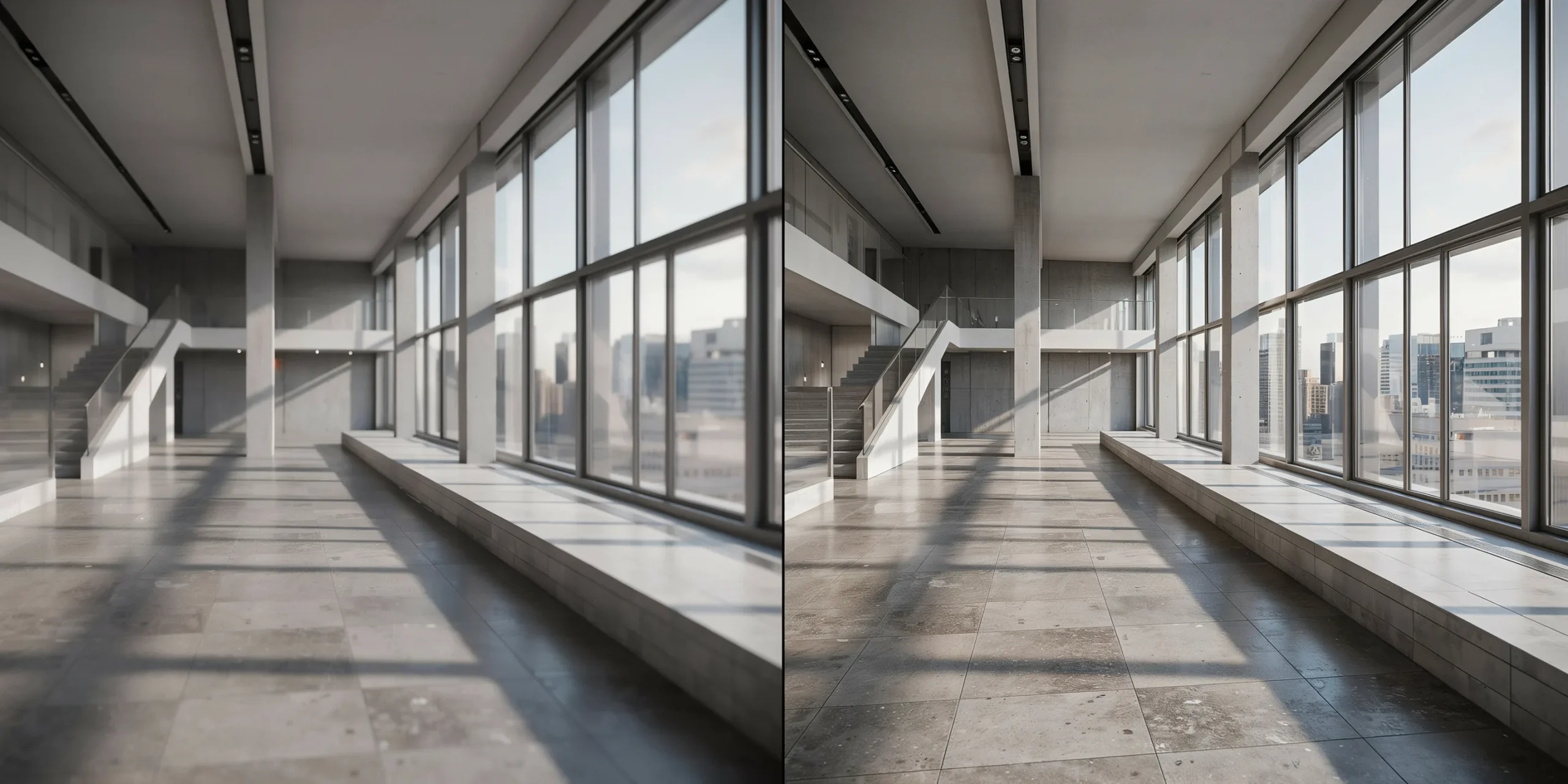
The Spectral AI Denoiser cleans residual noise at low sample counts, which is the single biggest time-saver for daily test renders. Enable RTX acceleration in the Devices menu to use the ray-tracing hardware on RTX cards. Combined, these two features let you preview a lit interior at a fraction of the samples a final frame needs.
📐 Technical Note
Octane works in linear color space and is spectrally correct, so it calculates light across the visible spectrum rather than in simple RGB. For accurate daylight, drive exteriors with the Daylight environment and a physically based sun, then grade the final image with an OCIO or ACES view transform rather than baking corrections into materials.
Octane materials for architectural surfaces
Octane materials follow physically based rendering principles, so an architect comfortable with PBR maps from other engines will feel at home. The Universal material handles most surfaces, from brushed metal to coated wood, while the Specular material is built for glass and clear glazing. Octane’s layered materials support up to eight stacked layers for complex surfaces such as a clear-coated painted panel or a polished stone with a worn finish. If you are setting up texture maps, our guide on getting photoreal results from SketchUp models shows how source geometry and material assignment feed into a clean render.

💡 Pro Tip
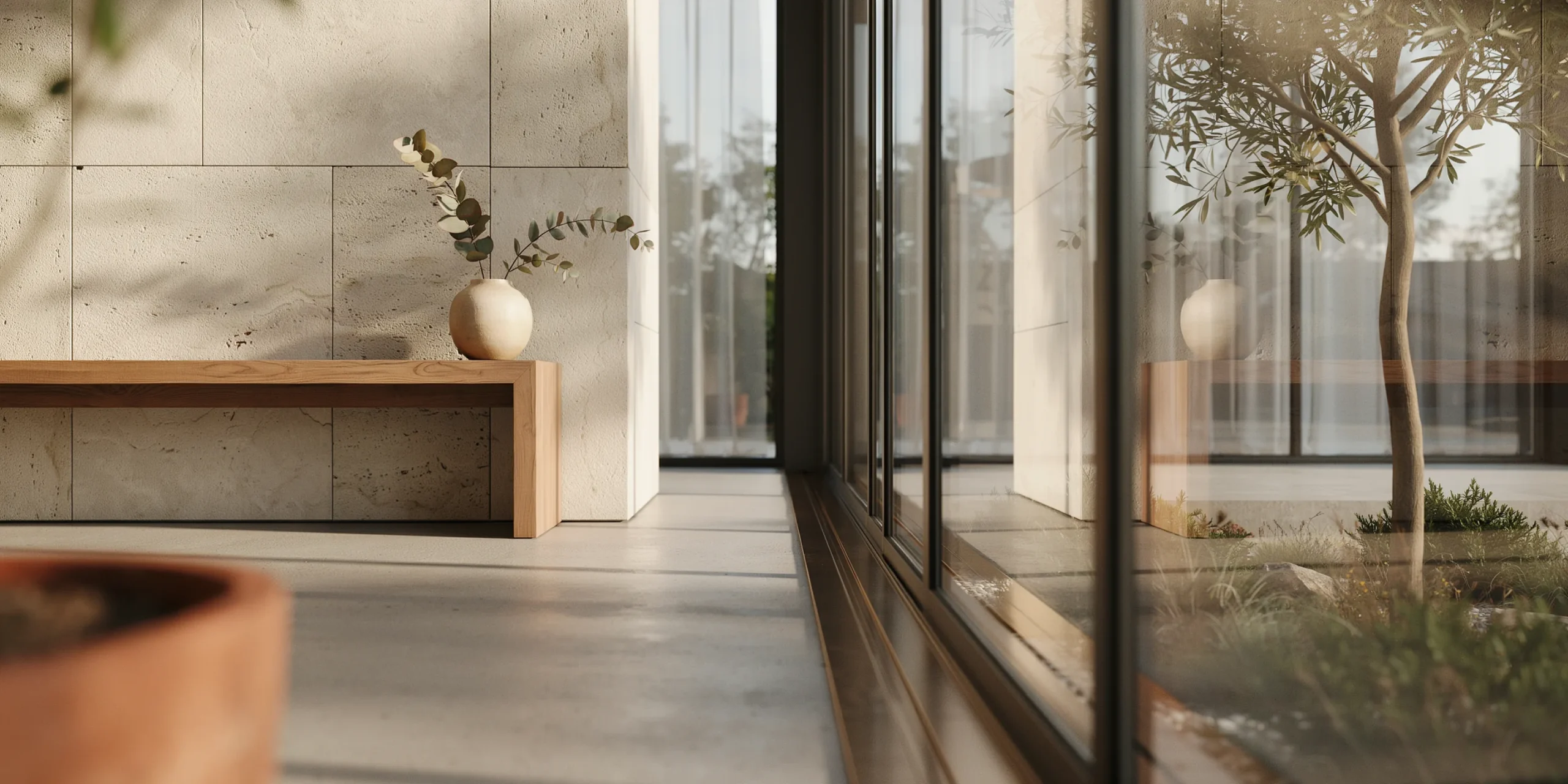
When building glazing, use the Specular material with a thin-wall option for single-pane windows rather than modeling solid glass volumes. Solid glass forces Octane to trace refraction through thickness, which adds noise and render time for no visual gain on a flat window. Reserve true refraction for objects where you actually see through the thickness, such as a glass railing or a water feature.
Running Octane in Cinema 4D, Blender, and 3ds Max
Octane is not a standalone-only tool. It plugs into the modeling applications architects already use, and the lighting and material workflow stays consistent across them. The differences come down to the host integration and how the Live Viewer connects to your scene.
In Cinema 4D, Octane has one of its most mature integrations. Maxon documents native Octane rendering inside Cinema 4D, and the plugin exposes Octane tags, an Octane camera, and a Live Viewer that updates as you work. This pairing is popular for archviz motion work and still imagery because Cinema 4D’s modeling and MoGraph tools complement Octane’s speed. The OTOY help portal provides a dedicated getting-started path for the Cinema 4D plugin.
For Blender users, OctaneRender ships as an add-on that supports all current Octane versions, with installation documented on OTOY’s help site. Blender’s free entry point combined with Octane makes a low-cost archviz pipeline that still produces production-grade output. In 3ds Max, long the backbone of many visualization studios, Octane runs as a plugin alongside the native scene, so teams already invested in 3ds Max libraries can add GPU speed without rebuilding their asset base.
Octane vs V-Ray for Architectural Rendering
The most common question architects ask is how Octane stacks up against V-Ray, the long-standing studio standard. Both produce photoreal results, but they take different routes. V-Ray is a hybrid CPU and GPU engine with a deep, mature material and proxy ecosystem built over decades of architectural use. Octane is GPU-first, leaner to learn, and faster to interactive feedback, but it leans on NVIDIA hardware and VRAM headroom.

Comparison of Octane vs V-Ray for archviz
The table below summarizes the practical differences architects weigh when choosing between the two engines.
| Factor | Octane Render | V-Ray |
|---|---|---|
| Hardware | NVIDIA GPU on Windows and Linux (CUDA / RTX); Metal GPU on macOS | CPU and GPU hybrid |
| Interactive feedback | Very fast Live Viewer | Fast with IPR, depends on mode |
| Learning curve | Leaner, fewer settings | Deeper, more controls |
| Memory handling | VRAM bound, out-of-core fallback | Uses system RAM more freely |
| Archviz ecosystem | Growing asset libraries | Very mature, industry standard |
| Best fit | Speed-driven iteration on NVIDIA rigs | Large studios with mixed hardware |
The honest answer is that neither wins outright. A small studio standardized on NVIDIA cards that values fast iteration will likely prefer Octane. A larger office with mixed hardware, render-farm CPUs, and a deep V-Ray asset library has good reasons to stay put. For a wider look at choosing a visual approach, our piece on photorealistic versus stylized renders helps frame which output a given client and project phase actually needs.
Where AI Rendering Fits Alongside Octane
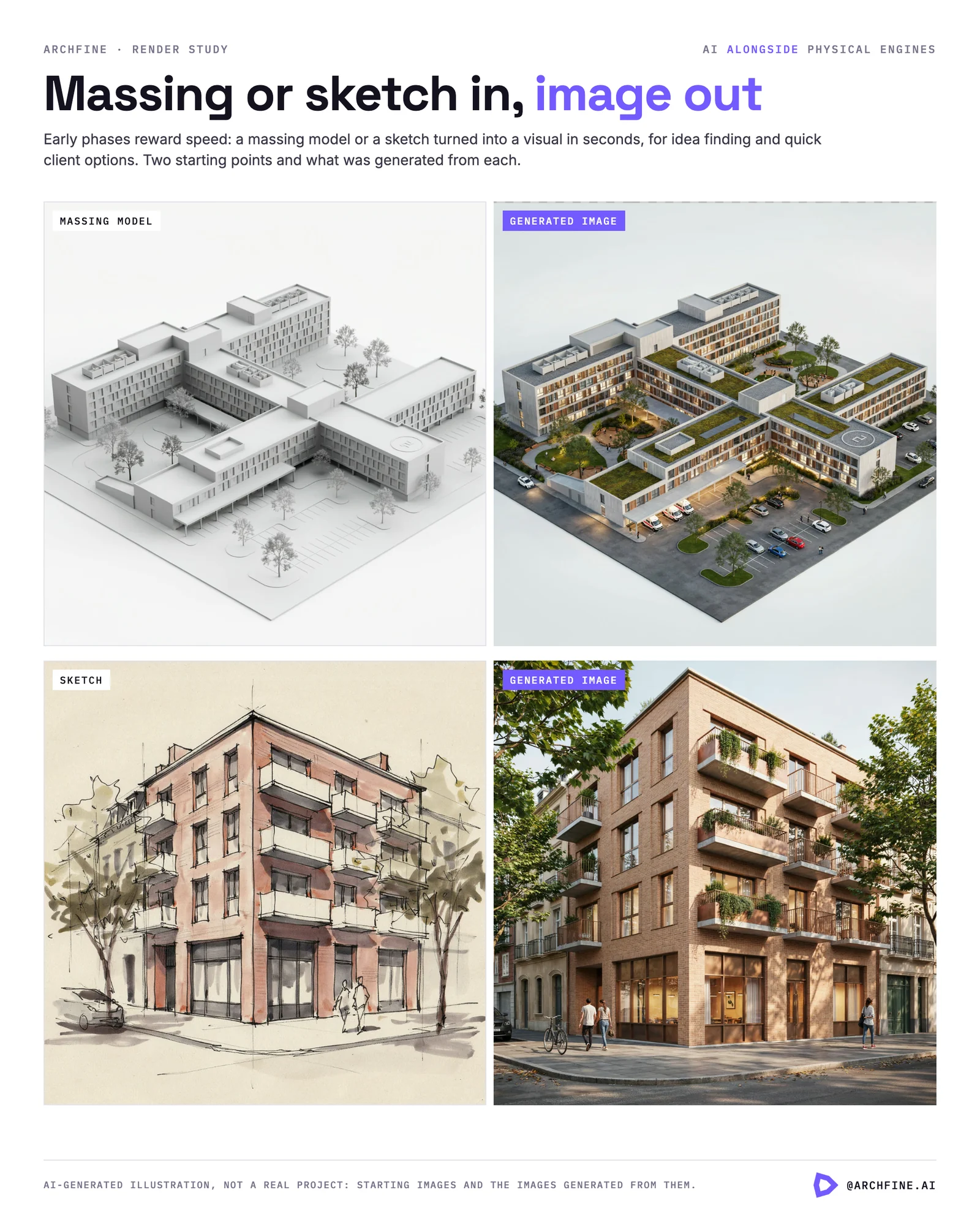
GPU engines like Octane are not the only way to reach a finished image anymore. AI rendering tools can turn a massing model or a sketch into a photoreal visual in seconds, which is useful for early concept exploration and rapid client options. The two approaches are complementary: AI for speed and idea-finding in early phases, a physical engine like Octane for the dimensionally accurate, material-consistent final that goes into a competition board or a marketing deliverable. If you want to add fast AI iterations to your pipeline, our guide on how to use AI to render architecture walks through prompt setup and input preparation.
Frequently Asked Questions
Is Octane Render good for architectural visualization?
Yes. Octane’s unbiased, spectrally correct engine produces physically accurate light, glass, and material behavior that reads as believable in interior and exterior archviz. Its fast Live Viewer suits the iterative nature of design work, where you adjust sun angles and materials repeatedly before committing to a final frame.
What GPU do I need to run Octane for architecture?
On Windows and Linux you need an NVIDIA card with CUDA support (on macOS, Octane X runs on Apple Silicon and AMD GPUs through Metal), and for archviz the priority is VRAM. A 16GB card is a sensible floor for exterior scenes with vegetation and context, and 24GB or more gives comfortable headroom for heavy interiors. RTX cards add hardware ray-tracing acceleration that Octane uses for additional speed.
Does Octane Render work with Blender for free?
Octane offers a free tier and the Blender add-on is available from OTOY, so a Blender plus Octane pipeline keeps software costs low. Blender itself is free, and the combination gives architects a production-capable GPU rendering setup without the licensing cost of a full studio suite.
How do I reduce render times in Octane?
Enable RTX acceleration in the Devices menu, turn on adaptive sampling, and use the Spectral AI Denoiser so you can finish at lower sample counts. Keep your scene within available VRAM, use thin-wall glass instead of solid glass, and run test renders at reduced resolution before committing to the final frame.
Putting It All Together
✅ Key Takeaways
- Octane Render is a GPU-first, unbiased engine that gives architects fast, physically accurate visuals.
- Prioritize VRAM (16GB or more) over raw core counts for archviz scenes heavy with vegetation and context.
- Use the Path Tracing kernel, adaptive sampling, and the Spectral AI Denoiser to keep render times in check.
- Octane plugs into Cinema 4D, Blender, and 3ds Max with a consistent lighting and material workflow.
- Choose Octane for speed on NVIDIA rigs and V-Ray for large, mixed-hardware studios with mature libraries.
Bottom Line: Octane rewards architects who want interactive feedback and physical accuracy without a steep settings curve, provided they are on NVIDIA hardware with enough VRAM. Pair it with AI tools for early concepts, and it becomes a fast route from design model to client-ready image.
Official documentation worth bookmarking: OTOY OctaneRender, the Octane for Cinema 4D documentation, the Blender installation guide, and Maxon on rendering with Octane.