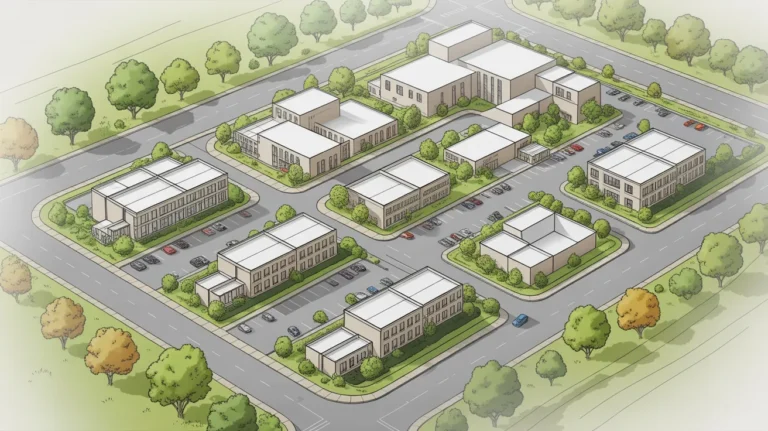
Using AI to render architecture means feeding a text prompt, sketch, or 3D model screenshot into a machine-learning platform that generates a photorealistic image in seconds. The technology replaces hours of manual material assignment, lighting setup, and GPU-intensive processing with a single upload-and-describe workflow that any architect can learn in an afternoon.
Five years ago, producing one photorealistic exterior rendering required a dedicated 3D artist, expensive software licenses, and anywhere from eight to twenty-four hours of processing time. Today, AI render architecture tools compress that timeline to under a minute. The shift is not a minor convenience. It changes how firms pitch concepts, gather client feedback, and iterate on design options before committing to construction documents.
This guide covers the full workflow: choosing a platform, preparing your input files, writing prompts that produce usable results, refining outputs, and integrating AI renders into your existing design process. Whether you work in a large firm or run a solo practice, the steps below apply to every major AI rendering tool on the market right now.
What Is AI Architectural Rendering and How Does It Work?
AI architectural rendering uses trained neural networks (typically diffusion models) to generate images based on input data you provide. That input can be a text description, a hand-drawn sketch, a SketchUp screenshot, a Revit export, or a photograph of an existing building. The AI model interprets the input, applies learned patterns about materials, lighting, perspective, and spatial relationships, and outputs a new image that looks like a traditional photorealistic render.
The process differs from physically-based rendering engines like V-Ray, Corona, or Enscape in one fundamental way: there is no actual light simulation happening. Instead, the model predicts what a realistic image should look like based on millions of training examples. This is why AI renders are fast but sometimes produce artifacts like floating geometry, impossible reflections, or inconsistent shadow directions.
Most platforms follow a three-step cycle. You upload a reference (sketch, model export, or photo), write a text prompt describing the desired outcome, and adjust parameters like style, resolution, and fidelity level. The AI processes your request on cloud GPUs, and the result appears in your browser within 10 to 60 seconds depending on the platform and output resolution.
📌 Did You Know?
The global architectural rendering software market is projected to grow by $2.21 billion between 2025 and 2029, at a compound annual growth rate of 21.6%, according to a January 2025 report by Technavio. AI-integrated tools and cloud-based solutions are among the primary drivers of that growth.
Step 1: Choose the Right AI Render Tool for Architecture
The AI rendering landscape includes dozens of platforms, but they fall into three broad categories: general-purpose image generators used for architectural work (like Midjourney), architecture-specific SaaS platforms (like ArchFine, Rendair AI, or mnml.ai), and plugin-based tools that integrate directly into your existing CAD or BIM software (like Veras for SketchUp and Revit).
General-purpose tools offer the widest creative range and often produce the most visually striking images. However, they give you limited control over architectural accuracy. A Midjourney render might look stunning as a mood board image, but the proportions, window mullion details, and structural logic may not hold up under close inspection.
Architecture-specific platforms prioritize fidelity to your input geometry. When you upload a SketchUp export, the AI attempts to preserve your floor-to-ceiling heights, window placements, and overall massing while applying realistic materials and lighting. This makes them better suited for client presentations where spatial accuracy matters.
Plugin-based tools sit inside your existing software and work directly with your 3D model viewport. The advantage is minimal disruption to your workflow. The drawback is that these plugins often depend on the host software’s camera and export capabilities, which can limit output quality.
AI Render Architecture Tool Comparison
The following table summarizes the key differences between the major categories of AI rendering tools available to architects:
| Feature | General-Purpose AI (e.g., Midjourney) | Architecture-Specific SaaS (e.g., ArchFine) | Plugin-Based (e.g., Veras) |
|---|---|---|---|
| Input Type | Text prompts, reference images | Sketches, model exports, photos, text | Live 3D viewport |
| Geometry Fidelity | Low (AI interprets freely) | Medium to High | High (uses actual model data) |
| Creative Range | Very High | Medium to High | Medium |
| Speed | 30-90 seconds | 10-60 seconds | 15-45 seconds |
| Best For | Mood boards, concept art | Client presentations, design iteration | In-software quick previews |
| Learning Curve | Moderate (prompt engineering) | Low (guided interface) | Low (familiar environment) |
💡 Pro Tip
Before committing to a paid subscription, test at least two or three AI render architecture platforms with the same input image. Export a single SketchUp view as a PNG and upload it to each tool using an identical text prompt. Comparing outputs side by side reveals huge differences in how each platform interprets geometry, materials, and lighting, and helps you pick the one that best fits your project type.
Step 2: Prepare Your Input Files
The quality of your AI render depends heavily on what you feed the model. A clean, well-composed input image will consistently produce better results than a cluttered screenshot with overlapping UI elements.
If you are exporting from SketchUp, Revit, ArchiCAD, or Rhino, follow these preparation guidelines. First, set your camera to the exact perspective you want in the final render. The AI will maintain your viewpoint, so invest time in framing. Second, hide all annotation layers, dimensions, grid lines, and UI elements. The AI model reads every pixel of your input and will try to incorporate stray text or icons into the output. Third, export at the highest resolution your tool supports. A 1920×1080 input will produce better results than a 800×600 crop.
For sketch-to-render workflows, use clean line work with consistent line weights. Loose, gestural sketches can produce interesting results for early concept exploration, but they give the AI more room to interpret (and misinterpret) your design intent. If accuracy matters, clean up your sketch before uploading.
What File Formats Work Best for AI Rendering?
Most AI render tools accept JPEG and PNG files. PNG is generally preferred because it supports transparency and does not introduce compression artifacts. Some platforms also accept PDF or SVG for line drawings, but support varies. Avoid uploading raw 3D model files (like .skp or .rvt) directly unless the platform explicitly supports them. The standard approach is to export a 2D image from your 3D software and upload that image to the AI tool.
📐 Technical Note
For print-quality architectural renders, you need a minimum resolution of 300 DPI at your target print size. An A3 poster (297x420mm) requires at least 3508×4961 pixels. Most AI rendering tools output at 1024×1024 or 2048×2048 by default, so plan to use a built-in upscaler or a third-party tool like Topaz Gigapixel for final print deliverables.
Step 3: Write Effective Prompts for AI Architecture Renders
Prompt writing is the skill that separates average AI renders from genuinely useful ones. A vague prompt like “modern house exterior” gives the AI almost no direction and produces generic results. A specific prompt like “two-story residential house, white stucco walls, floor-to-ceiling glazing on ground floor, flat roof with wooden soffit, late afternoon sun from the west casting long shadows, mature oak trees in foreground, gravel driveway” gives the model clear instructions for materials, lighting, landscaping, and composition.
Structure your prompts in layers. Start with the building description (form, materials, scale). Then add environmental context (time of day, weather, surrounding landscape). Follow with mood and atmosphere (warm, cool, dramatic, serene). Finish with technical specifications if the platform supports them (camera angle, focal length, rendering style).
Avoid contradictory instructions. Telling the AI “minimalist Scandinavian interior with ornate Baroque ceiling details” forces the model to reconcile two opposing styles, and the result will look confused. If you want to explore style blends, introduce them gradually. Run one render with each style individually, then try a blended prompt using language like “predominantly minimalist with subtle classical molding accents.”
⚠️ Common Mistake to Avoid
Many architects write prompts that describe what they do not want (“no cars, no people, no clouds”) instead of describing what they do want. Negative prompts work differently across platforms, and some tools ignore them entirely. Focus your prompt on positive descriptions of the scene you want to see. If a platform supports negative prompts as a separate field, use that field, but keep your main prompt affirmative.
Sample Prompts for Common Architectural Scenarios
Below are five tested prompt structures you can adapt for your own projects. Each one follows the layered approach described above.
Exterior residential render: “Single-family house, two stories, dark brick facade with black metal window frames, pitched zinc roof, front garden with native grasses and a concrete path, overcast sky with diffused light, eye-level perspective from the street, photorealistic style.”
Interior living space: “Open-plan living room, polished concrete floor, floor-to-ceiling windows facing a forest view, low walnut credenza along the back wall, linen sofa in warm beige, pendant lighting with brass fixtures, late morning soft light, wide-angle interior photography style.”
Sketch-to-render concept: “Convert this hand-drawn elevation sketch into a photorealistic render, maintain all proportions and openings exactly as drawn, apply white render finish to walls, timber cladding on the upper floor, landscaped front yard, golden hour lighting.”
Aerial/masterplan visualization: “Bird’s-eye view of a mixed-use development, four mid-rise buildings arranged around a central courtyard, green roofs, pedestrian paths with mature trees, adjacent to a waterfront promenade, clear sky, soft afternoon light.”
Interior renovation before/after: “Transform this existing kitchen photo into a renovated version, replace dark cabinets with light oak, add a marble waterfall island, install recessed LED lighting, keep the window position and floor plan unchanged.”
Step 4: Refine and Iterate on Your AI Renders
Your first AI render will rarely be the final one. Treat the initial output as a starting point, not a finished product. Most platforms let you regenerate with modified prompts, adjust style intensity sliders, or use inpainting tools to fix specific areas without regenerating the entire image.
A practical iteration workflow looks like this: generate three to five quick renders at low resolution to explore different directions. Pick the one closest to your intent. Refine the prompt based on what worked and what did not. Generate two to three more at higher resolution. Use inpainting or manual touchup for any remaining issues (floating objects, incorrect reflections, material inconsistencies). Export the final version at maximum resolution.
This approach costs fewer credits than generating high-resolution images from the start, and it gives you better results because each iteration builds on feedback from the previous one.
⚡ Workflow Tip
Start with 3-5 quick low-resolution AI renders to explore different design directions before committing to a high-resolution final output. This “rapid iteration” approach saves credits, speeds up client feedback loops, and often uncovers unexpected design possibilities you would not have explored with traditional rendering.
Step 5: Post-Processing and Hybrid Workflows
Even the best AI render benefits from some manual post-processing. Common adjustments include correcting color temperature, adding depth-of-field blur to match a realistic camera lens, removing minor AI artifacts, and compositing elements like people, vehicles, or signage from separate sources.
Adobe Photoshop remains the industry standard for this step, but Affinity Photo and even free tools like GIMP handle most corrections. The goal is not to rebuild the image from scratch but to clean up the 5-10% of details that the AI got wrong.
For firms that need production-quality final deliverables, the most effective approach is a hybrid workflow. Use AI to generate the base image quickly during the concept phase. Then, for the final presentation package, bring the AI output into Photoshop for color correction, add entourage from curated libraries, and composite with accurate site photography if available. This hybrid method gives you AI speed during early iterations and traditional quality control for final outputs.
How to Use AI Render Tools for Architecture and Interior Design
Interior design projects benefit from AI rendering just as much as exterior architecture, but the prompt strategy differs. Interiors require more attention to material textures, furniture styles, and lighting fixtures because the viewer sees these elements at close range. A prompt that works for an aerial masterplan will not produce a convincing living room.
When working on interior renders, specify exact material finishes (matte vs. glossy, veined marble vs. solid surface), furniture brand aesthetics if applicable (mid-century modern vs. contemporary minimal), and the direction and quality of light (north-facing window with cool daylight vs. south-facing with warm direct sun). These details give the AI enough context to produce interiors that feel designed rather than randomly assembled.
Some platforms, including ArchFine, provide chat-based interfaces where you can describe your interior vision conversationally and receive renders that adjust to your feedback in real time. This approach is particularly useful for residential projects where clients want to see multiple finish options before making decisions.
ArchFine’s workflow is built around a simple conversation. You open the platform, upload a sketch, model screenshot, or reference photo, and describe what you want in plain language. For example, you might type “convert this SketchUp kitchen view into a photorealistic render with white oak cabinets, Calacatta marble countertops, and warm pendant lighting.” The AI processes your input and returns a render within seconds. If the first result is close but needs adjustment, you continue the conversation: “make the cabinets slightly darker,” “switch the pendant lights to recessed LEDs,” or “add a window on the left wall with garden view.” Each follow-up generates a new version without starting from scratch, so the iteration cycle stays fast and focused.
This conversational model works well for architects who are not comfortable writing structured prompts from the start. Instead of memorizing prompt syntax or parameter settings, you describe what you see in your head and let the AI translate that into a visual. The platform handles exterior renders, interior visualizations, and sketch-to-render conversions, making it a single tool for multiple stages of a project. For teams, it also lowers the barrier to entry: junior designers and interns can produce concept renders without weeks of V-Ray or Lumion training.
💡 Pro Tip
When prompting an AI rendering tool for interiors, always specify the time of day and lighting direction first. Vague prompts like “modern living room render” produce flat, evenly lit results. Adding “late afternoon sun from west-facing windows, warm golden light with soft shadows on the east wall” gives you dramatically more realistic and atmospheric output.
Limitations of AI Rendering in Architecture
AI rendering is powerful, but it has real constraints that every architect should understand before relying on it for client deliverables.
First, structural accuracy is not guaranteed. AI models do not understand building physics. They can generate an image that looks like a cantilevered balcony, but they have no concept of structural load paths. Always verify that your AI renders do not show physically impossible construction details before presenting them to clients or engineers.
Second, consistency across multiple views is difficult. If you need a set of renders showing the same building from different angles with identical materials and landscaping, AI tools will produce variations between each image. The brick color may shift slightly, trees may change species, and window mullion patterns may differ. For multi-view consistency, traditional rendering engines with saved material libraries still have the advantage.
Third, detail resolution drops at close range. AI renders look convincing at eye-level exterior distance, but zooming into a window detail or a facade joint often reveals blurred or nonsensical geometry. For detail shots, you may need to render at very high resolution and crop, or use a traditional renderer for those specific views.
Fourth, AI-generated results can vary with each generation. Running the same prompt twice may produce noticeably different outputs. If you find a render you like, save it immediately and note the exact settings you used.
When to Use AI Rendering vs. Traditional Rendering
AI rendering and traditional physically-based rendering are not competitors in every scenario. They serve different stages of the design process and different levels of output quality.
Use AI rendering for concept-stage presentations, design charrettes, quick client check-ins, social media content, competition early-phase submissions, and internal design reviews where speed matters more than pixel-perfect accuracy. Use traditional rendering (V-Ray, Corona, Enscape, Lumion) for final client deliverables, marketing brochures, printed materials, regulatory submissions, and any context where dimensional accuracy and material consistency are critical.
The architects getting the most value from AI are those who use it to collapse the early design phases. Instead of spending two days on a single concept render, they produce ten variations in an hour, get client feedback, narrow down the direction, and then invest traditional rendering time only on the approved concept. This front-loaded iteration approach reduces overall project timelines and cuts wasted rendering effort.
⚖️ Pros & Cons at a Glance
✔️ Pros: Produces renders in seconds instead of hours, requires no GPU hardware investment, accessible to architects without visualization training, enables rapid design iteration
✖️ Cons: Limited structural accuracy, inconsistent results across multiple views, detail quality drops at close range, requires post-processing for final deliverables
Getting Started with Your First AI Architecture Render
If you have never used an AI tool to render architecture before, here is a concrete five-minute exercise to try right now. Open your most recent SketchUp, Revit, or Rhino project. Navigate to a perspective view you would normally render. Export it as a PNG at 1920×1080 resolution with all annotation layers hidden. Sign up for a free trial on an AI rendering platform (tools like ArchFine offer credits on signup). Upload your image, write a prompt following the layered structure described above, and generate your first render.
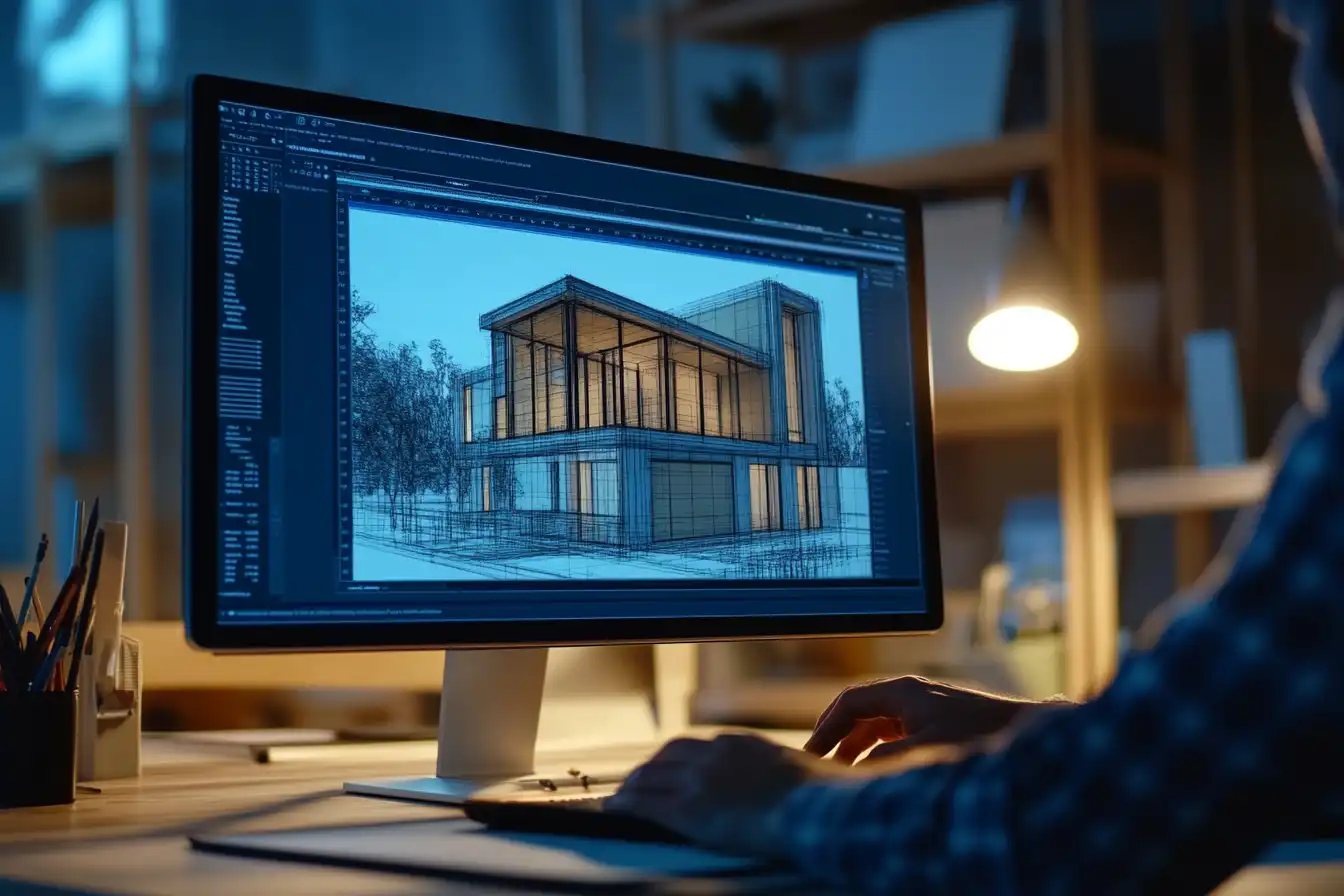
Compare the result to what you would typically produce with your traditional renderer. Note where the AI excelled (speed, atmosphere, overall composition) and where it fell short (material accuracy, structural details, consistency). That comparison will tell you exactly where AI rendering fits into your specific workflow.
The technology is evolving rapidly. Models are getting better at preserving input geometry, handling multi-view consistency, and producing higher-resolution outputs. Architects who learn the prompt-writing and iteration skills now will be positioned to take full advantage of each improvement as it arrives.
✅ Key Takeaways
- AI render architecture tools fall into three categories (general-purpose, architecture-specific SaaS, and plugin-based), and each serves different stages of the design process.
- Input quality drives output quality. Clean model exports with hidden annotations and well-framed perspectives consistently produce better AI renders than raw screenshots.
- Structured, layered prompts (building description, environment, mood, technical specs) outperform vague or generic text every time.
- Treat AI renders as starting points, not finished products. A rapid iteration workflow of low-res exploration followed by high-res refinement saves credits and produces better results.
- Hybrid workflows combining AI speed for early concepts with traditional rendering for final deliverables give architects the best of both approaches.
Frequently Asked Questions
Can AI fully replace traditional architectural rendering software?
Not yet. AI rendering excels at concept-stage visualization and rapid iteration, but it cannot match the dimensional accuracy, material consistency, and multi-view reliability of physically-based renderers like V-Ray or Corona. Most firms use AI as a complement to their existing rendering pipeline rather than a full replacement.
Is AI rendering free for architects?
Several platforms offer free tiers or trial credits. Tools like Midjourney and PromeAI provide limited free generations so you can test the output quality before subscribing. Paid plans typically range from $15 to $80 per month depending on resolution limits and generation volume.
What is the best AI tool for sketch-to-render conversion?
Architecture-specific platforms tend to handle sketch inputs better than general-purpose generators because they are trained to interpret architectural line work. Look for tools that let you control “fidelity” or “structure preservation” so the AI follows your sketch proportions rather than reinterpreting them freely.
How do I maintain consistency across multiple AI renders of the same project?
Use identical input images (same model, same camera angle) and copy-paste the same prompt for each generation. Some platforms offer seed values or style-lock features that reduce variation between runs. For projects requiring strict consistency, consider generating the base render with AI and then using traditional post-processing to unify materials and colors across views.
Do I own the commercial rights to AI-generated architectural renders?
Licensing terms vary by platform. Most paid subscription plans grant full commercial usage rights, meaning you can use the renders in client presentations, marketing, and publications. Free tier outputs may have restrictions. Always review the terms of service for the specific tool you are using before including AI renders in commercial deliverables.
AI-generated rendering results may vary depending on prompt specificity, input image quality, and platform capabilities. Outputs should be reviewed for structural accuracy before client presentations.