SketchUp AI rendering is changing how architects and designers present their work. Instead of waiting hours for a ray-traced render to finish, you can now upload a SketchUp scene image to an AI rendering platform and get a photorealistic result in under a minute. This guide covers the full workflow, compares leading tools, and shows where AI fits into a professional SketchUp visualization workflow.
SketchUp AI rendering uses artificial intelligence tools to convert SketchUp models or exported scene images into photorealistic architectural renders. Instead of running a time-consuming render inside SketchUp using plugins like V-Ray or Enscape, designers export a screenshot or image and process it through an AI rendering platform to get a finished visual in seconds.
What Is SketchUp AI Rendering?
Traditional SketchUp rendering software works by simulating how light interacts with surfaces, calculating reflections, shadows, and material properties pixel by pixel. This process is computationally intensive and can take anywhere from minutes to several hours depending on scene complexity and hardware. AI rendering takes a fundamentally different approach.
Instead of simulating physics, AI rendering tools use machine learning models trained on large datasets of architectural photography and professionally rendered images. These models learn to recognize spatial relationships, material types, and lighting conditions from a source image. When you feed them a SketchUp export, they apply this learned knowledge to generate a plausible photorealistic version of the scene.
The key distinction is that AI rendering does not replace your 3D model. It uses the model’s geometry and composition as a reference to create a realistic image. The underlying SketchUp file stays intact and can be updated at any stage of the design process.
How to Render a SketchUp Model with AI
The process of using a SketchUp render tool powered by AI involves three main steps. Each step has its own considerations that affect the quality of your final output.
Exporting a Scene from SketchUp
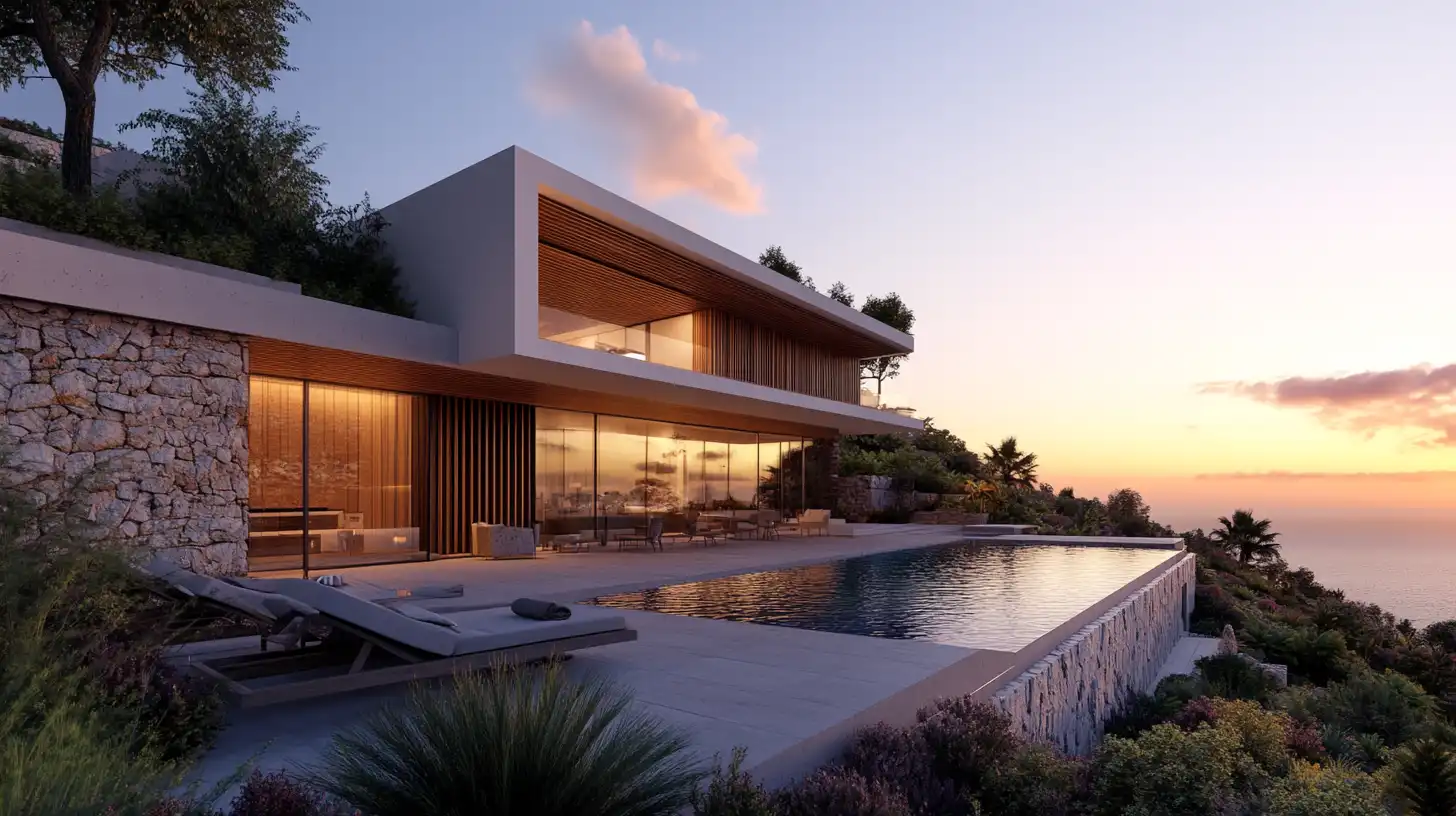
The starting point is a clean export from your SketchUp model. Set up your camera angle carefully before exporting, since the AI tool will interpret the spatial geometry directly from the image. Frame the shot as you would a real architectural photograph, giving attention to horizon line placement and the relationship between foreground and background elements.
Export the image at the highest resolution your screen allows, or use SketchUp’s built-in export function under File > Export > 2D Graphic. A resolution of at least 1920 x 1080 pixels gives the AI model enough detail to generate a high-quality result. Lower resolution exports often produce blurry edges or incorrect material interpretations.
Pro Tip
When exporting a SketchUp scene for AI rendering, use a standard perspective view rather than a parallel projection or a two-point perspective. A clean standard perspective export gives the AI the most accurate spatial information to work with.
Uploading to an AI Rendering Platform
Once you have your export, upload it to an AI rendering platform such as ArchFine. Most platforms follow a similar interface: you upload the image, optionally add a text prompt describing the style or materials you want, and submit the job. Processing time on modern AI platforms typically runs between 20 and 60 seconds per image.
Some platforms allow batch uploads, which is useful when presenting multiple design options to a client or exploring different facade treatments for the same building.
Applying Materials, Lighting, and Style
Most AI rendering platforms let you influence the final output through prompts or style selectors. You can specify materials like exposed concrete, brick, timber cladding, or glass curtain wall. Lighting direction and time of day are also adjustable. Some tools offer architectural style presets such as Scandinavian minimalist, industrial, or Mediterranean, which affect the texture palette and atmosphere of the output.
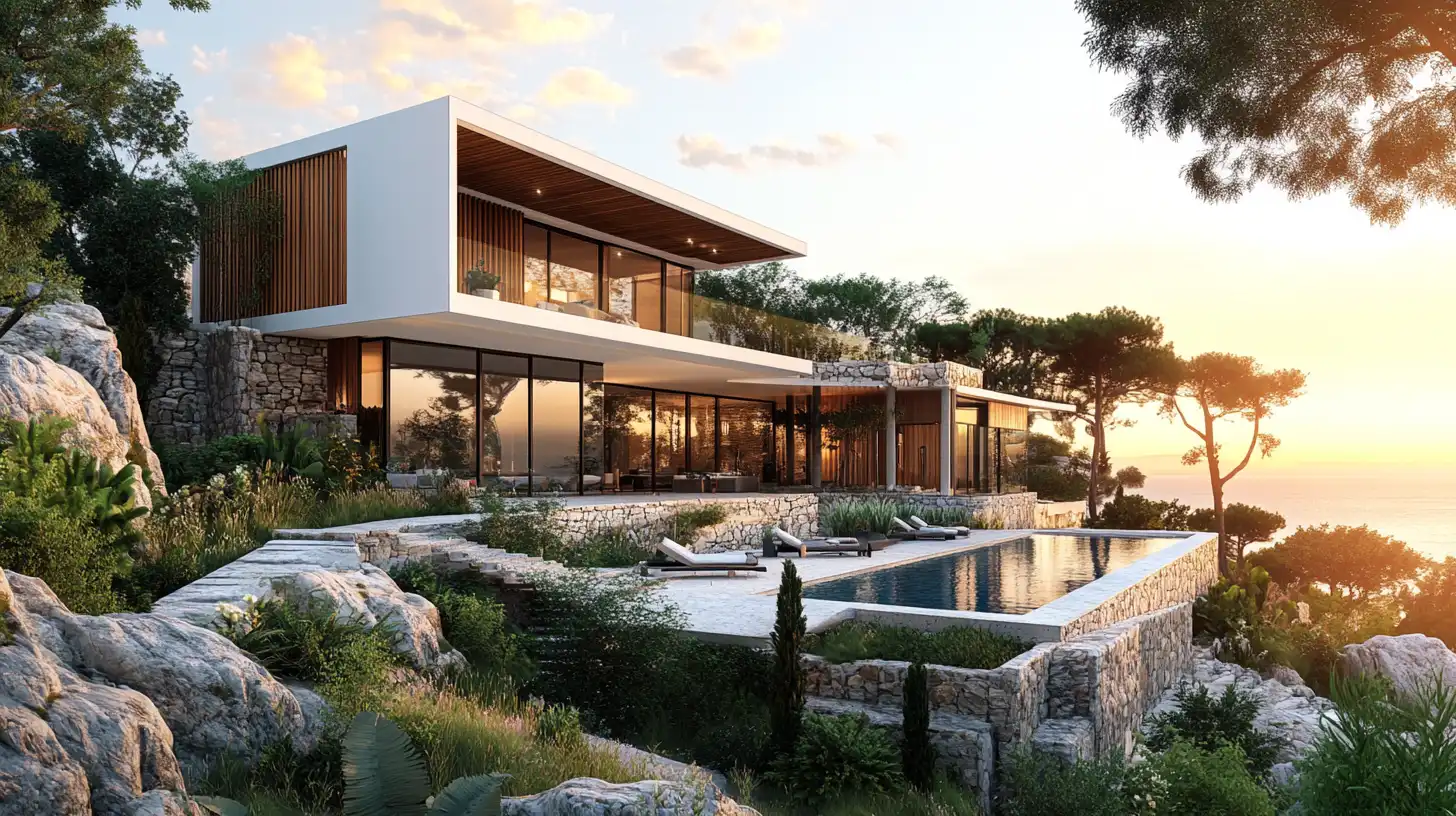
For best results, keep your prompts specific. Rather than writing “modern house,” write “contemporary residential exterior, white render facade, wood cladding accents, late afternoon sunlight, suburban setting.” Specific prompts give the AI model more signal to work with and produce more consistent outputs across iterations.
Common Mistake to Avoid
Many SketchUp users export renders with the default white background active. AI rendering platforms struggle to distinguish the building from the background when both are white, which leads to washed-out edges in the output. Exporting with a contrasting sky or neutral gray background makes edge detection significantly more accurate.
Best SketchUp Render Tools and AI Alternatives
The best render plugin for SketchUp depends heavily on what stage of the design process you are in and what the output is for. Here is a comparison of the main rendering options available to SketchUp users.
| Tool | Render Type | Speed | Learning Curve | Cost | Best For |
|---|---|---|---|---|---|
| V-Ray for SketchUp | Ray-trace | Slow | High | High (~$540/yr) | Final presentation |
| Enscape | Real-time | Fast | Low | Medium | Design review |
| Lumion | Real-time | Fast | Low | High | Animation & stills |
| ArchFine (AI) | AI-based | Very fast | Very low | Low / SaaS | Concept & marketing |
| SketchUp native | Basic | Very fast | Low | Included | Quick diagrams |
Did You Know?
SketchUp was originally developed by @Last Software and acquired by Google in 2006 before being sold to Trimble in 2012. Despite its age, it remains one of the most widely used architectural modeling tools globally, with over 40 million users reported by Trimble as of 2023. You can read more about its history on Wikipedia.
How ArchFine Works with SketchUp Outputs
ArchFine is a chat-based AI rendering platform designed for architects, interior designers, and visualization professionals. The workflow is straightforward: you upload an image from your SketchUp model, add an optional text prompt describing the style or materials you want, and receive a photorealistic result in approximately 30 seconds.
The platform does not require any plugins, license keys, or software installation. It runs entirely in a web browser, which means it works on any operating system and does not require a high-end GPU on the user’s machine. This makes the ArchFine SketchUp render workflow particularly useful for teams working on multiple projects simultaneously, where render queue times on local workstations become a bottleneck.
ArchFine accepts standard image formats including JPG and PNG, which covers any file you can export directly from SketchUp. If you are working on an exterior, upload a perspective view of the facade. For interiors, a camera position from within the model at eye level tends to produce the most realistic results. The AI model interprets depth, shadow direction, and material surfaces from the pixel information in the uploaded image.
One practical advantage of using an AI-based platform as a SketchUp render alternative is the iteration speed. Designers can test five or six different material schemes on the same model in the time it would take V-Ray to complete a single high-quality render. This is especially valuable during client presentation stages, when multiple options need to be on the table quickly.
Common Rendering Challenges in SketchUp and How AI Solves Them
Most architects who use SketchUp for modeling encounter the same set of problems when it comes to visualization. Understanding these challenges clarifies why AI tools are gaining adoption as part of the standard SketchUp visualization workflow.
The first and most common issue is render time. Even with a capable workstation, a detailed exterior scene in V-Ray can take 30 to 90 minutes to complete at presentation resolution. For projects with multiple views or iterative design reviews, this adds up to days of machine time. AI rendering eliminates this entirely by processing images on remote servers in seconds.
The second challenge is the learning curve associated with traditional render engines. Setting up V-Ray correctly requires understanding physical light units, HDR environment maps, material node editors, and camera exposure settings. This knowledge takes time to acquire and maintain. AI tools require no technical rendering knowledge to operate. You describe what you want in plain language, and the model interprets it.
The third challenge is hardware dependency. High-quality GPU rendering requires a dedicated graphics card, which is expensive and not available on all workstations or laptops. Cloud-based AI platforms remove this hardware dependency entirely. A designer working on a laptop without a dedicated GPU can produce the same quality output as someone on a render workstation, since all processing happens on the platform’s servers.
SketchUp AI Rendering vs. Built-In Rendering Engines
SketchUp includes a basic rendering capability through its native Style engine, which produces clean line-based views useful for early-stage diagrams and schematic presentations. However, it does not produce photorealistic output. Shadows are calculated, but there is no ray tracing, no physical material response, and no realistic lighting simulation.
For teams that need to go beyond diagrams, the choice has traditionally been between installing a render plugin like V-Ray or Enscape or exporting the model to a standalone rendering environment like Lumion. Both approaches require additional software licenses, hardware investment, and time spent learning the rendering tool.
AI rendering introduces a third option that sits between quick diagrams and full ray-trace renders. It is not a replacement for final presentation renders that require precise material accuracy and controlled lighting setups. However, for concept approval stages, marketing materials, and early client presentations, the speed and accessibility of fast rendering for SketchUp through AI platforms makes a compelling case for integration into the design workflow.
The most practical approach for most firms is a hybrid one: use AI rendering for concept and intermediate stages, where speed and volume matter, and reserve traditional ray-trace rendering for final deliverables that require maximum photorealism and material precision. This combination keeps the overall visualization budget and time investment proportional to the project stage.
Key Takeaways
- SketchUp AI rendering converts exported model images into photorealistic visuals using machine learning, without requiring any render plugins or high-end hardware.
- The workflow involves three steps: exporting a clean scene image from SketchUp, uploading it to an AI rendering platform, and optionally adding a text prompt to guide materials and style.
- Using standard perspective view (not two-point perspective) and a contrasting background on export significantly improves AI rendering quality.
- AI rendering tools like ArchFine process images in approximately 30 seconds, compared to 30 to 90 minutes for a comparable V-Ray output.
- AI rendering is not a direct replacement for ray-trace rendering in all contexts. It is most effective for concept approval, client presentations, and marketing visuals where iteration speed matters more than material precision.
- V-Ray for SketchUp starts at approximately $540 per year; AI-based SaaS platforms like ArchFine offer a lower cost entry point with no hardware requirements.
- A hybrid workflow combining AI rendering for early stages and ray-trace rendering for final deliverables is a practical approach for most architecture firms.