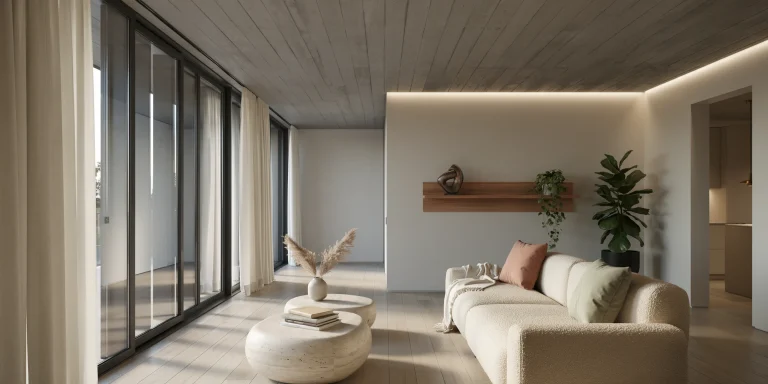
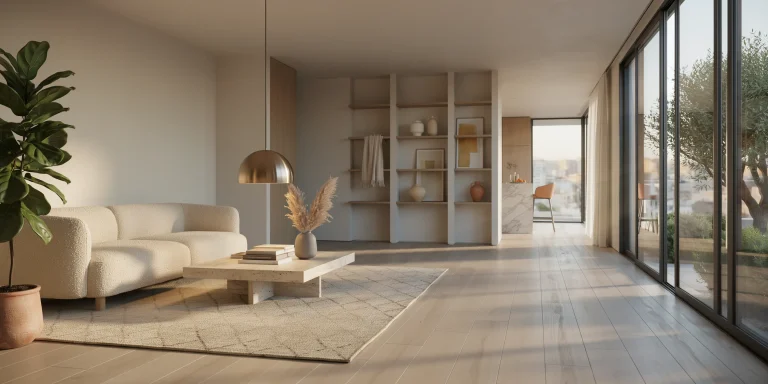
Enscape for SketchUp is a real-time rendering plugin that links directly to your SketchUp model, so any change you make to geometry, materials, or lighting appears instantly in a live render window. It runs on your GPU, supports SketchUp 2024 through 2026, and lets architects produce photorealistic stills, panoramas, and walkthrough videos without exporting to a separate engine.
For SketchUp users who want presentation-ready visuals without leaving their modeling environment, Enscape for SketchUp removes most of the friction. This guide walks through installation, the live link, the material editor, lighting, asset placement, and export settings, with the exact toolbar actions and shortcuts you will use day to day. The goal is a repeatable workflow that turns a working model into a finished image in minutes.
What is Enscape for SketchUp?
Enscape for SketchUp is a real time rendering plugin developed by Chaos that connects to SketchUp through a live link. As you orbit, draw, or repaint surfaces in SketchUp, the Enscape window updates the rendered scene at the same time. It uses GPU ray tracing rather than CPU rendering, which is why almost all the visual quality depends on your graphics card.
Enscape supports Revit, Rhino, Archicad, and Vectorworks as well, but the SketchUp integration is among the most popular because of how lightweight the modeling app is. The result is a fast feedback loop: model, see, adjust. If you already work in a sketch-to-image flow, compare it with a browser based approach in our guide to SketchUp AI rendering.
📌 Did You Know?
Enscape performs nearly all of its rendering calculations on the GPU, not the CPU. According to Chaos documentation, integrated Intel graphics with shared memory are not supported because Enscape requires dedicated VRAM to run its real-time ray tracing.
System Requirements and Installation
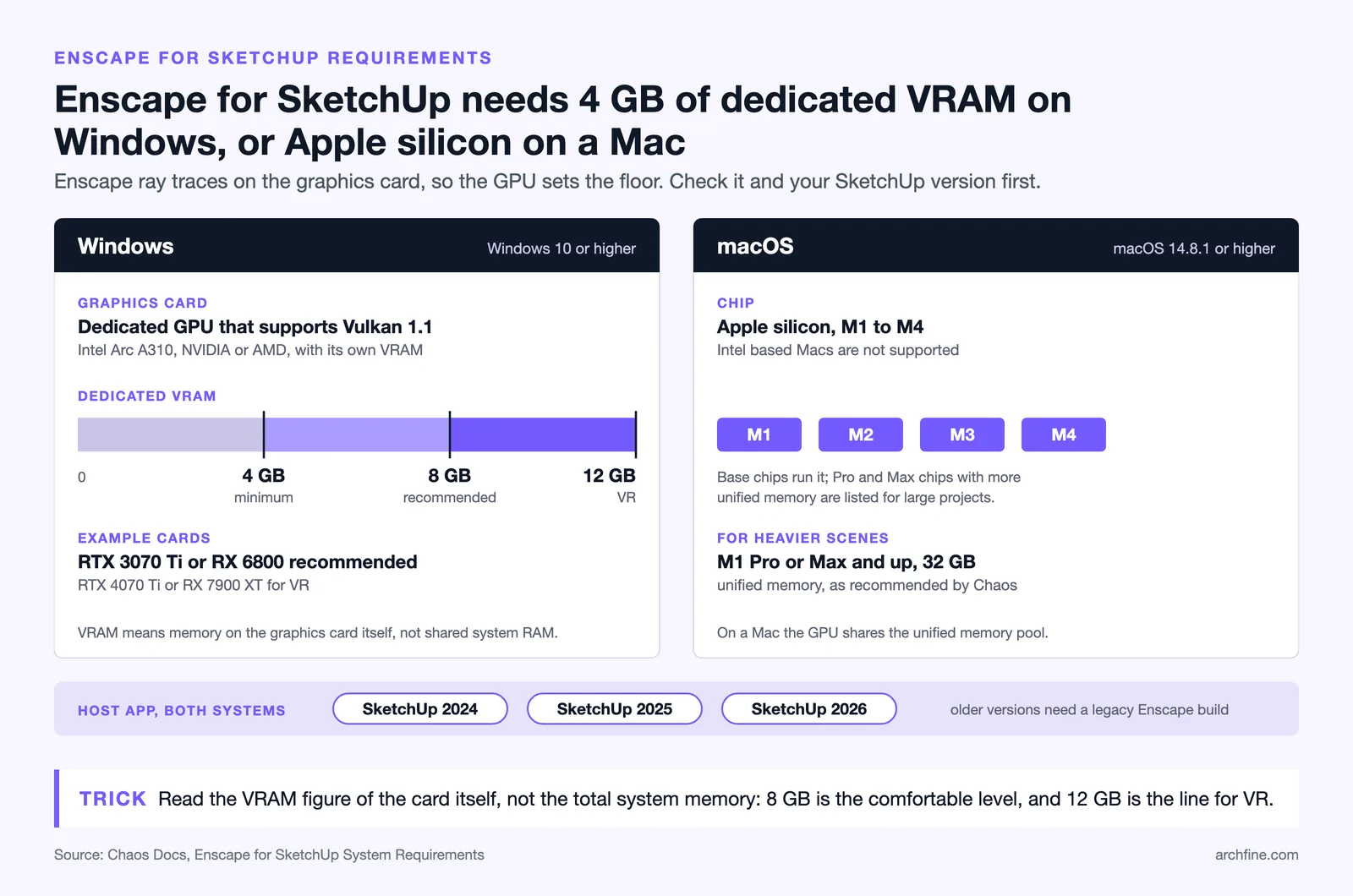
Before installing, confirm your machine meets the Enscape SketchUp plugin requirements. On Windows you need at least an Intel Arc A310, NVIDIA, or AMD dedicated GPU with 4GB of VRAM supporting Vulkan 1.1, and 8GB of VRAM is recommended for comfortable work. On macOS, Enscape requires Apple silicon (M1 through M4) and macOS 14.8.1 or higher. Enscape supports SketchUp 2024, 2025, and 2026.
📐 Technical Note
The VRAM figure that matters is dedicated graphics memory, not shared system RAM. A laptop reporting 16GB “graphics memory” through Intel integrated graphics will not run Enscape, because that pool is shared with the system. Look for a discrete NVIDIA or AMD GPU with its own VRAM, or Apple silicon with unified memory.
To install the plugin, follow these steps:
- Download the Enscape installer from the Chaos website, or use the link sent to you after starting a trial, applying for an educational license, or purchasing a license.
- Close SketchUp completely before running the installer.
- Run the installer and follow the on-screen instructions.
- Reopen SketchUp. The Enscape toolbar appears, and the controls are also available under Extensions > Enscape.
- Sign in with your Chaos account or activate your trial to unlock rendering.
How do you start a live render in Enscape?
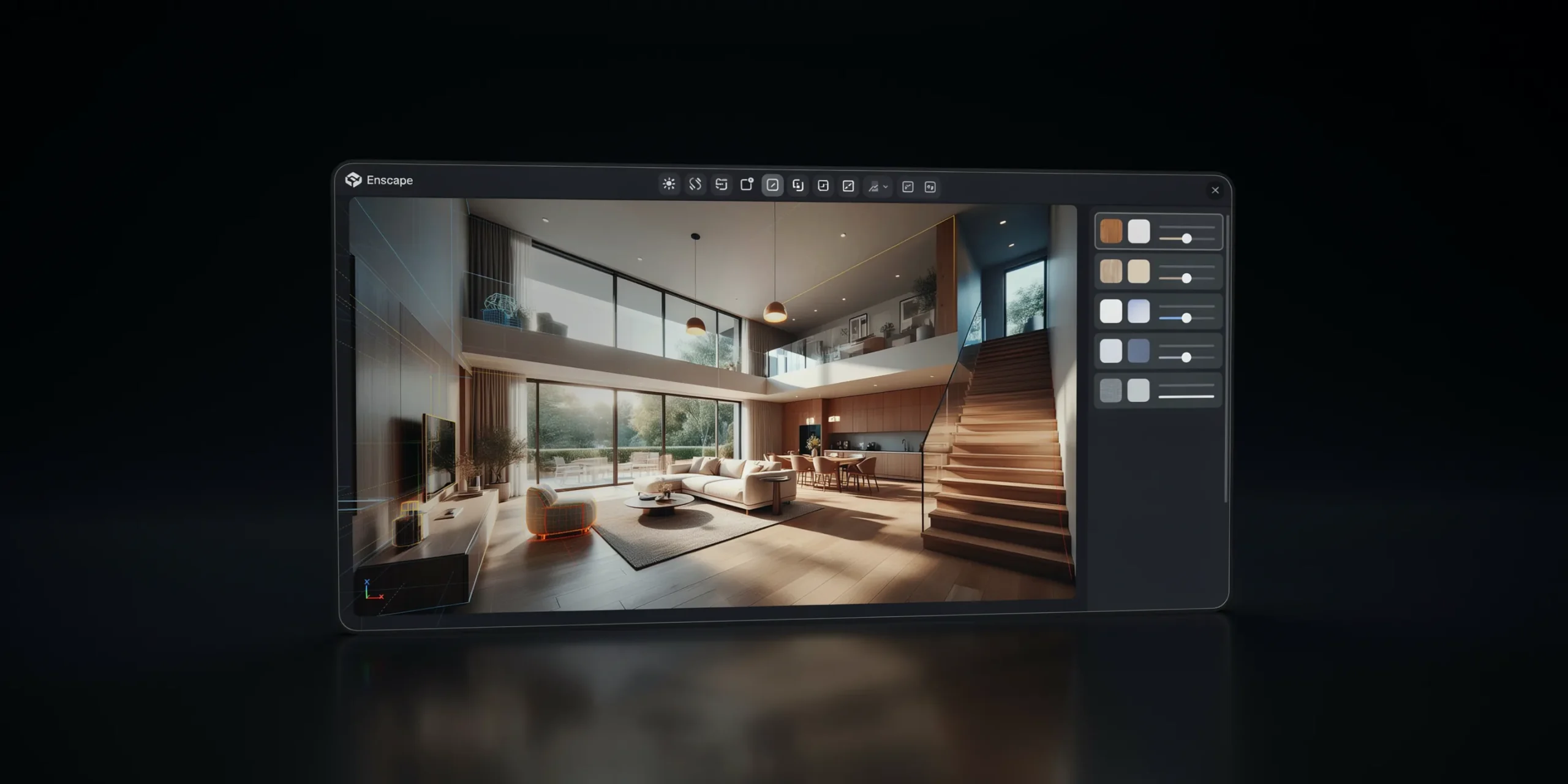
To start a live render, open your SketchUp project and click Start Enscape on the Enscape toolbar, or go to Extensions > Enscape > Start Enscape. Enscape opens a separate window and renders your scene automatically. Enable Live Updates to push model changes through instantly, and turn on Synchronized Views to keep the SketchUp camera and the Enscape camera matched.
This live link is the heart of the Enscape workflow. With Synchronized Views active, you can frame a shot inside SketchUp and see it composed in the render window at the same time. Navigation inside the Enscape window uses simple keys: W and S move forward and backward, A and D strafe left and right, and pressing H or the question mark opens the help menu.
💡 Pro Tip
Keep the Enscape window on a second monitor with Live Updates on while you model. Watching reflections and shadows update as you place a wall or change a material is the fastest way to catch composition problems before you commit to a final render, and it saves you from constant restart cycles.
Working With the Enscape Material Editor
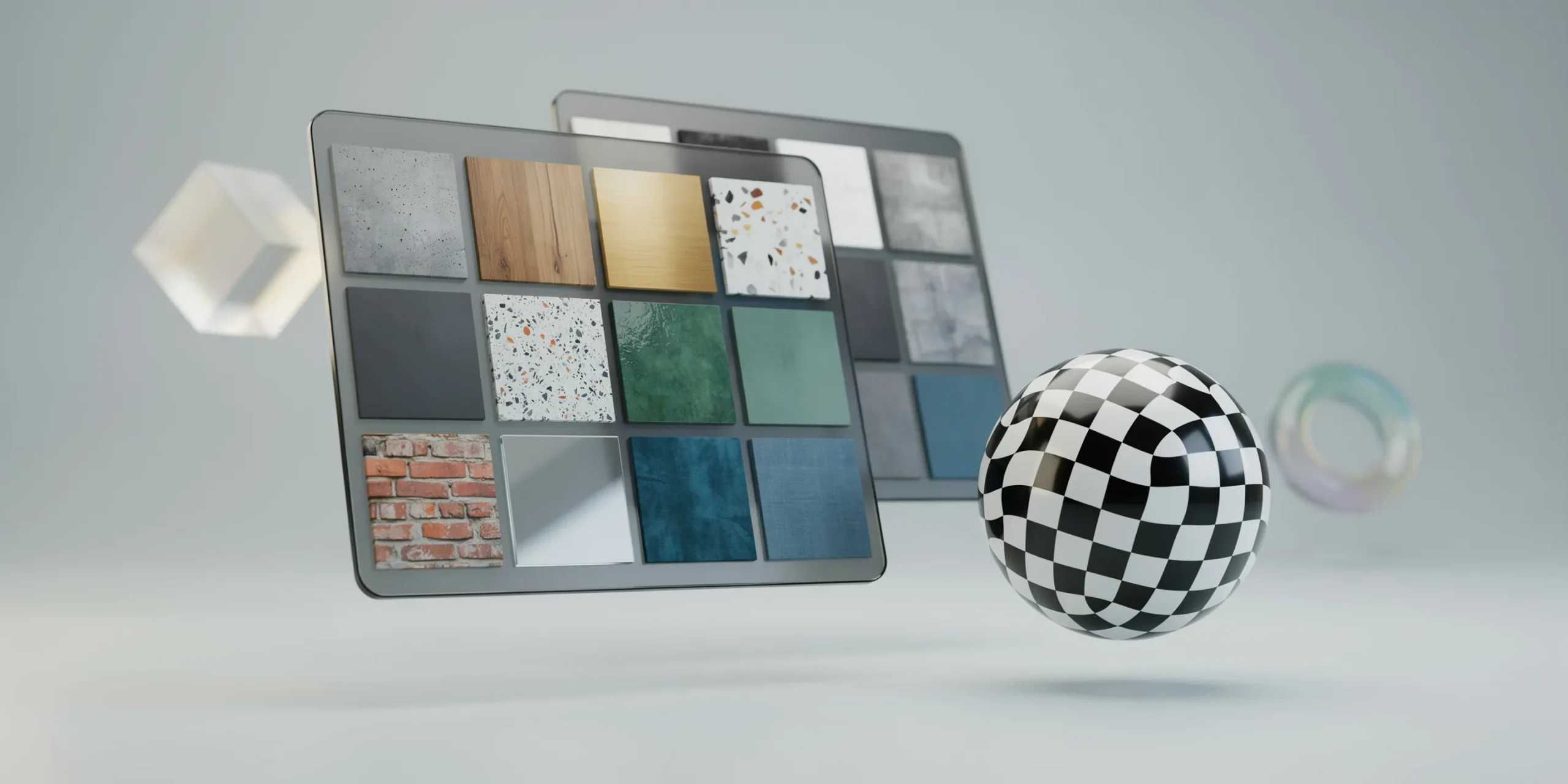
Open the Enscape Material Editor from the checkered sphere icon on the toolbar, or from Extensions > Enscape > Enscape Material Editor. The editor reads the materials already applied in SketchUp and lets you upgrade them with properties a flat SketchUp paint cannot hold: reflection and roughness, bump, normal, and displacement maps under the height controls, and texture imports from the material library.
- Albedo and color: set the base color or load a texture for the surface.
- Reflections: control how glossy or matte the surface reads, essential for glass, metal, and polished floors.
- Height: add bump, normal, or displacement maps to give brick, timber, or fabric real depth.
- Replace across objects: update a material once and apply it to every object that shares it.
⚠️ Common Mistake to Avoid
Do not leave default SketchUp materials untouched and expect realism. A plain colored face with no reflection or height map renders as flat plastic in Enscape. Assign distinct materials in SketchUp first, then refine each one in the Enscape Material Editor so reflections and surface texture read correctly.
Placing Assets and Setting Up Lighting
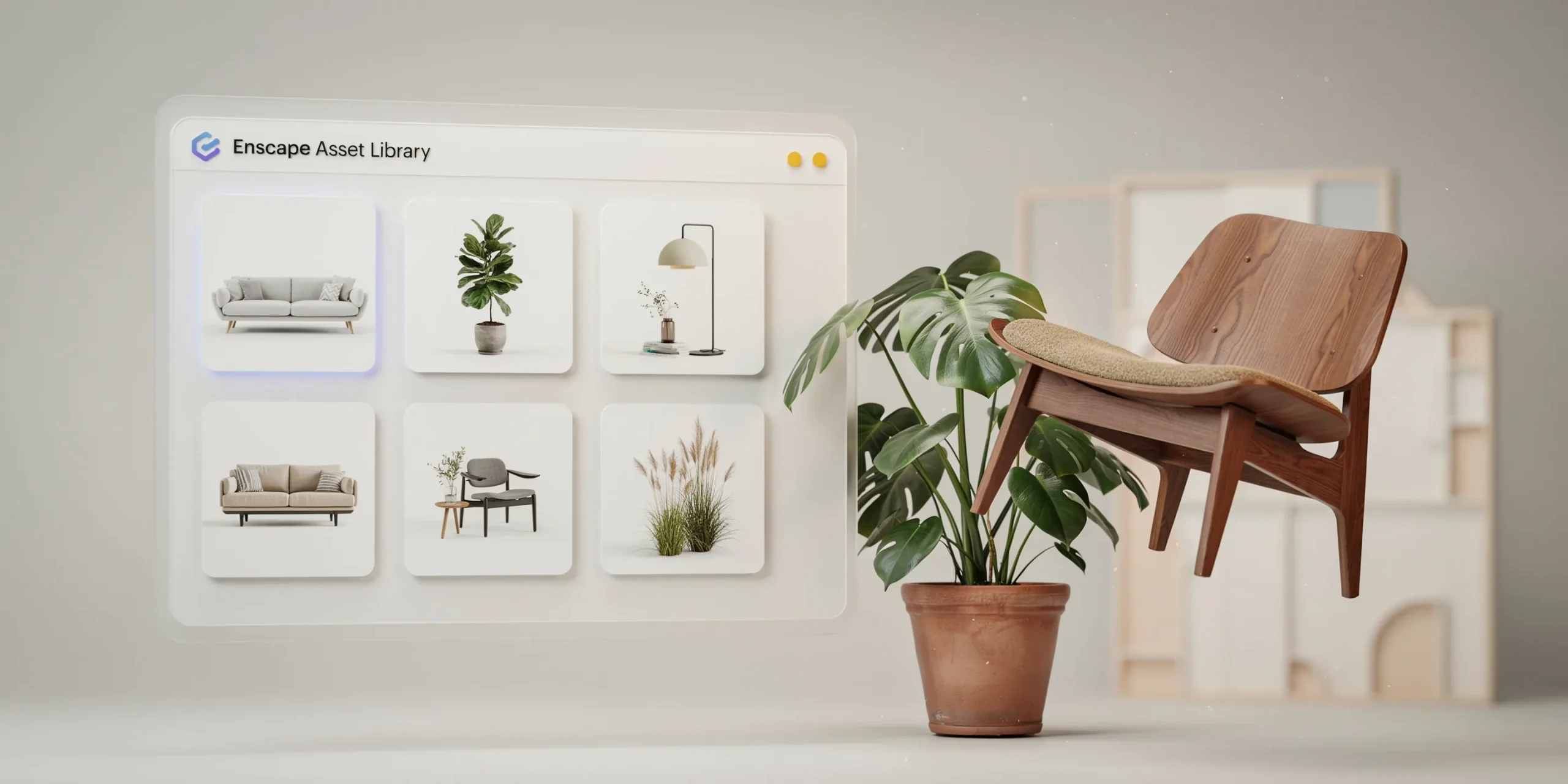
The Enscape Asset Library
Open the Asset Library from the tree icon on the Enscape toolbar to browse thousands of optimized models from Chaos Cosmos, including furniture, vegetation, people, and vehicles. Click an asset to place it directly in your scene. Adjustable assets offer variants, and the multi-asset placement tool distributes and randomizes multiple objects at once, which is ideal for scattering trees or seating. You can also import custom assets in OBJ, FBX, or GLTF format.
Sun, sky, and visual settings
Lighting lives in the Visual Settings panel. From there you adjust sun brightness, night sky brightness, shadow sharpness, atmosphere, and even wind intensity for animated vegetation. Use View Management to create named views that store a camera angle, a sun position, and a linked Visual Settings preset together, so you can return to any setup by pressing 0 on the numpad. Saving presets keeps a consistent look across an entire project set.
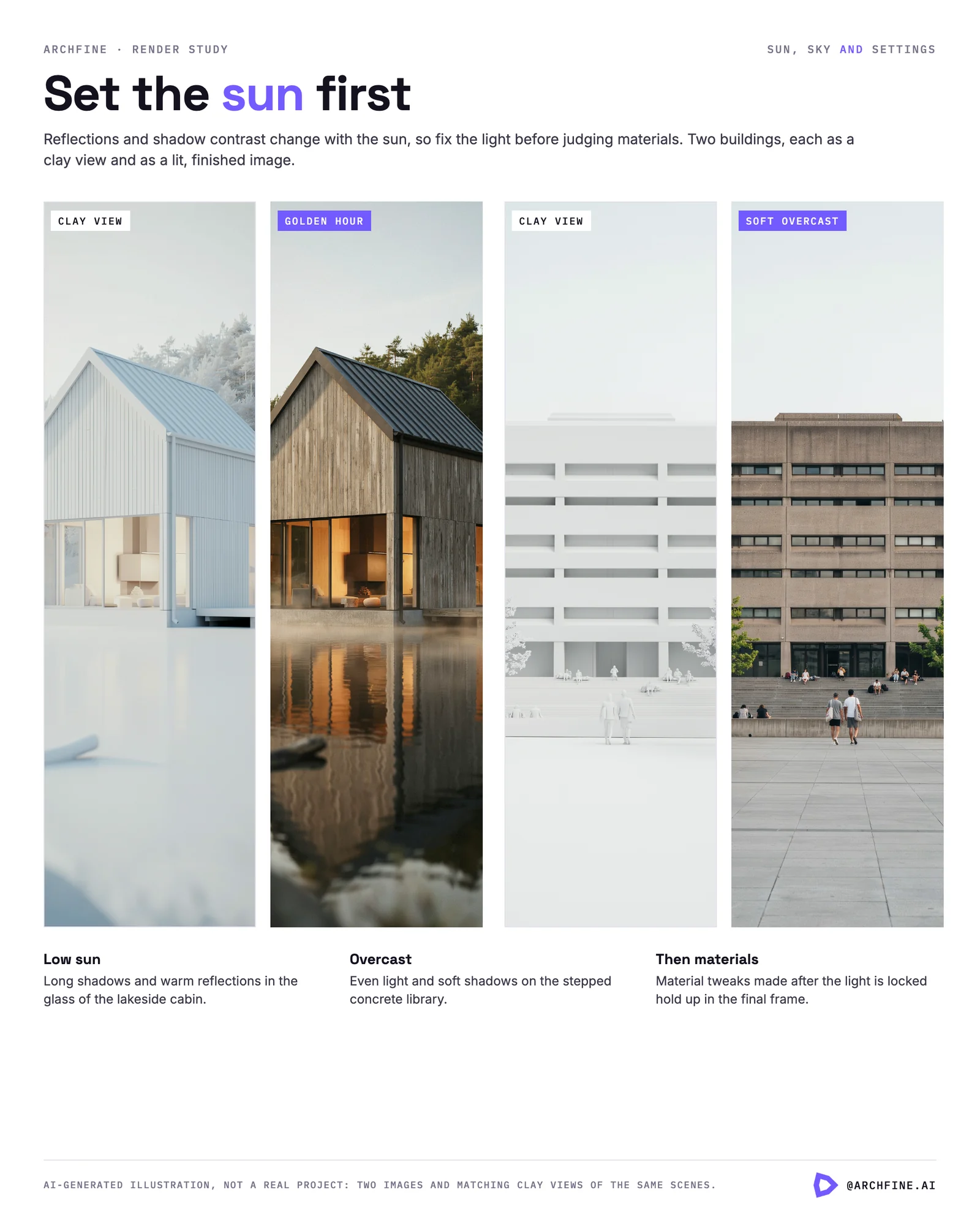
💡 Pro Tip
Set your sun position before you fine-tune materials. Reflections and shadow contrast change dramatically with sun angle, so locking in a low morning or late afternoon sun first means the material tweaks you make afterward will hold up in the final frame instead of looking off once the light shifts.
Once your scene reads well, it helps to know what separates a presentation image from a flat one. Our breakdown of what makes a great architectural render covers lighting, composition, and context in more depth.
Exporting Images, Panoramas, and Video
Enscape exports in four main directions: still images, panoramas, walkthrough video, and Web Standalone. For a single still, frame your shot and click the screenshot button, then choose a save location. For several images at once, create at least one View and use Batch Rendering to output them all in one pass.
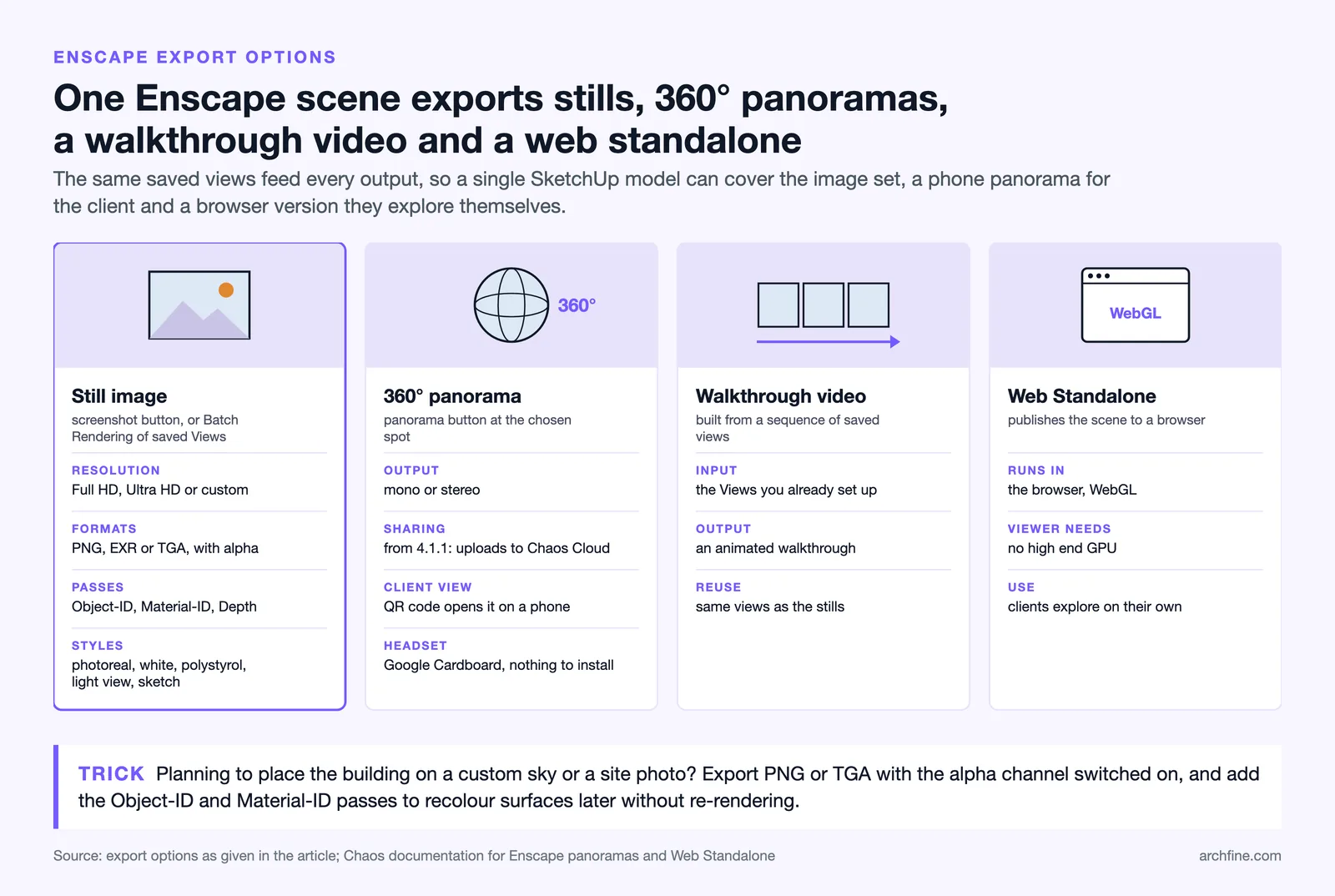
- Resolution: choose Full HD, Ultra HD, or a custom size depending on the deliverable.
- File formats: export PNG, EXR, or TGA, including an alpha channel for transparent backgrounds.
- Render styles: switch between photorealistic output and white mode, polystyrol, light view, or sketch styles for concept presentations.
- Post-processing passes: output Object-ID, Material-ID, and Depth channels for compositing.
For panoramas, navigate to the spot you want, click the panorama button, and choose mono or stereo output. From Enscape 4.1.1 onward, panoramas upload to your Chaos Cloud account and generate a QR code so clients can view the space on a phone. Video export turns a sequence of saved views into a walkthrough, and the Web Standalone option publishes a browser-based WebGL experience that does not require a high-end GPU to view.
📐 Technical Note
When you need a transparent background to drop your building onto a custom sky or site photo, export as PNG or TGA with the alpha channel enabled. The Object-ID and Material-ID passes let you mask and recolor specific surfaces later in Photoshop without re-rendering the whole frame.
A Repeatable Enscape SketchUp Workflow
Tying the pieces together, a reliable Enscape workflow follows the same order each time. This sequence keeps you from redoing work and makes results consistent across a project.
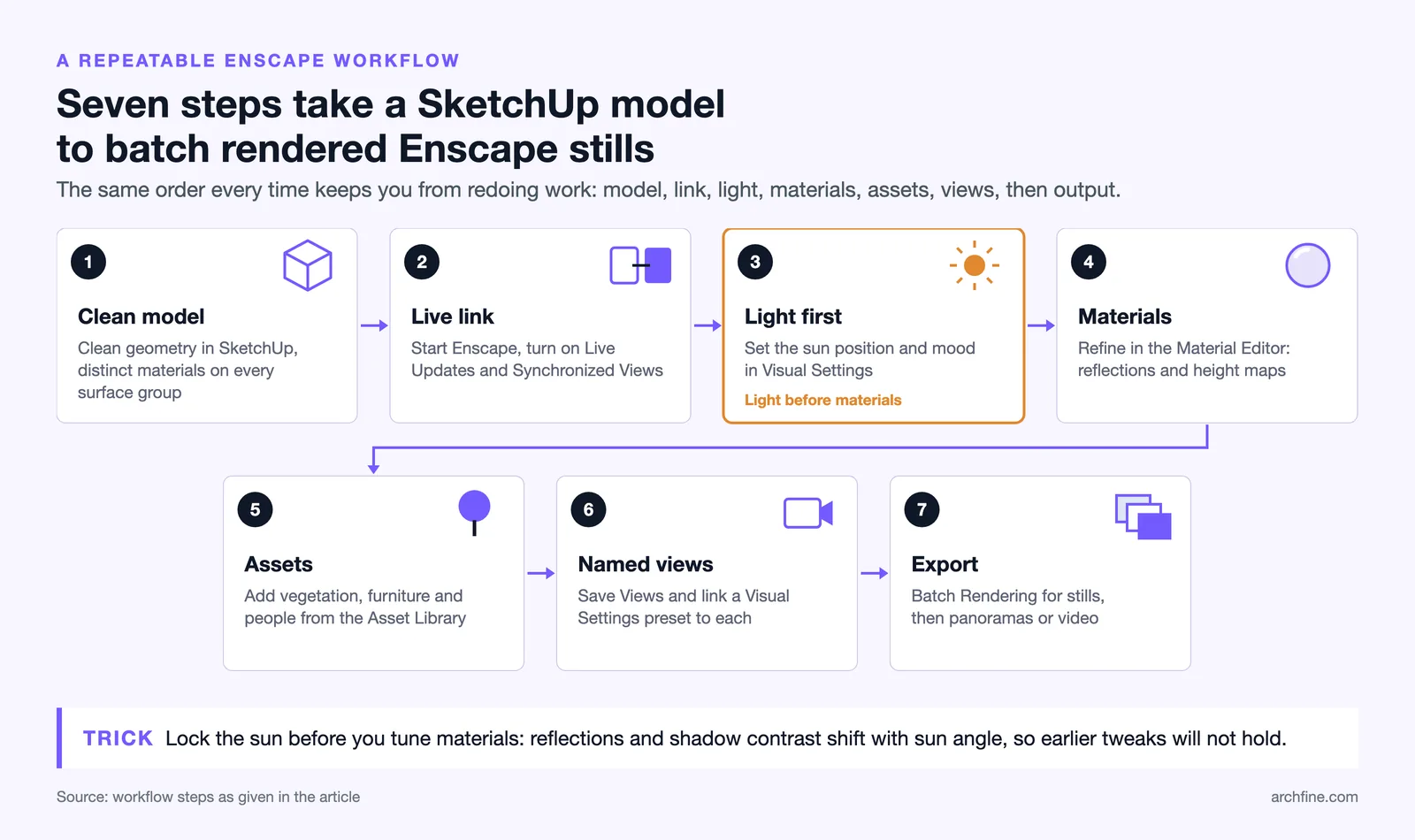
- Build clean geometry in SketchUp and assign distinct materials to every surface group.
- Start Enscape and enable Live Updates and Synchronized Views.
- Set the sun position and establish the overall mood in Visual Settings.
- Refine materials in the Enscape Material Editor, adding reflections and height maps.
- Populate the scene from the Asset Library with vegetation, furniture, and people.
- Frame and save named Views, linking a Visual Settings preset to each.
- Export stills with Batch Rendering, then add panoramas or a walkthrough video as needed.
For deeper context on rendering platforms and how plugin and AI approaches fit together, see our practical guide to using AI to render architecture and explore more tutorials in the architectural visualization tutorials category.
Frequently Asked Questions
Does Enscape for SketchUp work on Mac?
Yes. Enscape for SketchUp runs on macOS 14.8.1 or higher with Apple silicon chips (M1 through M4). For heavier scenes, Chaos recommends an M1 Pro or Max and higher with 32GB of unified memory. Intel-based Macs and integrated graphics are not supported.
Which SketchUp versions does Enscape support?
The current Enscape release supports SketchUp 2024, 2025, and 2026 on both Windows and macOS. If you run an older SketchUp version, you will need to update it or install a matching legacy Enscape build to keep the plugin working.
Do I need a powerful GPU to use Enscape?
You need a dedicated GPU because Enscape ray traces in real time. The Windows minimum is a 4GB VRAM card supporting Vulkan 1.1, while 8GB is recommended. VR work pushes that higher, to a 12GB card such as an RTX 4070 Ti. Shared integrated graphics memory does not qualify.
Can Enscape export 360 panoramas for clients?
Yes. Click the panorama button, choose mono or stereo, and Enscape renders a 360 view. From version 4.1.1 onward these upload to your Chaos Cloud account and produce a QR code, so clients can open the panorama on a phone or in a Google Cardboard headset without installing anything.
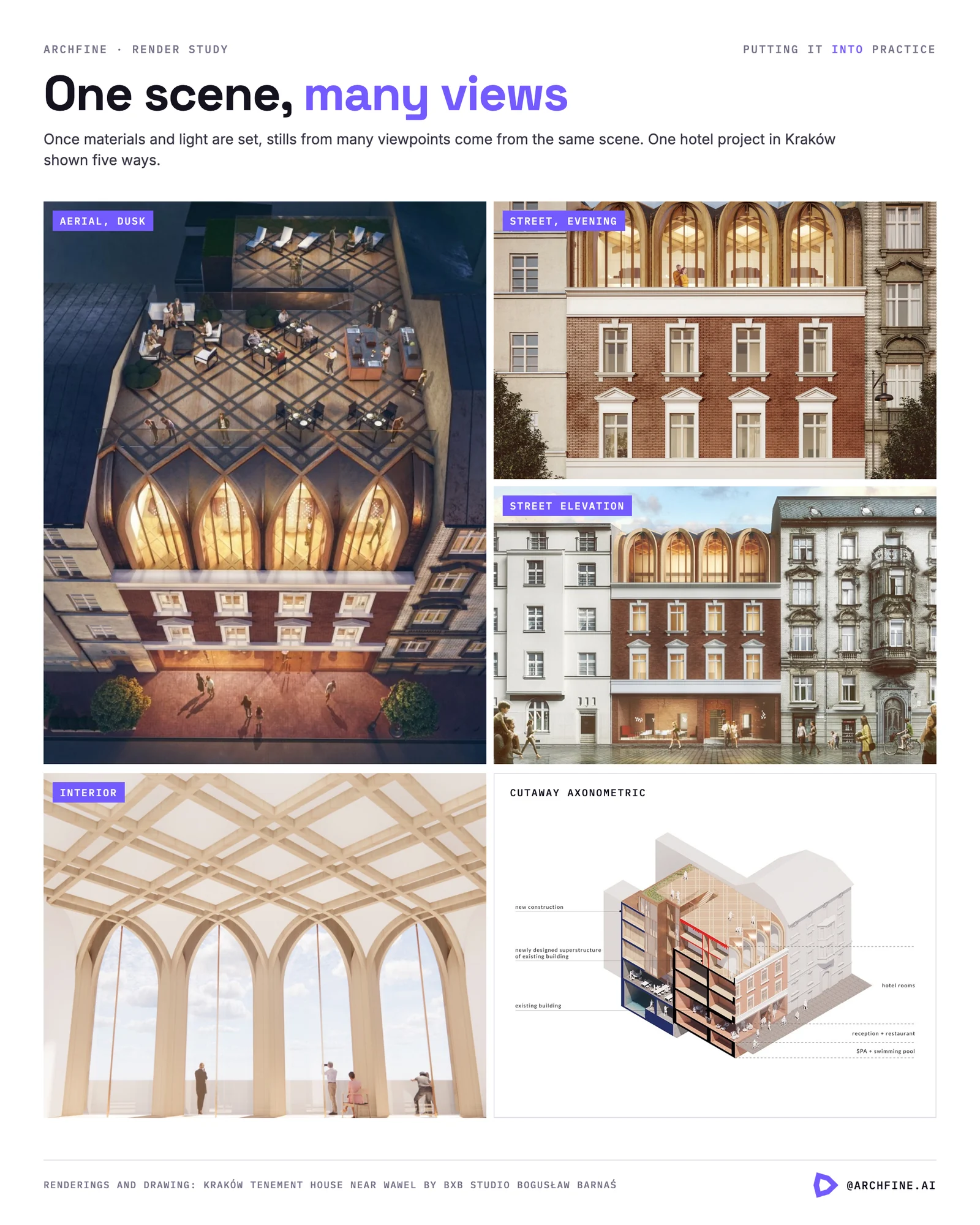
Putting It Into Practice
The strength of Enscape for SketchUp is the live link that turns modeling and rendering into one continuous loop instead of two separate stages. Once you have a verified GPU, a clean material setup, a deliberate sun position, and a small set of saved Views, you can produce stills, panoramas, and walkthroughs from the same scene in a single sitting. Start with one interior shot, refine its materials and lighting, and reuse those settings as the backbone for every other view in the project.