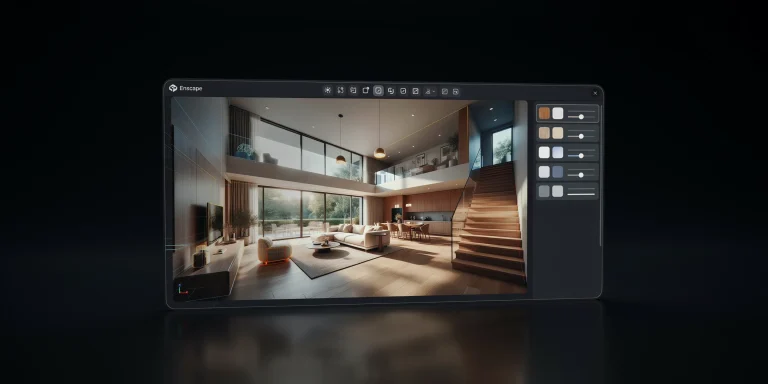
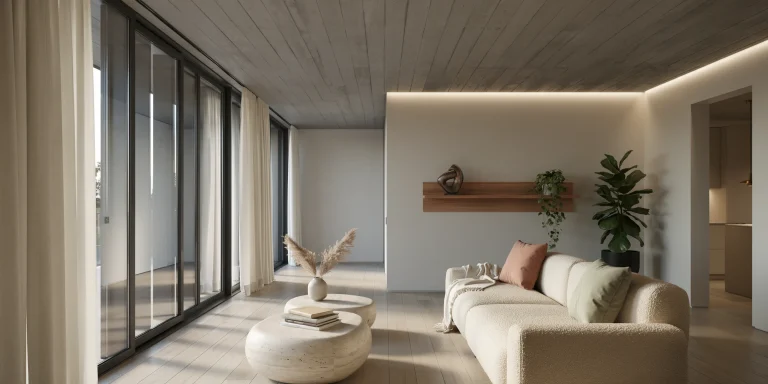
D5 Render is a real-time, GPU-based rendering engine built for architecture, using DirectX Raytracing to produce photorealistic interior and exterior visuals as you adjust materials, lighting, and cameras. It runs on a ray-tracing GPU such as an RTX 3060, ships with AI denoising and an asset library, and offers a free Community tier.
If you have spent years exporting models to slow CPU renderers and waiting overnight for a single frame, D5 Render changes the rhythm of your work. The viewport you see is close to the frame you ship. This guide walks through the hardware D5 needs, the settings that actually move the needle on quality, separate workflows for interiors and exteriors, and how the engine compares to Lumion so you can decide where it fits in your pipeline.
What is D5 Render and how does it work?

D5 Render is a standalone visualization application from Dimension5 that connects to design tools through live sync plugins for SketchUp, Revit, Rhino, ArchiCAD, 3ds Max, Blender, and Cinema 4D. Instead of baking lighting in a separate pass, it uses real-time path tracing where light physically bounces around the scene, casting soft shadows and picking up color from nearby surfaces the moment you move a camera or change a material.
The core technology is built on DirectX Raytracing (DXR), the same hardware acceleration layer Windows has supported since version 1809. Because the engine talks directly to modern GPU ray-tracing cores, it avoids the overhead of older rendering pipelines. For a broader look at how AI and real-time tools are reshaping the field, our overview of how to use AI to render architecture sets the wider context for where D5 sits.
📌 Did You Know?
D5 Render uses smart asset streaming rather than loading the full scene into memory at once. According to D5 Render, this lets the engine run smoothly on a mid-range RTX 3060 and stay functional even on an older RTX 2060, because VRAM overhead is reduced compared with traditional full-scene loading methods.
What are the D5 Render system requirements?
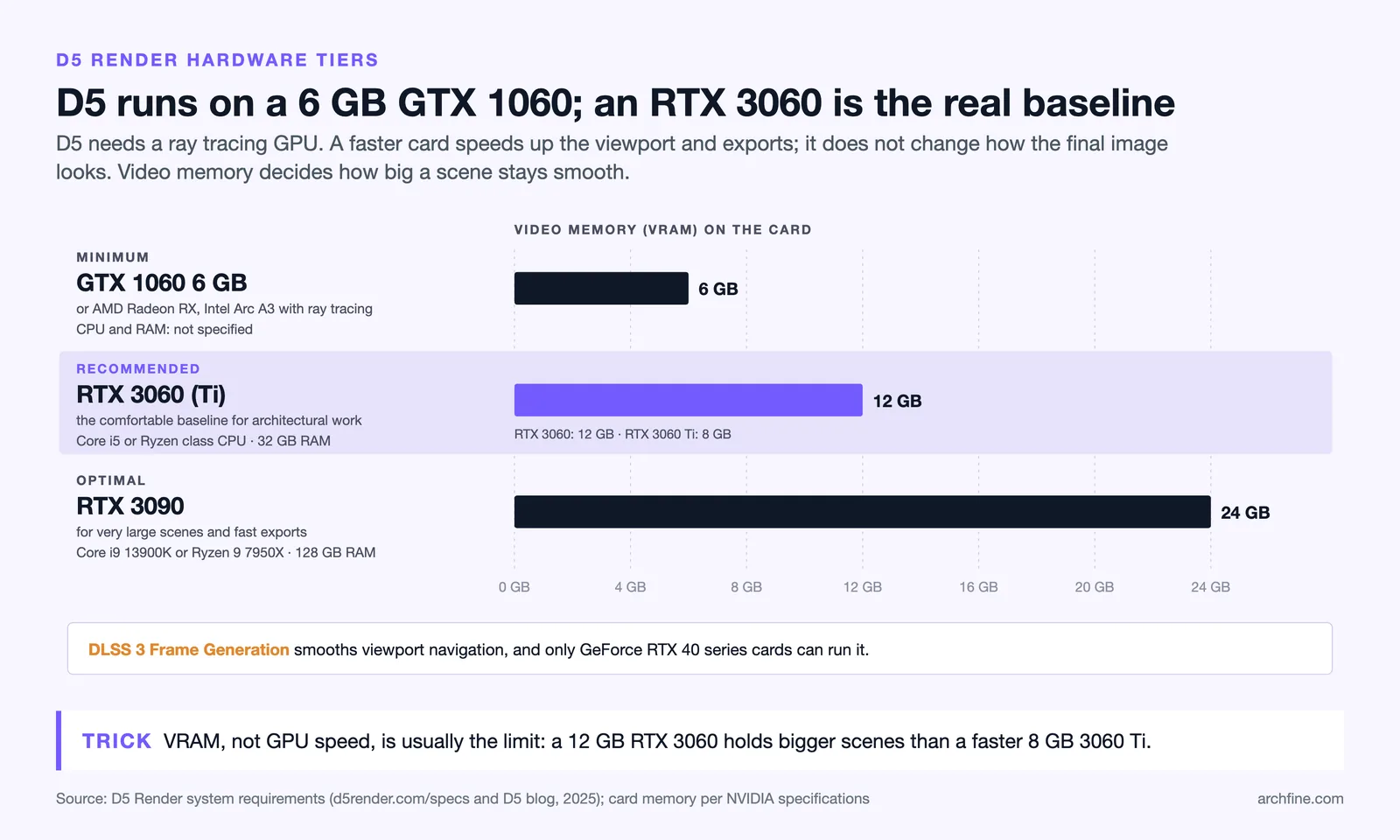
D5 Render needs a ray-tracing-capable GPU first and foremost. The minimum officially supported card is an NVIDIA GTX 1060 6 GB or an equivalent with DirectX Raytracing (DXR) support (GTX cards run DXR on shader cores, without dedicated RT cores), while the recommended baseline for comfortable architectural work is an RTX 3060 paired with an Intel Core i5 11400 or AMD Ryzen 3 5300G class processor and 32 GB of system RAM. D5 is not RTX-only, so AMD Radeon RX cards that support ray tracing also run the engine.
One detail many new users miss: the GPU mainly affects how fast you work, not the final output quality. A faster card gives you smoother viewport navigation and quicker exports, but the rendered result at a given setting looks the same on a modest ray-tracing card as it does on a high-end one. Per D5 Render, the graphics card directly affects real-time performance and rendering speed but not output quality.
📐 Technical Note
VRAM, not raw GPU speed, is usually the limiting factor on large architectural scenes. D5 Render’s minimum card, the GTX 1060, carries 6 GB of VRAM, and cards with 8 GB or more handle dense interiors and heavy vegetation more comfortably. DLSS 3 Frame Generation, which smooths viewport navigation, requires a GeForce RTX 40 series card.
Which D5 Render settings matter most for quality?

The biggest quality gains in D5 Render come from a handful of settings rather than from cranking everything to maximum. Once you understand what each control does, you can keep your viewport responsive while still exporting clean, high-resolution frames. The order below mirrors how an experienced D5 user sets up a scene from import to final export.
- Global Illumination: D5’s GI solution integrates NVIDIA’s real-time denoiser with low-variance ReSTIR sampling for sharper indirect light. Leave it on for any scene where bounced light matters, which is almost every architectural view.
- Ambient Occlusion: AO adds soft contact shadows in corners and crevices and grounds materials against floors and walls. Adjust intensity separately for preview and output so navigation stays fast.
- AI Denoiser: this cleans grainy or noisy frames into smooth output. It is the single biggest reason D5 can export quickly without the speckle you get from undersampled path tracing.
- Resolution and output mode: switch to Image Render mode, set your target resolution, and enable the AI Post Channel so post-processing data is written into the export.
- Lighting type: use rectangular lights for broad, even coverage and spotlights to emphasize a specific detail. D5 supports point, spot, strip, rectangular, and disc lights.
- Camera and exposure: D5 uses a physical camera model, so treat exposure, white balance, and depth of field the way a photographer would rather than as afterthoughts.
- Post-processing: bloom, vignette, and color grading live inside D5, which means you can finalize the mood without a separate trip to image editing software.
💡 Pro Tip
Keep your preview AO and sampling lower than your output values. D5 lets you set preview and output quality independently, so you can move through a scene at high frame rates and still export a clean final image. A common workflow is to dial preview down while blocking out lighting, then push output settings up only at export time.
How do you set up a D5 Render workflow from start to finish?
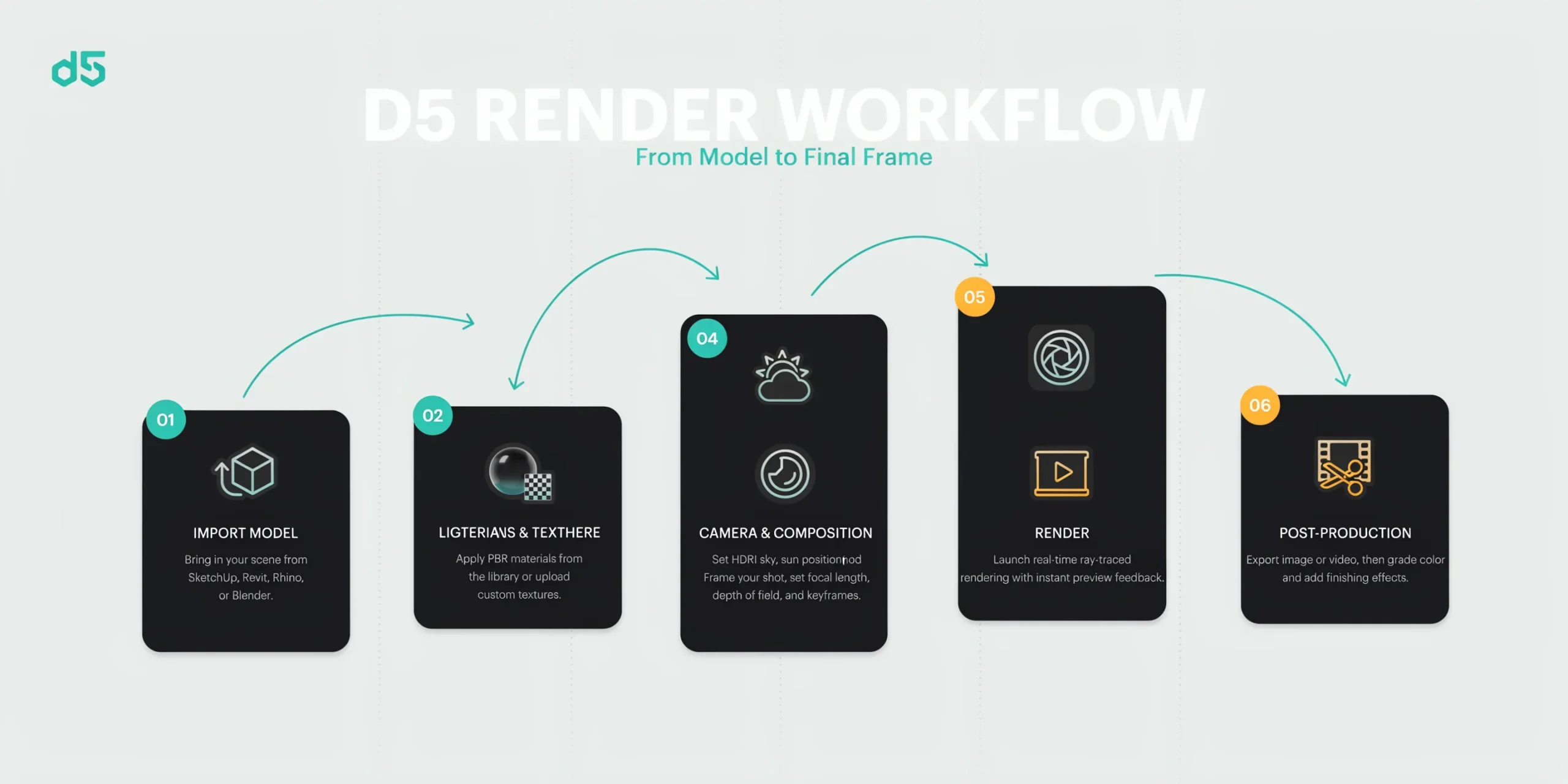
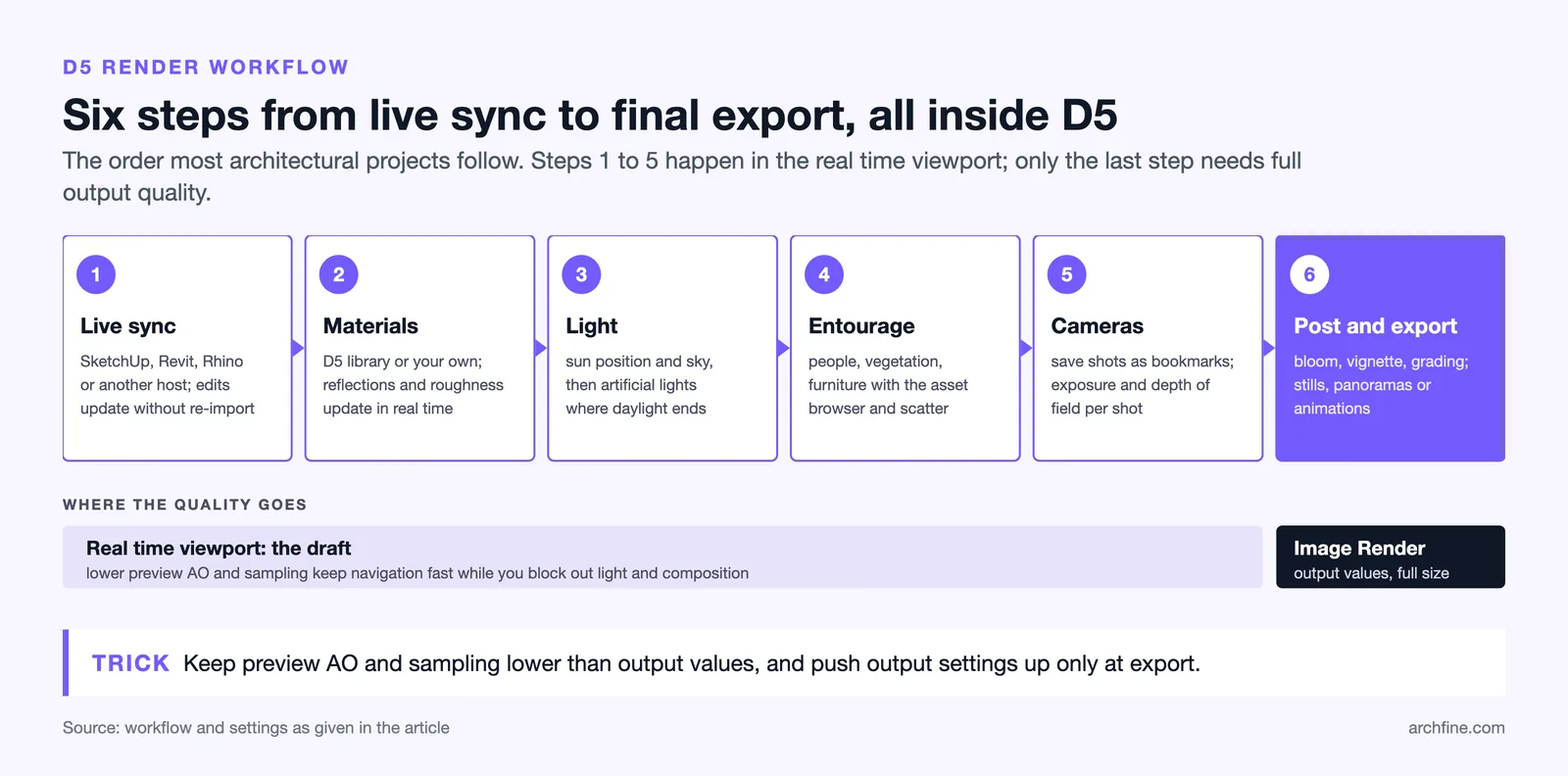
A reliable D5 workflow runs from model import through final post-production inside one application. The pattern below works for most architectural projects and keeps you from jumping between tools.
- Import or live-sync your model from SketchUp, Revit, Rhino, or another supported host. Changes in the host can update D5 without a full re-import.
- Assign materials from the D5 library or build your own, then let the engine handle reflections and roughness in real time.
- Set the sun position and sky, then add artificial lights where the daylight does not reach.
- Populate the scene with entourage such as people, vegetation, and furniture using the asset browser and scatter tools.
- Compose your cameras, save them as bookmarks, and tune exposure and depth of field per shot.
- Apply post-processing, then export stills, panoramas, or animations at your chosen resolution.
D5 Render 3.0 pushes parts of this further toward AI assistance, helping generate materials and arrange assets in the scene. If you want to compare that against image-based AI rendering, our guide on SketchUp AI rendering shows how a prompt-driven approach handles the same model differently.
⚠️ Common Mistake to Avoid
New users often render every test frame at full output resolution, which slows iteration to a crawl. Block out lighting and composition in the responsive real-time viewport first, and reserve high-resolution image renders for shots you have already approved. Treat the viewport as your draft and the Image Render mode as your final pass.
How does D5 Render handle interior versus exterior scenes?
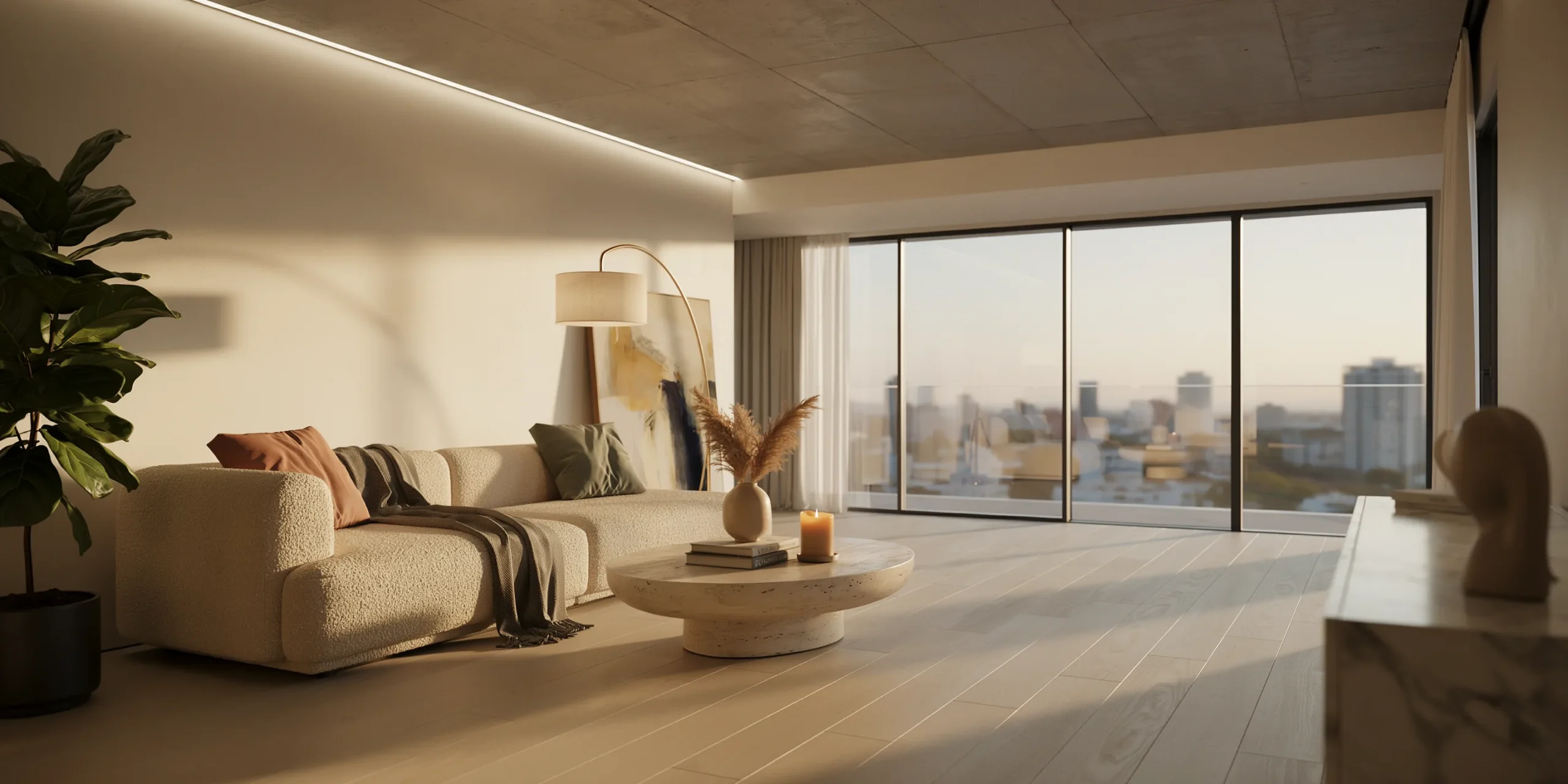
Interior rendering in D5
Interiors are where D5’s real-time path tracing shows its strength. Because light physically bounces in the scene, natural light entering through a window spreads across walls and ceilings with believable falloff, and material reflections stay accurate as the camera moves deeper into a room. When you place an IES light profile in a complex interior, the bounced light continues to behave correctly even for surfaces that fall outside the current screen view, which keeps deep rooms from going flat.
Exterior rendering in D5
For exteriors, D5 relies on a growing library of landscape presets, procedural scattering tools, and animated vegetation. It has closed much of the gap with older outdoor-focused engines, and its sky and atmosphere system makes golden-hour and overcast moods quick to set. The principles that separate a convincing exterior from a flat one are the same regardless of engine, and our breakdown of what makes a great architectural render covers the composition and lighting choices that carry the most weight.
D5 Render vs Lumion: which should architects choose?
D5 Render and Lumion solve the same problem with different priorities. D5 leans on real-time path tracing and a generous free tier, while Lumion remains a benchmark for photorealistic exterior arch-viz with one of the largest nature asset libraries in the field. The table below summarizes the practical differences for an architecture team.
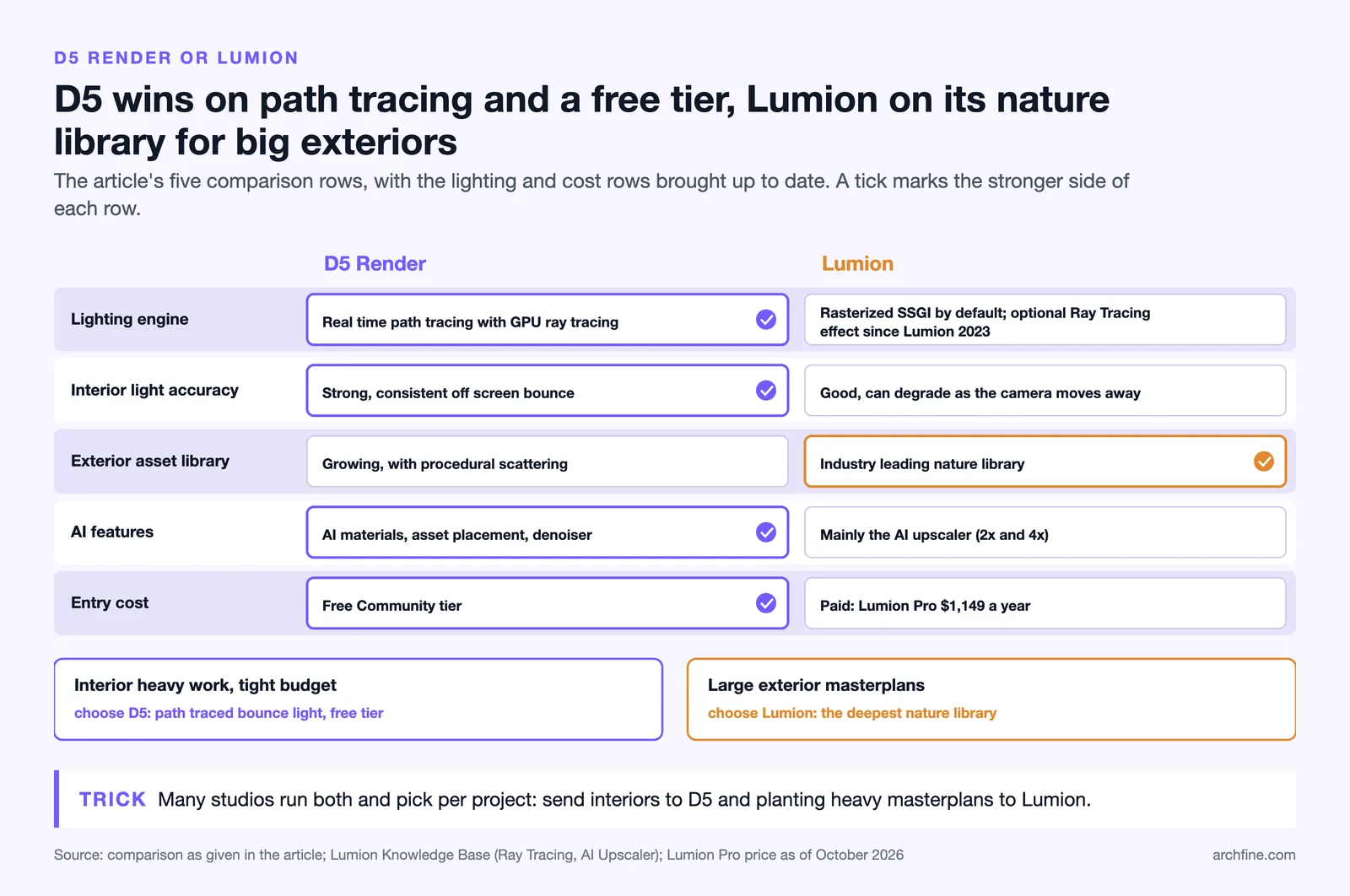
| Feature | D5 Render | Lumion |
|---|---|---|
| Lighting engine | Real-time path tracing with GPU ray tracing | Screen-space global illumination (SSGI), with optional ray tracing since Lumion 2023 |
| Interior light accuracy | Strong, consistent off-screen bounce | Good, can degrade as camera moves away |
| Exterior asset library | Growing, with procedural scattering | Industry-leading nature library |
| AI features | AI materials, asset placement, denoiser | Mainly AI upscaler (2x and 4x) |
| Entry cost | Free Community tier available | Paid annual license (Lumion Pro $1,149 per year as of October 2026) |
For interior-heavy work, tight budgets, or teams that value path-traced accuracy, D5 is hard to beat. For large exterior masterplans that lean on a deep nature library, Lumion still holds an edge. Many studios run both and pick per project. If you are weighing rendering style alongside software choice, our piece on photorealistic vs stylized renders helps frame which look serves each project phase.
Frequently asked questions about D5 Render
Is D5 Render free for architects?
Yes. D5 offers a free Community tier that covers most learning and small-project needs, alongside paid Pro and team options that add higher export resolutions, larger asset access, and commercial features. Many architects start on the free tier to learn the workflow before upgrading.
Does D5 Render need an RTX graphics card?
Not specifically RTX. D5 needs a GPU with DirectX Raytracing (DXR) support, which includes NVIDIA GTX 1060 6 GB and newer cards as well as AMD Radeon RX cards with ray-tracing support. RTX 40 series cards add DLSS 3 Frame Generation for smoother viewport navigation, but they are not required to render.
Can D5 Render produce animations?
Yes. Alongside still images and 360 panoramas, D5 exports walkthrough and flythrough animations with keyframed cameras, animated vegetation, and moving entourage. The same lighting and material setup you use for stills carries directly into video output.
Which design tools sync with D5 Render?
D5 provides live sync plugins for SketchUp, Revit, Rhino, ArchiCAD, 3ds Max, Blender, and Cinema 4D. Edits in the host application can update the D5 scene without a full re-import, which keeps iteration fast during design changes.
Where to Go From Here
Your Next Step: Download the free D5 Community tier, connect it to a model you already know well, and spend one session setting only sun position, exposure, and AO before touching anything else. Building muscle memory on those three controls first will teach you more about D5 Render than chasing every advanced slider at once.
For official references, see the D5 Render site, the D5 Render user manual on system requirements, NVIDIA’s documentation on DLSS technology, the PAACADEMY beginner guide to D5 Render, and broader visualization coverage at ArchDaily.