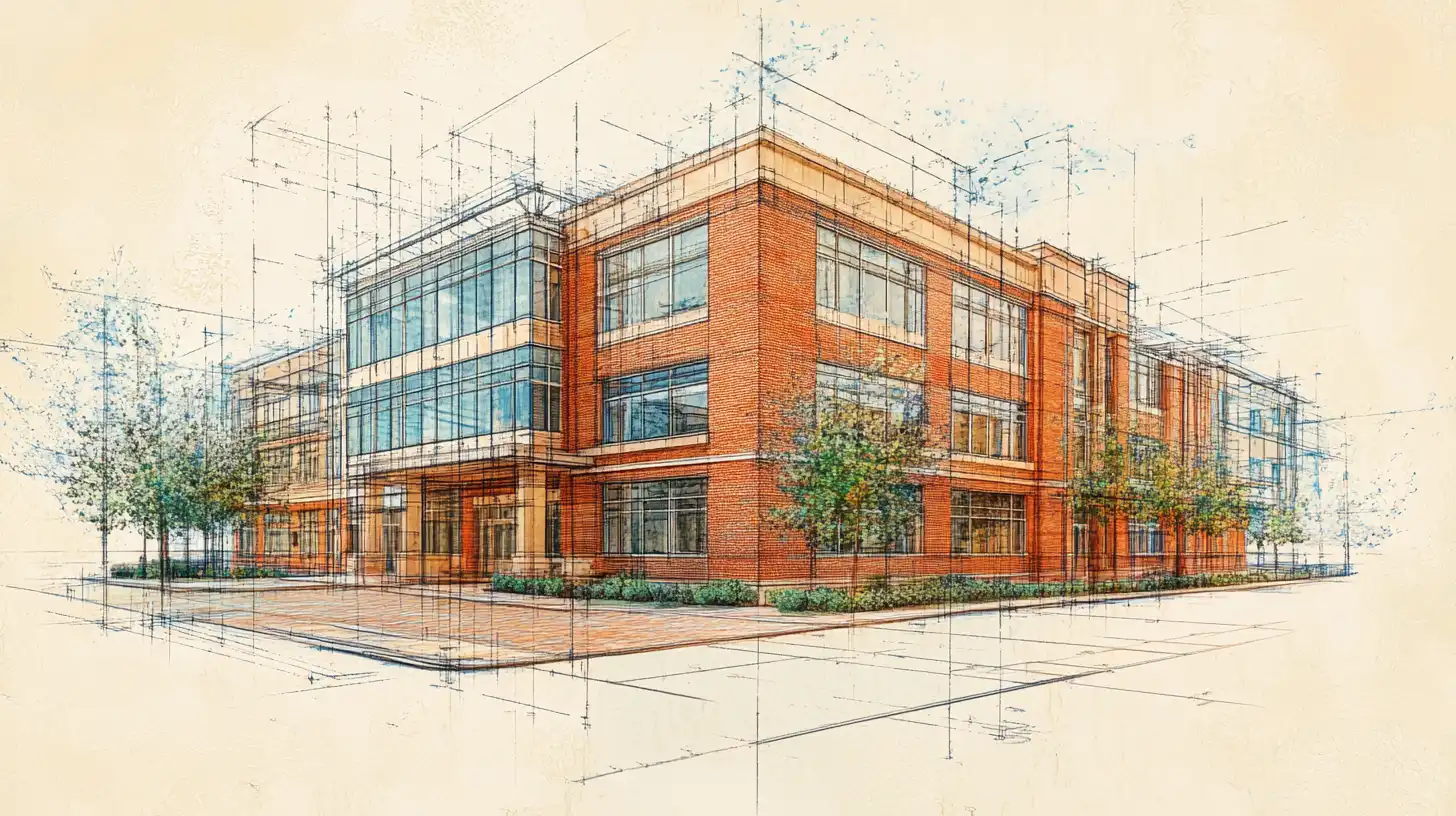

Revit AI rendering combines the precision of BIM models with AI-based visualization to produce photorealistic images without a dedicated render farm or complex lighting setup. Architects and BIM teams export camera views from Revit and process them through AI platforms to generate presentation-quality renders in a fraction of the time needed by traditional render engines.
Revit AI rendering is changing how architecture teams turn technical BIM data into client-ready visuals. For years, getting a convincing photorealistic image out of a Revit model meant either spending hours inside a complex plugin like V-Ray or exporting the model into a standalone visualization tool. Neither approach was fast, and neither was cheap. AI-based rendering tools have disrupted that equation. By combining the geometric accuracy of a Revit export with the visual intelligence of modern image-generation models, teams can now produce high-quality renders in seconds rather than hours.
This guide covers what Revit AI rendering is, why native rendering often falls short for client-facing work, how to integrate an AI rendering tool into your existing Revit workflow, and how the major options compare on speed, quality, and cost.
What Is Revit AI Rendering?
Revit AI rendering refers to the process of using an artificial intelligence platform to convert an exported Revit view, screenshot, or render into a photorealistic architectural image. Unlike traditional rendering pipelines that require manual material assignment, HDRI lighting configuration, and long compute times, AI rendering tools interpret the geometry and material cues present in your export and generate a photorealistic result automatically.
The term covers two broad approaches. The first involves native AI plugins that integrate directly into Revit, reading model geometry and camera data without requiring any export. The second involves export-and-upload workflows, where a user exports a camera view or perspective render from Revit and submits it to a web-based AI platform. Both approaches leverage machine learning to infer lighting, texture, and atmosphere from the input image, dramatically reducing the manual setup time that traditional renderers demand.
For BIM-heavy teams working under deadline pressure, the appeal of AI rendering from Revit is straightforward: the model geometry is already built and coordinated. The remaining bottleneck is visualization, and AI removes it.
Did You Know?
According to Autodesk’s 2023 State of Design & Make report, over 70% of architecture and engineering firms now use BIM workflows on at least half of their projects. Revit remains the most widely adopted BIM authoring tool globally, making rendering interoperability a key concern for visualization teams.
Why Revit’s Native Rendering Falls Short
Revit ships with a built-in rendering engine based on Autodesk Raytracer. For internal design reviews and quick model checks, it is adequate. For client presentations, competition submissions, or marketing materials, it routinely falls short in three ways.
Speed. Even at medium quality settings, a single Revit native render can take twenty minutes to several hours depending on scene complexity and hardware. Iterating on camera angles or material choices multiplies that time significantly.
Visual quality. Autodesk Raytracer produces clean, technically accurate images, but the output often looks flat compared to what dedicated tools like V-Ray or Enscape generate. Lighting feels artificial, reflections lack depth, and entourage—people, trees, cars—is limited and dated.
Material overhead. Achieving a convincing material library inside Revit requires significant manual effort. Default Revit materials are designed for BIM accuracy, not visual fidelity. Architects who want photorealistic concrete, glass, or timber often spend more time setting up materials than they do modeling the building.
These limitations explain why the market for Revit render alternatives is large and growing. Whether it is a plugin like Enscape for real-time walkthroughs or an AI platform for rapid still images, most production teams supplement native rendering with at least one external tool.
How to Use AI Rendering with Revit Models
The core Revit rendering workflow for AI-based tools follows three steps: export a suitable view from Revit, process that export through an AI rendering platform, and refine or download the result. Each step involves choices that affect the quality of the final image.
Exporting a Camera View or Sheet from Revit
The quality of your AI render depends heavily on the input image you provide. For best results, set up a dedicated 3D camera view in Revit rather than using the default 3D view. Position the camera at eye level for exterior shots or at a standard interior viewpoint for room renders. Set the visual style to Realistic before exporting, as this applies basic material textures to surfaces and gives the AI rendering tool more material data to interpret. Export the view as a PNG or JPEG at the highest resolution practical for your hardware—1920×1080 is a workable minimum, but 3840×2160 produces noticeably sharper AI output.
Alternatively, you can run a quick draft-quality native render from Revit before exporting. This adds basic lighting and shadow information to the image, which AI tools can use to generate more consistent results, particularly for interior scenes where window light direction matters.
Pro Tip
Before exporting a Revit camera view for AI rendering, switch the visual style to Realistic rather than Consistent Colors or Shaded. The Realistic mode applies basic material textures to surfaces, giving the AI rendering tool more material data to work with. Consistent Colors exports produce flat-toned walls that the AI often misreads as uniform concrete, regardless of the actual material assigned.


Processing the Export through an AI Rendering Tool
Once you have a clean camera export, the process varies slightly between platforms but follows a consistent pattern. You upload the image to the AI rendering tool, select a rendering mode (photorealistic exterior, interior, conceptual, and so on), optionally add a text prompt to guide the style or atmosphere, and submit. Most AI platforms return a result within 15 to 60 seconds.
Many tools offer a prompt importance or geometry adherence slider that controls how closely the AI output follows the original Revit geometry versus how freely it interprets the scene. Higher geometry adherence is appropriate for client presentations where the building form must be accurate. Lower adherence is useful for early-concept mood boards where atmosphere matters more than precision.
Common Mistake to Avoid
Exporting a Revit view that still shows room tags, dimension strings, or annotation elements is a frequent error. These 2D overlays confuse AI rendering models, which try to interpret them as physical elements in the scene. Always export a clean camera view with all annotations turned off before sending to an AI rendering tool.
Combining BIM Accuracy with AI Visual Quality
The most effective use of Revit visualization AI is not to replace BIM accuracy but to complement it. The Revit model carries all the program, structure, and coordination data. The AI tool handles the visual presentation layer. Keeping these roles separate means you can iterate on the visualization without touching the BIM model, and you can update the BIM model without rebuilding a complex render scene.
For teams that need a series of views across multiple design iterations, this separation is particularly valuable. Each new Revit export takes seconds to upload, and a new AI render takes under a minute to generate—compared to re-rendering the same view in V-Ray after every design change.

Best Rendering Options for Revit Users
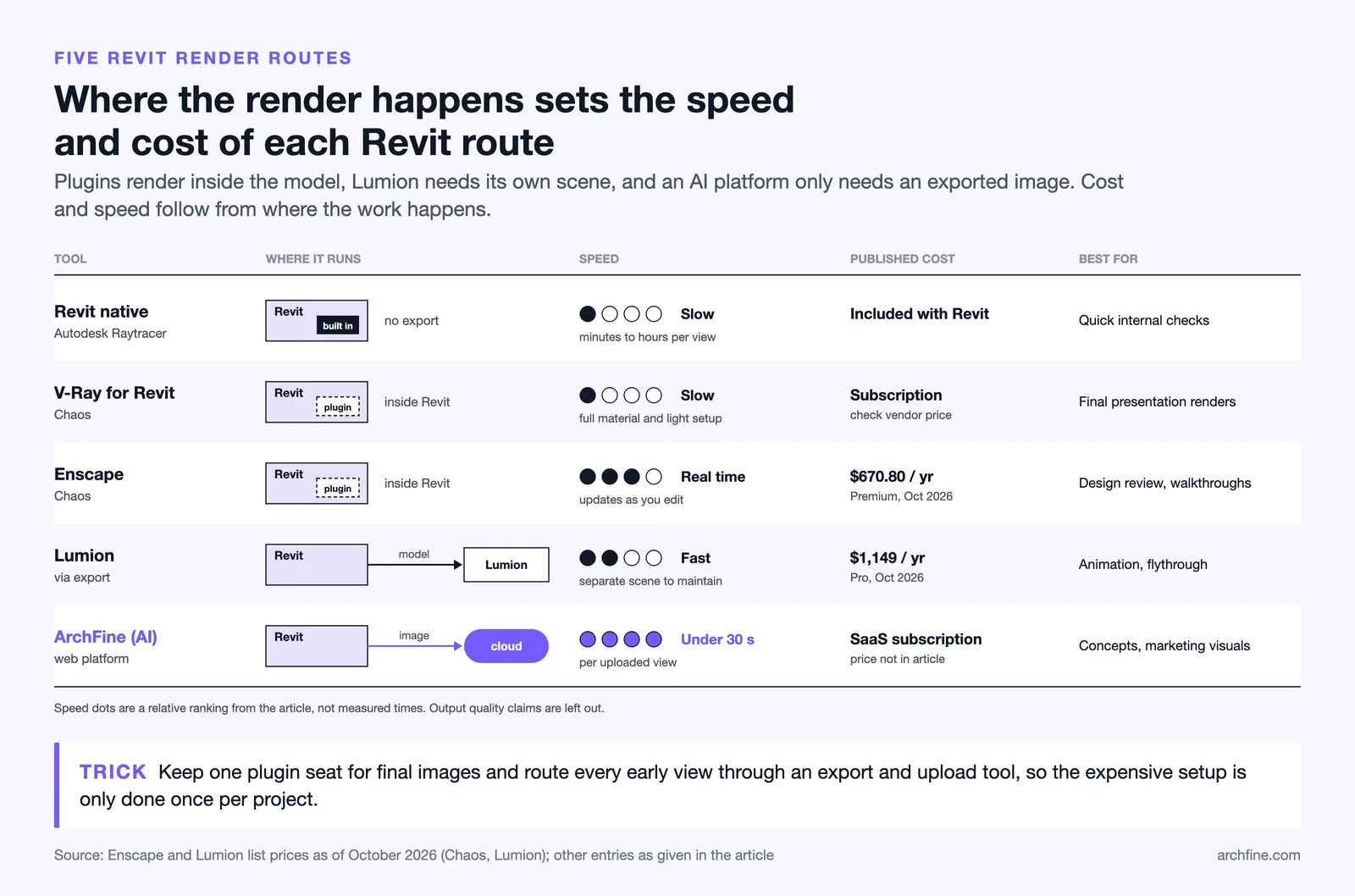
The table below compares the main Revit rendering plugin and tool options available to architecture teams in 2025. Pricing reflects current published rates; always verify on the vendor’s website before purchasing.
| Tool | Integration | Speed | Output Quality | Cost | Best For |
|---|---|---|---|---|---|
| Revit native renderer | Built-in | Slow | Basic | Included with Revit | Quick internal checks |
| V-Ray for Revit | Plugin | Slow | Very high | High (subscription; check current vendor price) | Final presentation renders |
| Enscape (Revit) | Plugin | Fast (real-time) | High | Medium ($670.80/yr for Premium, as of October 2026) | Design review, walkthroughs |
| Lumion (via export) | External import | Fast | High | High ($1,149/yr for Pro, as of October 2026) | Animation, flythrough |
| ArchFine (AI) | Export + upload | Very fast (<30 sec) | High | Low / SaaS | Concepts, marketing visuals |
Enscape and Lumion pricing verified as of October 2026. Confirm current rates directly with each vendor.

How ArchFine Integrates with Revit Workflows
ArchFine is an AI-powered architectural rendering SaaS platform designed to take image inputs—including Revit exports—and return photorealistic renders within 30 seconds. The workflow is intentionally simple: export a camera view from Revit, upload it to ArchFine, add an optional text prompt describing the atmosphere or style you want, and generate the render. No plugin installation is required, no material library needs to be rebuilt, and no render farm is needed.
For Revit teams, ArchFine works best as a rapid visualization layer on top of an existing BIM process. A project architect can export multiple camera views from a coordinated Revit model and run them through ArchFine to produce a complete set of presentation images in under an hour—a task that would require a full day with V-Ray or repeated Enscape scene adjustments.
ArchFine Revit rendering is particularly well suited to three use cases:
- Early-stage client presentations. Design development is still in flux, but clients need to visualize the concept. ArchFine turns a schematic Revit model into a compelling image without locking in final material decisions.
- Competition submissions. Time is always constrained, and competition boards require polished visuals. Exporting multiple views and processing them through ArchFine produces a consistent set of renders faster than any traditional pipeline.
- Marketing and social media content. Completed project visuals for portfolios, websites, and press releases benefit from a photorealistic treatment that goes beyond what Revit’s native renderer can deliver. ArchFine provides that layer without a significant time investment.
Because ArchFine operates as a web platform rather than a Revit plugin, it imposes no hardware requirements on the architect’s workstation. Rendering runs on ArchFine’s cloud infrastructure, meaning a team member with a mid-range laptop can produce the same output as someone with a dedicated render workstation.
When to Use AI Rendering vs. V-Ray for Revit
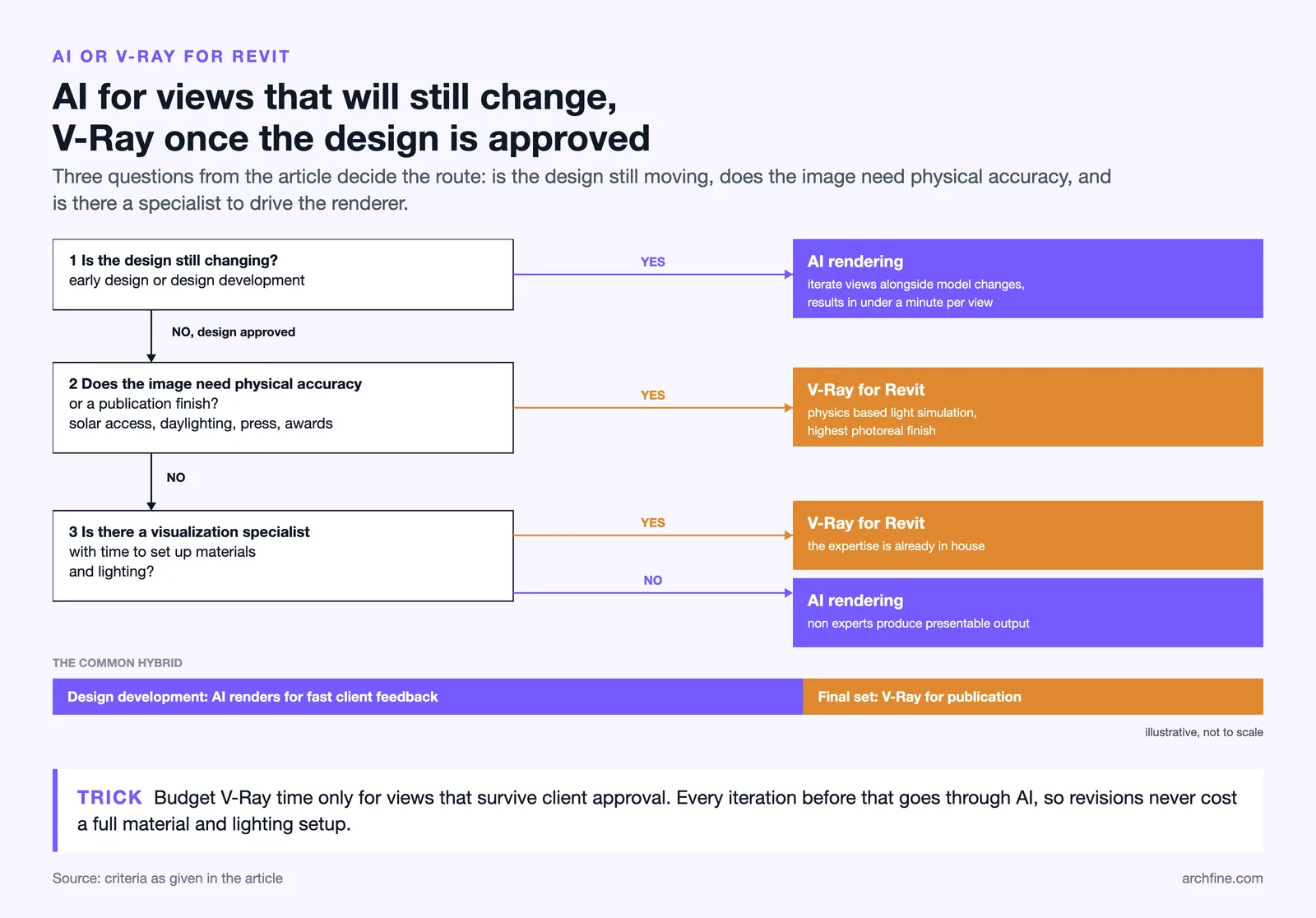
The choice between Revit AI rendering and a physics-based renderer like V-Ray is not binary. Most production teams benefit from having both in the toolkit, deployed at different stages of a project.
Use AI rendering when:
- The project is in early design or design development and visuals need to iterate quickly alongside model changes.
- The deliverable is a mood board, concept image, or client presentation rather than a final construction-documentation render.
- The team does not have a dedicated visualization specialist and needs non-experts to produce presentable output from Revit exports.
- Speed is the primary constraint—competition deadlines, investor presentations, planning submissions.
Use V-Ray for Revit when:
- The project requires the absolute highest photorealistic quality, particularly for aerial views, complex glass facades, or interior lighting studies.
- The client has approved a final design and the render will be used for publication, press release, or award submission.
- The team has a dedicated renderer with the expertise to operate V-Ray efficiently and the time to configure materials and lighting.
- Physical accuracy in light simulation matters—for example, when the render is being used to validate solar access or daylighting strategy.
A hybrid workflow is common: use fast rendering for Revit BIM via an AI tool during design development for rapid client feedback, then invest in a high-quality V-Ray render for the final presentation or publication. This approach keeps visualization costs proportional to the stage of the project and avoids spending premium render time on early iterations.
For most small to mid-size firms, the combination of Enscape for real-time design review and an AI platform like ArchFine for still image output covers the majority of client-facing visualization needs without the cost or complexity of a full V-Ray license.
Technical Note
AI rendering tools work from raster image inputs, not native Revit geometry files. This means they cannot read BIM metadata such as room names, object parameters, or family types. The AI interprets only what is visible in the exported image. For workflows where parametric BIM data must inform the render—such as automated material assignment from Revit properties—a native plugin approach is more appropriate.

Key Takeaways
- Revit AI rendering uses exported camera views or screenshots as input, removing the need for complex material setup or render farms.
- Set Revit’s visual style to Realistic before exporting—not Consistent Colors—to give AI tools better material information.
- Always remove annotations and tags from your Revit view before exporting to prevent AI misinterpretation.
- AI rendering is fastest and most cost-effective during early design stages; V-Ray remains the standard for final publication-quality output.
- ArchFine processes Revit exports into photorealistic renders in under 30 seconds, with no plugin installation required.
- A hybrid workflow—AI for concepts, V-Ray for finals—is the most practical approach for most architecture firms