
Vizcom is a browser based AI drawing tool that converts rough sketches into rendered images in seconds. Designers draw or upload a line drawing, pick a material and lighting direction, then let the model fill in surfaces. It started in industrial design and now sees heavy use in early architectural concept work.
Most AI render tools ask you to describe a building in words. Vizcom asks you to draw it. That single difference explains why it caught on with people who think through a pen rather than a prompt box, and why architects keep asking whether it fits a building workflow or only a product design one.
This review covers how the tool actually behaves on architectural drawings, what the plans cost in 2026, and where the honest limits sit.
What Is Vizcom and Who Is It For?
Vizcom launched as a sketching platform for industrial designers, and the DNA is still visible. You work on an infinite canvas, draw with pressure sensitive strokes, and every render stays tied to the drawing underneath it. The company moved to vizcom.com and now positions itself as a full ideation environment rather than a one click render button.
The core audience splits into three groups. Product and automotive designers use it for form exploration. Architecture students use it to get presentable concept images without touching a 3D package. Practising architects use it in the first week of a project, when the massing is still soft and nobody wants to spend two days modelling something that may be thrown away.
If you are looking for construction accurate visuals from a BIM model, this is the wrong category of tool. Vizcom works on images, not geometry, so it has no idea that your window head height is 2.4 metres.
How Vizcom Turns a Sketch Into a Render
The drawing canvas
Everything starts on the canvas. You can draw directly with a tablet, import a photo of a hand drawing, or drop in a screenshot from SketchUp or Rhino. Layers behave the way they do in any raster editor, so you can keep line work separate from colour blocking and rerender only one part of the image.
The stroke fidelity matters more than people expect. A loose scribble produces a loose building. Clean perspective lines with a clear horizon produce something you can put in front of a client. Garbage in, garbage out applies here with unusual force.
Render modes and control
Once the drawing is in place you set a strength value that decides how far the model may stray from your lines. Low values respect your geometry and mostly apply materials. High values reinterpret the whole scene and will happily invent a different roof. For architectural work, low to medium settings give the only usable results, because the whole point is that the building stays the building you drew.
Material and style are handled through short text prompts plus reference images. Feeding it a photo of the actual brick you specified works better than typing a description of that brick, a pattern that holds across nearly every image model.

💡 Pro Tip
Draw the ground line and one strong shadow before you render anything. The model reads shadow direction from your linework, and a sketch with no ground contact almost always comes back as a building floating in fog. Two minutes of shadow blocking saves a dozen wasted generations.
3D and animation
Newer releases added a 3D mode that builds a rough volume you can orbit, plus short animation clips. Both are useful for showing a concept from two angles in a meeting. Neither produces a mesh you would take into Revit. Treat them as presentation aids rather than modelling output.
Vizcom Pricing in 2026
Pricing runs on a credit system rather than a render count, so heavy 4K work drains an allowance faster than quick concept passes. The current plans published on the official Vizcom pricing page break down like this.
Vizcom plan comparison
| Plan | Cost | Monthly credits | Main limits |
|---|---|---|---|
| Starter | Free | 800 | 10 files, no 4K export, standard queue |
| Professional | $49 per user per month | 20,000 | Single seat, credits reset monthly |
| Education | Free for verified students | 15,000 | Requires eligibility check |
| Enterprise | Quoted | Unlimited | Sales contact, adds SSO and audit logs |
The free tier is genuinely usable for a student project. Roughly 200 images a month covers a studio crit without paying anything, and the education plan is one of the more generous offers in this software category.
Where Vizcom Works Well for Architects
Concept week is where it earns its keep. A hand sketch of a facade turns into four material studies in the time it takes to make coffee, which changes the conversation in an internal review from abstract to visual. Teams that already work through AI concept rendering will recognise the pattern.
It also handles interior mood well. Feed it a perspective sketch of a lobby and it produces convincing light and material atmosphere, closer to a painted visual than a raytraced one. For a mood board or a competition board, that reads as an aesthetic choice rather than a limitation.

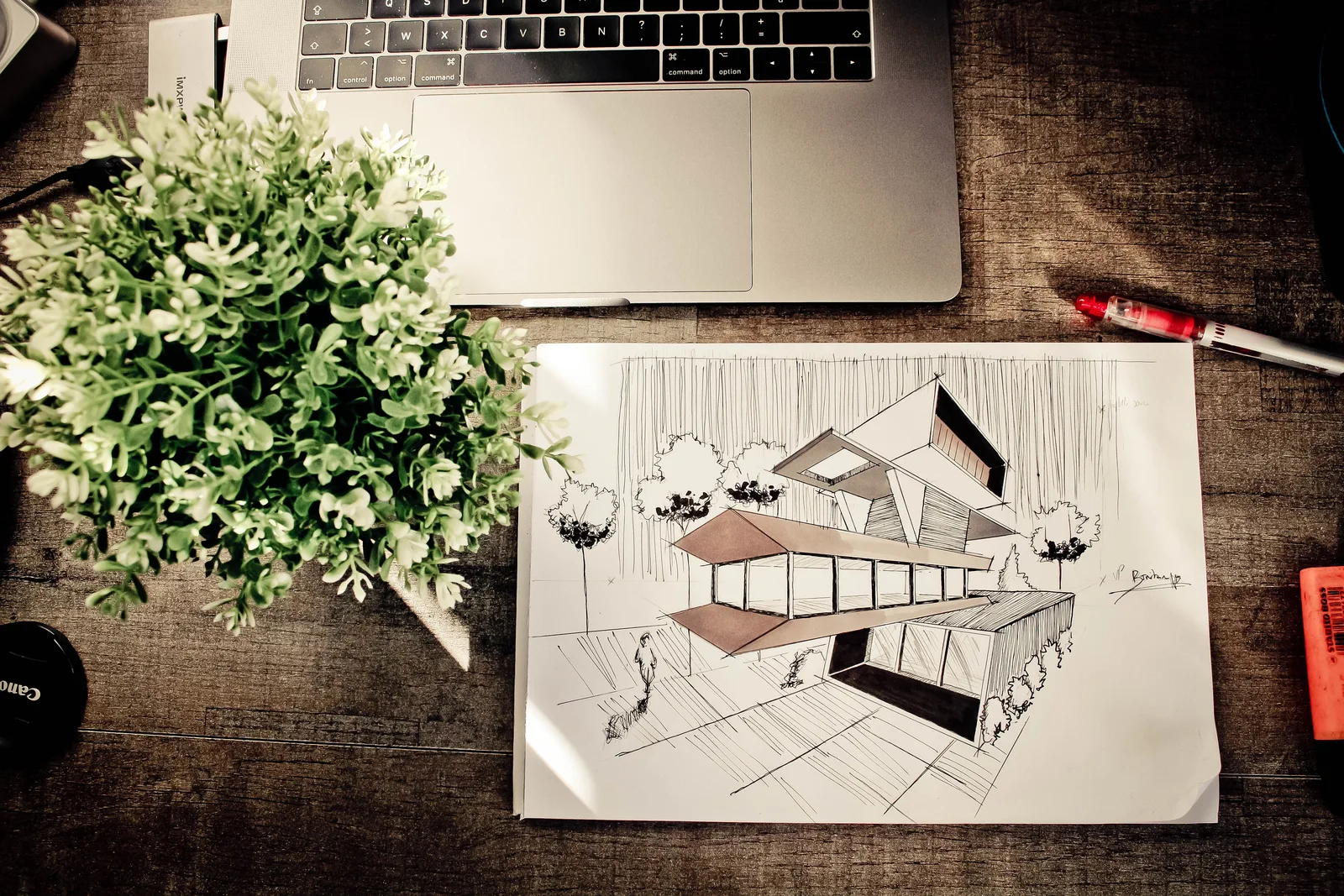
The last real strength is client communication. Showing a client a drawing next to its rendered version makes the design intent obvious in a way a plan never does, which is a point covered in our guide to presenting a design concept.
⚖️ Pros & Cons at a Glance
✔️ Pros: Sketch driven control that respects your linework, fast material iteration, a free tier that is actually workable, strong education pricing
✖️ Cons: No BIM or CAD connection, geometry drifts at higher strength values, credit system punishes high resolution work, weak on technical accuracy
Where Vizcom Falls Short
The tool has no link to your model. There is no Revit plugin, no Rhino bridge, no way to push a camera view across and keep it synchronised. Every iteration is a manual export, which becomes tedious once the design settles and the client starts asking for small changes.
Accuracy is the second problem. Push the strength slider up and mullion spacing shifts, floor counts change, and a cantilever quietly becomes a column. For a competition board that may not matter. For a planning submission it disqualifies the output entirely.
Finally, the industrial design heritage still shows in the material library, which is richer in automotive paint and moulded plastic than in render ready brick, render or standing seam metal. Architects tend to lean on reference images to compensate, and reference images cost extra rounds of work.
Best Vizcom Alternatives for Architecture
If the sketch first approach appeals but the missing model link is a dealbreaker, several tools cover the same ground from different directions. Options that live inside your modelling software solve the synchronisation problem, while browser based tools trade that for speed.
How the main options compare
| Tool | Where it runs | Keeps your geometry | Best for |
|---|---|---|---|
| Vizcom | Browser | Partly, depends on strength | Hand sketch ideation |
| ArchFine | Browser | Yes, layout is preserved | Architectural renders from models or photos |
| Veras | Plugin for Revit, Rhino, SketchUp | Yes | BIM native teams |
| SketchUp Diffusion | Inside SketchUp | Yes, uses the viewport | Existing SketchUp users |
| Enscape | Plugin from Chaos | Yes, real time engine | Accurate walkthroughs |
The split is simple. Tools built on top of a model protect accuracy and cost you setup time. Tools built on images give you speed and cost you precision. Our breakdown of web based versus plugin AI rendering covers that tradeoff in more depth, and the Midjourney comparison covers the fully prompt driven end of the spectrum.

Vizcom in a Real Architectural Workflow
A typical concept sequence looks like this. The design team sketches three massing options on trace, photographs them, and drops all three into the canvas. Each one gets two or three material passes, giving nine images by lunchtime. The team picks a direction, and only then does anyone open a modelling package.
That order matters. Modelling three options properly costs two days. Sketching them costs two hours. Using AI to make the sketches presentable removes the old excuse that rough drawings cannot be shown to a client, which changes how early feedback arrives.
The failure mode appears at the next stage. Once a direction is chosen, the model becomes the source of truth and every Vizcom image slowly drifts out of date. Teams that keep using it past concept stage end up with a folder of beautiful images that no longer describe the building, a problem that never happens with plugin based tools tied to the model.
Working with imported viewport screenshots
Importing a clay view from SketchUp or Rhino gives better geometric control than freehand drawing, because the perspective is already correct and the proportions are real. Set the strength low, feed a material reference, and the output stays close to the model.
This is effectively the same pipeline described in our guide to sketch to render AI, with a screenshot standing in for the drawing. It is the most reliable way to use an image based tool on a project that already has geometry.
Team use and file handling
Files live in the browser, so sharing a link is the whole collaboration story. There is no versioning against a central model and no way to lock a camera, which is fine for a two person studio and awkward for a larger office with parallel projects running.

The Professional plan covers one seat. A five person team is five subscriptions, which changes the cost comparison against a plugin licence that any team member can pick up.
Is Vizcom Worth It in 2026?
For a designer who sketches constantly, yes. Forty nine dollars a month is less than an hour of a visualiser’s time, and the free tier lets you test the workflow on a real project before committing anything. Students should take the education plan without hesitating.
For a practice that works from Revit models and needs visuals that survive a planning officer’s scrutiny, it solves the wrong problem. You would be exporting views, losing accuracy, and reimporting images that nobody can trace back to the model. That workflow ages badly over a long project, as anyone who has read our notes on what makes a great architectural render will recognise.
Industry coverage on sites such as ArchDaily tends to group all of these tools together, which flattens a real distinction. Sketch based and model based AI rendering are two different jobs. Vizcom is very good at one of them.
Bottom Line: Vizcom is the strongest option available when the drawing comes first and the model comes later. It rewards people who can draw, it will not respect dimensions you never drew, and it has no place in a documentation workflow.