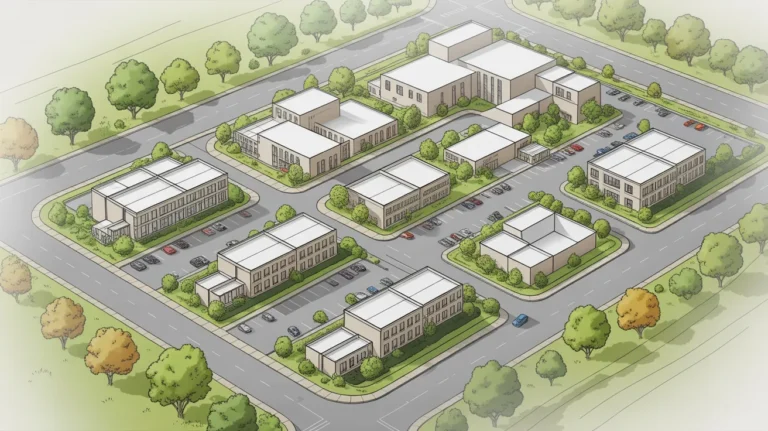
SketchUp Diffusion is an AI rendering feature built into SketchUp itself, generating images from the active viewport using text prompts and style presets. Because it reads the model rather than an uploaded image, it sits in the plugin category alongside Veras rather than with browser tools.
For anyone already modelling in SketchUp, that changes the calculation entirely. There is nothing to install, nothing to export, and no additional subscription in the common case. SketchUp Diffusion is the lowest friction route to an AI image that exists for that audience.
What it gives up is creative range and control, which is the trade every model based AI tool makes.
How SketchUp Diffusion Works
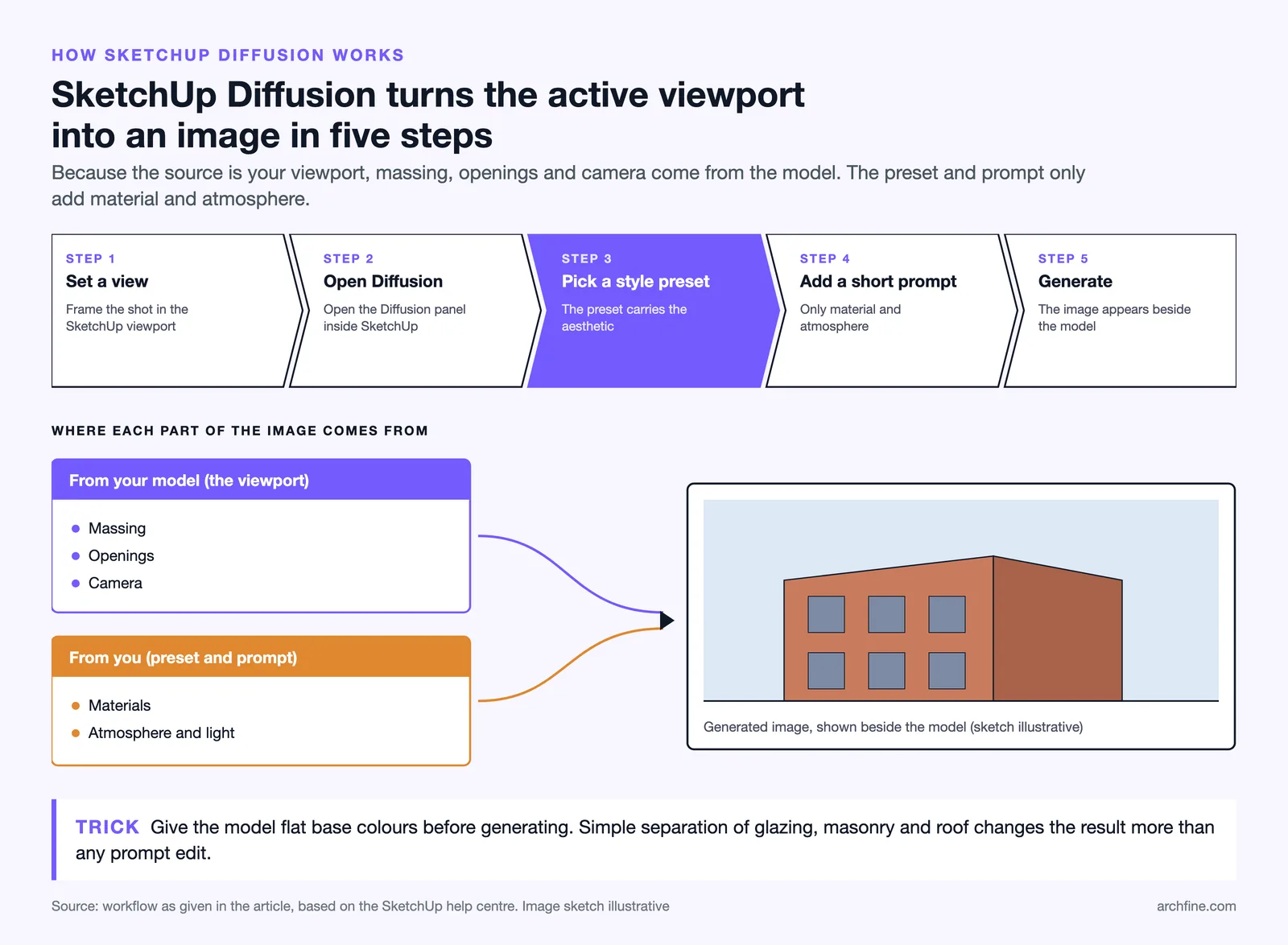
The feature is documented in the SketchUp help centre. Set a view in the SketchUp viewport, open the Diffusion panel, choose a style preset, add a text prompt describing material and atmosphere, and generate. The output appears alongside the model rather than in a separate application.
Style presets do most of the work. Rather than describing an entire aesthetic in text, you pick a treatment and refine it with a short prompt, which produces more consistent results than free text alone.
Because the source is your viewport, the massing, openings and camera all come from the model. That is the single most important property of the feature, and the reason it behaves differently from a browser tool, as our Veras AI review also explains for the plugin category generally.
💡 Pro Tip
Apply flat base colours in the model before generating. Even simple colour separation between glazing, masonry and roof gives the model structure to interpret, and the difference between a coloured massing and a uniform white one is larger than any prompt change you can make.
Where It Performs
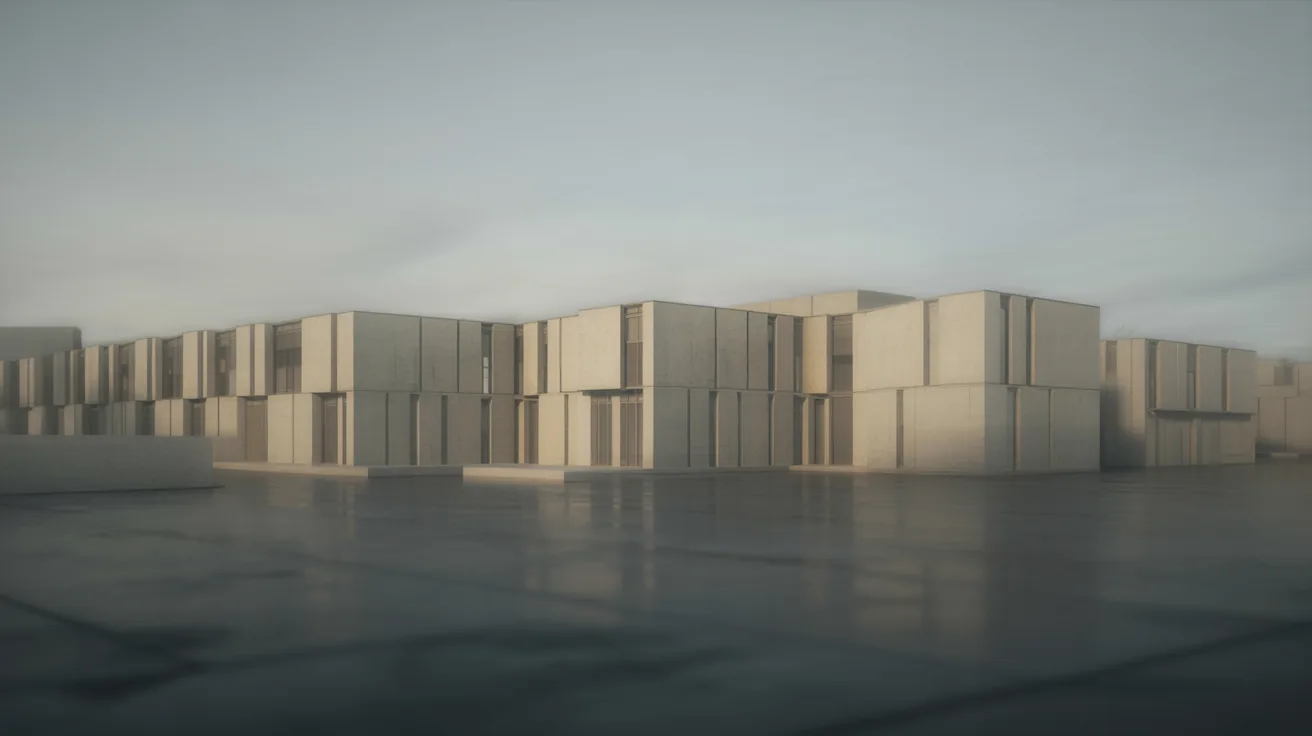
Early design is the strongest case. A massing model with no materials produces a usable atmospheric image, which means visuals are available at a stage where a traditional render workflow has nothing to work with.
Iteration is the second. Change the massing, regenerate, compare. No export, no upload and no file management, which compounds across the dozens of variations a design goes through.
Client meetings are the third. Generating a view live while discussing a change is a genuinely different kind of conversation from promising an image next week.
Where it is weaker is final imagery. Resolution is limited, control is coarse, and a hero image for a brochure still wants a visualiser or a full render engine.
Diffusion against the alternatives

| Option | Setup | Geometry accuracy | Best stage |
|---|---|---|---|
| SketchUp Diffusion | None, built in | From the viewport | Concept and early design |
| Veras plugin | Install and licence | From the viewport | Design development |
| Browser AI tools | Export each time | Can drift | Concept, wide exploration |
| Real time engine | Install and licence | Exact | Final images and walkthroughs |
Prompting for Architecture
Name materials specifically. Brick, concrete and timber are too vague, and glazed red brick, board marked concrete and stained larch cladding produce recognisably different results.
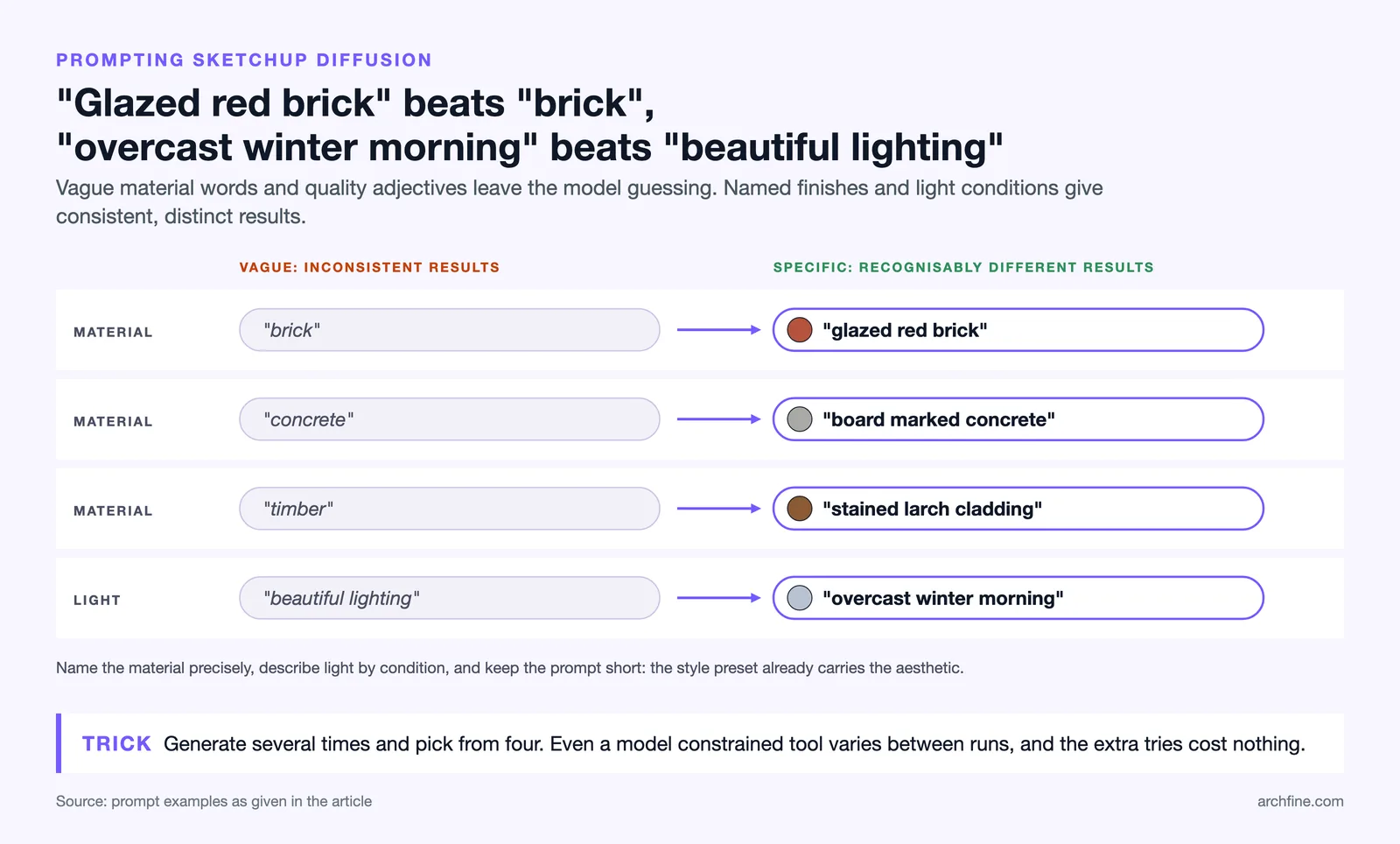
Describe light by condition rather than by quality. Overcast winter morning produces a consistent result, and beautiful lighting does not.
Keep prompts short. Long prompts dilute, and the preset is already carrying the aesthetic, so the text only needs to supply what the preset does not.
Generate several times before choosing. Even a model constrained tool produces variation, and picking from four costs nothing extra.
Limits Worth Knowing
Resolution is capped below print requirements, so anything destined for a board needs upscaling or a different tool.
There is no masked regeneration, so a single wrong element means regenerating the whole image, which is the feature that separates controllable tools from lucky ones.
Interior results are less reliable than exteriors, which is the reverse of most browser tools and reflects how much lighting information the viewport carries.
Lighting is generated rather than simulated, so no image from it can support a daylighting claim, for the reasons set out in our guide to global illumination.
Where It Fits in a SketchUp Workflow
Use it during design and switch to a render engine or a visualiser for anything final. That division suits its strengths and avoids asking it to do what it cannot.
Pair it with a real time engine rather than replacing one. Diffusion covers atmosphere at concept stage, and an engine covers accuracy later, which is the pattern most SketchUp practices settle into.
Keep the modelling discipline anyway. Better base models produce better output here, so the effort still goes into the model rather than into the prompt, as our guides to the 3D Warehouse and SketchUp AI rendering both cover.
Details of the application itself sit on the SketchUp product pages, with feature documentation in the official help centre, and the wider tool comparison in our roundup of AI design tools for architects.
Bottom Line: SketchUp Diffusion is the lowest friction AI rendering available to a SketchUp user, and its value is speed at concept stage rather than final image quality. Model in colour, prompt briefly, and switch tools when the image has to be finished.
Using It With Clients in the Room
The genuinely different capability here is generating during a meeting. A client asks what the building would look like in brick rather than render, and the answer arrives in thirty seconds rather than next week.
That changes the meeting rather than the image. Decisions get made in the room, and the number of review cycles drops.
Prepare for it. Have two or three saved views and a set of prompts ready before the meeting, since fumbling with settings in front of a client undoes the advantage entirely.
Managing expectations
Say what the image is before showing it. A generated image presented without explanation reads as a design proposal, and the client fixes on details you never decided.
The phrasing that works is simple: this is an atmosphere study from the massing, not a proposal for the material. That one sentence prevents most of the misunderstandings this technology creates, a point our guide to presenting a design concept covers more broadly.
Where It Sits Against Paying for More
For a SketchUp user the honest comparison is against doing nothing, since the feature is already there. That makes the question whether to add something rather than whether to use it.
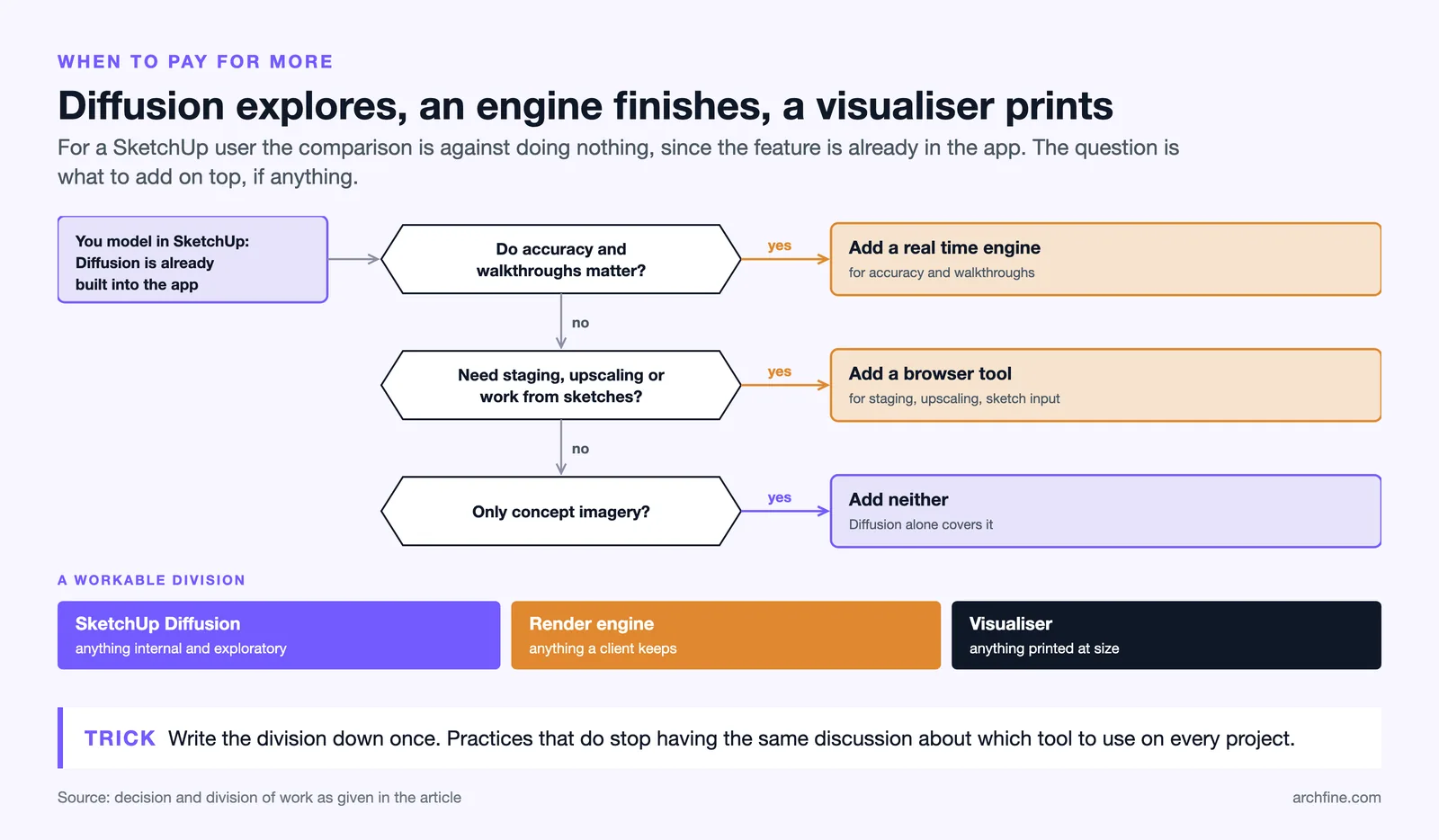
Add a real time engine when accuracy and walkthroughs matter. Add a browser tool when you need staging, upscaling or work from sketches rather than models. Add neither if concept imagery is all you produce.
The cost comparison across the full range of options sits in our breakdown of architecture software prices, and the practical differences between plugin and browser approaches in our Veras review.
A workable division
Diffusion for anything internal and exploratory, an engine for anything a client keeps, and a visualiser for anything printed at size. Practices that write that down stop having the same discussion on every project.