The best laptop for architects has to run modelling software responsively, render without throttling, drive an external monitor, and survive being carried to site and to client meetings. Those requirements pull in opposite directions, which is why no single machine satisfies all of them equally.
The specification that matters most is not the one manufacturers lead with. Processor speed sells laptops, and graphics memory decides whether a render engine runs. Choosing the best laptop for architects is therefore a question about the graphics card and the cooling around it.
Here is what actually matters, in order, and how to decide between the compromises.
The Specification That Decides the Best Laptop for Architects
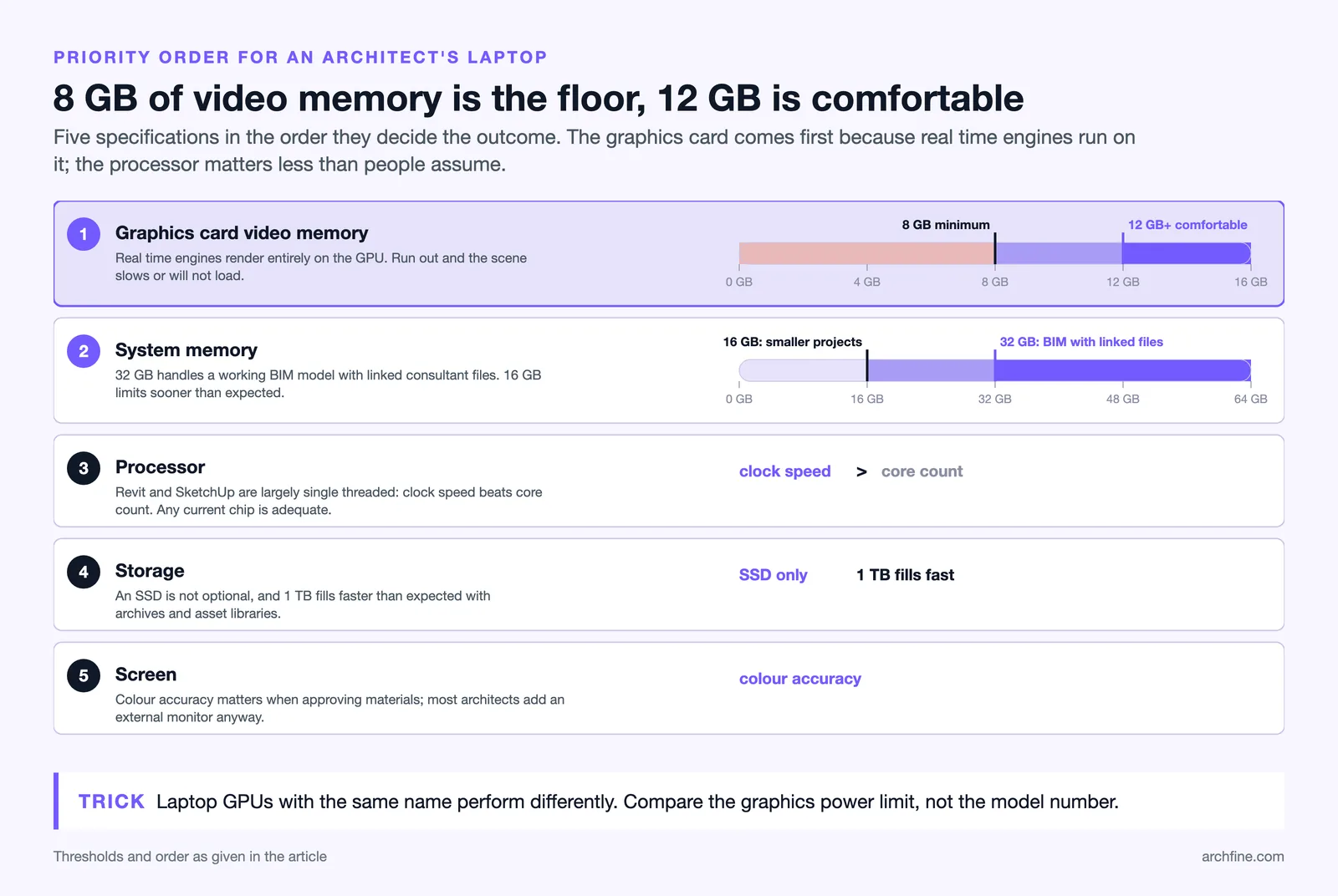
Graphics card and video memory comes first. Real time engines render entirely on the GPU, and running out of video memory means the scene either slows dramatically or does not load. Eight gigabytes is a working minimum and twelve or more is comfortable.
System memory comes second. Thirty two gigabytes handles a working BIM model with linked consultant files. Sixteen works for smaller projects and becomes limiting sooner than expected.
Processor comes third and matters less than people assume. Revit and SketchUp are largely single threaded, so clock speed helps more than core count, and either is adequate on any current machine.
Storage comes fourth. An SSD is not optional, and a terabyte fills faster than expected once project archives and asset libraries accumulate.
Screen comes fifth and is worth more attention than it gets. Colour accuracy matters when approving materials, and most architects work on an external monitor anyway.
📐 Technical Note
Laptop graphics cards with the same name as desktop cards perform differently, because manufacturers set a power limit that varies by chassis. Two laptops with identical card names can differ substantially in sustained performance, and the figure to look for is the graphics power limit rather than the model number.
Thermal Throttling
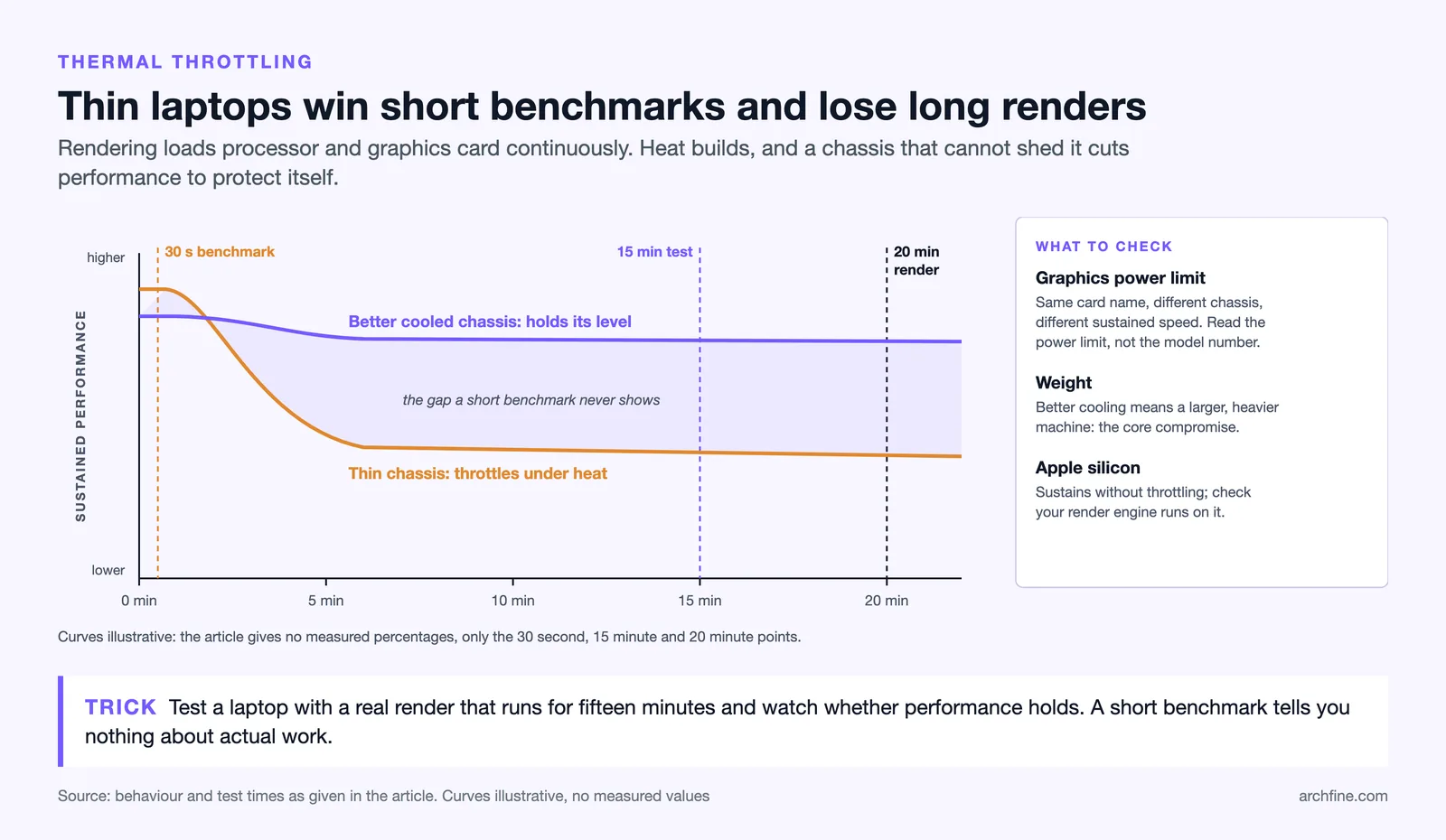
This is the specification nobody publishes and everybody feels. Rendering loads both processor and graphics card continuously, temperatures rise, and the machine reduces performance to stay within its thermal limits.
Thin laptops throttle hardest. The chassis cannot dissipate the heat, so a machine that benchmarks well for thirty seconds delivers considerably less across a twenty minute render.
Larger chassis with better cooling sustain performance and weigh more, which is the fundamental compromise in this category.
The practical test is a sustained one. Run a real render for fifteen minutes and see whether performance holds, since a short benchmark tells you nothing about how the machine behaves on actual work.
Mac or Windows
Software compatibility should be checked against the vendors directly, since Chaos and Graphisoft publish platform support separately for each product.
Apple silicon machines are efficient, quiet and sustain performance without throttling, which is a genuine advantage for long tasks.
The problem is software. Several real time render engines remain Windows only or run with reduced features, and some BIM tools have no Mac version at all. Check the specific software before assuming.
Windows laptops cover the full software range and vary enormously in build quality and thermal design, which puts the burden of research on the buyer.
For a practice standardised on Revit and a Windows only render engine, the decision is made. For one working in Archicad or Rhino with a cross platform renderer, Apple silicon is a serious option.
What to prioritise by role
| Work type | Priority | Acceptable compromise |
|---|---|---|
| Mostly drawing and BIM | System memory, clock speed | Modest graphics card |
| Modelling and rendering | Video memory, cooling | Weight and battery life |
| Site and client facing | Weight, battery, screen | Render performance |
| Student | Memory and a usable GPU | Screen quality |
Laptop Plus Desktop
The arrangement many practices reach is a modest laptop for mobility and a workstation for rendering, which costs less than one machine attempting both and performs better at each.
Cloud rendering extends that further, since a light laptop plus a rendering service removes the need for local power entirely, an approach covered in our guide to render farms.
For a solo practitioner who cannot justify two machines, a larger laptop with good cooling is the honest compromise, accepting the weight.
What Not to Spend On
Professional graphics cards rarely justify their premium for architectural work. Consumer cards perform as well or better, and the professional range mainly adds certified drivers, as the current specifications published by NVIDIA make clear when compared by memory.
Free tools such as Blender shift the requirement toward the graphics card rather than the licence budget. Extremely high resolution laptop screens consume battery and add little, since most detailed work happens on an external monitor.
The fastest available processor is usually poor value, because the graphics card and memory will be the limits long before the processor is.
Full render engine requirements across the main products sit in our guide to rendering system requirements, which is worth checking against any machine before buying.
Frequently Asked Questions
How much RAM does an architect need?
Thirty two gigabytes for BIM work with linked models. Sixteen is workable for smaller projects and will constrain you sooner than the specification suggests.
Can a MacBook run Revit?
Not natively. Virtualisation is possible with compromises, and any practice standardised on Revit should plan on Windows.
Is a gaming laptop suitable?
Yes, and often better value than a workstation model. They carry capable graphics cards and better cooling, and the aesthetic is the main objection.
How long should a laptop last?
Four to five years for general work, three if rendering is a daily activity. Memory and storage can sometimes be upgraded, and the graphics card never can.
Your Next Step: Check the video memory on your current machine while your largest project is open with the render engine running. That single number tells you whether a new laptop is needed or whether the problem is elsewhere.
Buying at the Right Time
Graphics card generations arrive roughly every two years, and laptops using a new generation appear several months after the desktop version. Buying immediately before a generation change means paying full price for outgoing hardware.
Student and education pricing is worth checking even for practices, since several manufacturers offer meaningful discounts that people assume do not apply to them.
Refurbished workstation laptops are frequently better value than new consumer machines at the same price, since they were specified for sustained load rather than for thinness.
What to do with the old machine
An outgoing laptop makes a useful secondary render machine. Distributing frames across two machines shortens the wall clock time on a batch of images, and the old machine costs nothing extra, an approach that scales further with the services covered in our guide to render farms.
It also makes a reasonable site machine, where the requirement is a screen and a battery rather than performance.
Configuring a New Machine
The first hour on a new laptop decides how well it performs for the next three years, and most people skip it.
Set the graphics card as the default for your design software explicitly, since many machines default to integrated graphics for applications they do not recognise.
Set the power profile to performance when plugged in. Laptops ship configured for battery life, which limits sustained performance in exactly the tasks that need it.
Move project files to local storage rather than working from a network drive or cloud folder, since both introduce delays on every save that accumulate across a day.