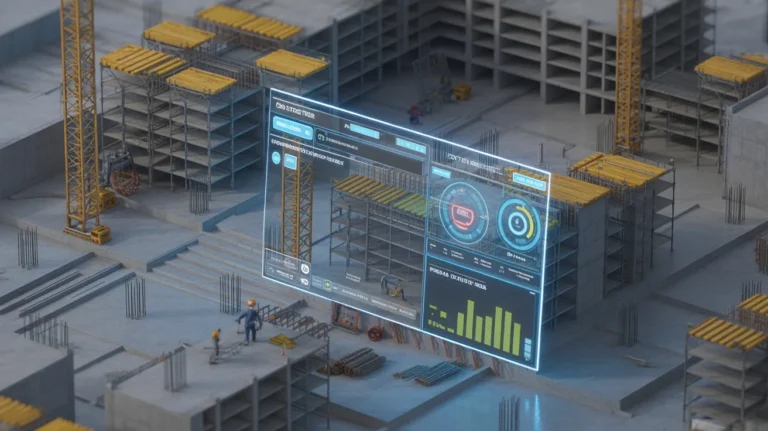
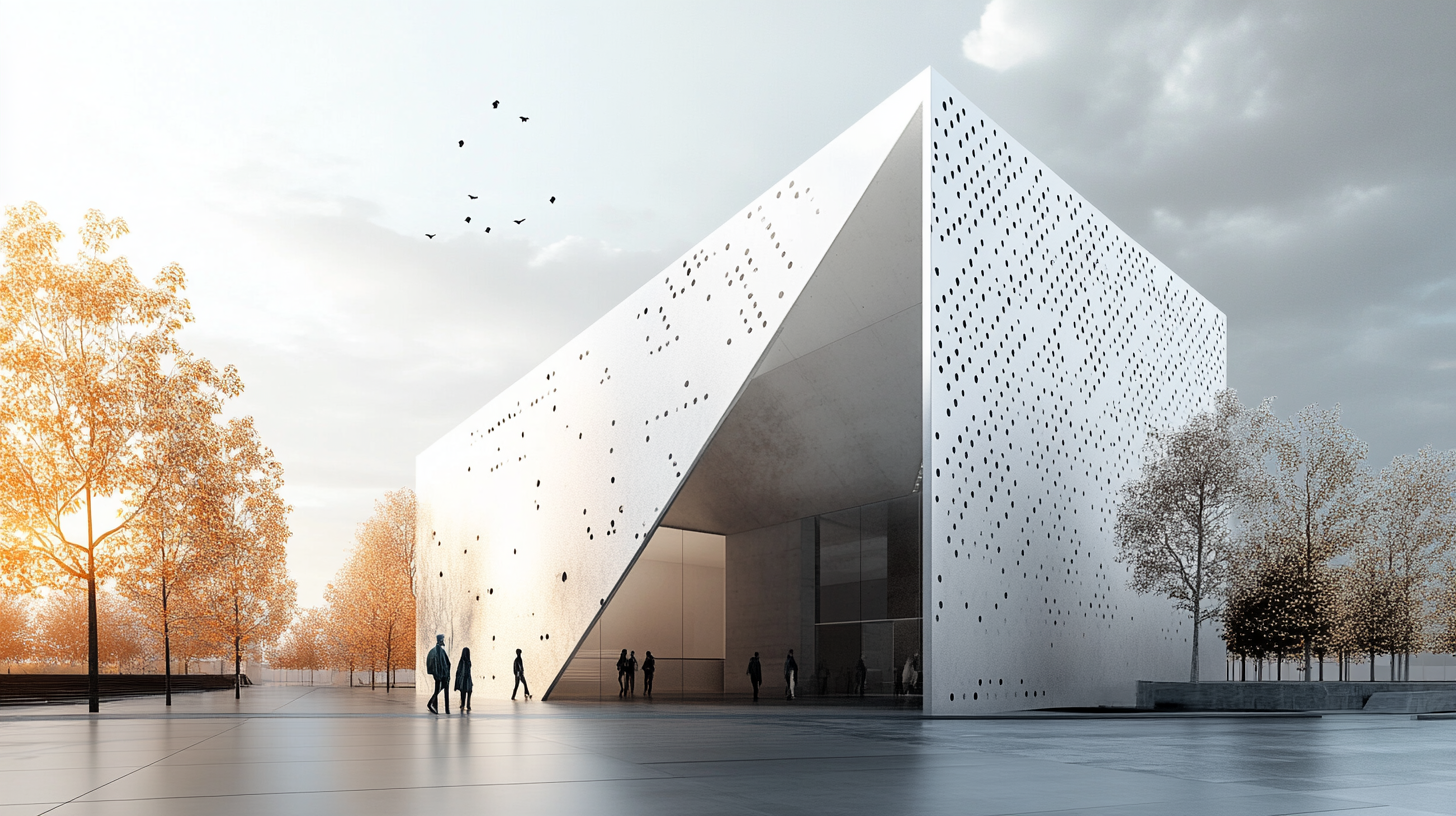
Vectorworks AI rendering uses AI-based visualization tools alongside or instead of Vectorworks’ native Renderworks engine to produce photorealistic architectural images. Designers export a 3D view or rendered image from Vectorworks and process it through an AI rendering platform, getting presentation-quality output in seconds rather than waiting for a full Renderworks job to complete.
Vectorworks is a capable design platform, but generating a polished photorealistic image from it has historically required either a slow Renderworks job or a round-trip through a separate real-time rendering tool. The emergence of AI-based rendering has added a third option: upload an image from your Vectorworks model and receive a photorealistic output in under a minute. This article explains how Vectorworks AI rendering works, which tools support it, and how the results stack up against more established approaches.
💡 Did You Know?
Vectorworks was originally developed as MiniCAD in 1985, making it one of the earliest CAD applications for personal computers. Rebranded as Vectorworks in 2000, it remains particularly popular among landscape architects, entertainment designers, and smaller architectural practices across North America and Europe.
What Is Vectorworks AI Rendering?
Since Vectorworks 2024 Update 4, the software has included a built-in AI Visualizer based on Stable Diffusion, yet many designers still use an external AI platform. When designers refer to Vectorworks AI rendering, they are describing a workflow in which an image exported from Vectorworks — a rendered perspective, an OpenGL view, or a high-quality Renderworks output — is fed into an AI-powered rendering platform that then enhances or transforms that image into photorealistic output.
This is distinct from real-time rendering plugins such as Enscape, which integrates directly with Vectorworks and produces live previews as you model. AI rendering platforms work from static images and use machine learning models trained on architectural photography to infer realistic materials, lighting, and surface detail. The result is a visual that often reads as a photograph rather than a computer render.
The key practical advantage is speed. A full Renderworks job for a complex model can take many minutes to over an hour. An AI rendering platform typically returns a finished image in under 60 seconds, with no hardware dependency on the designer’s local machine.
Vectorworks Rendering Options: Built-In vs External Tools
Before evaluating AI rendering, it helps to understand where it sits within the broader Vectorworks rendering workflow and what the alternatives actually cost.
Renderworks (Built-In)
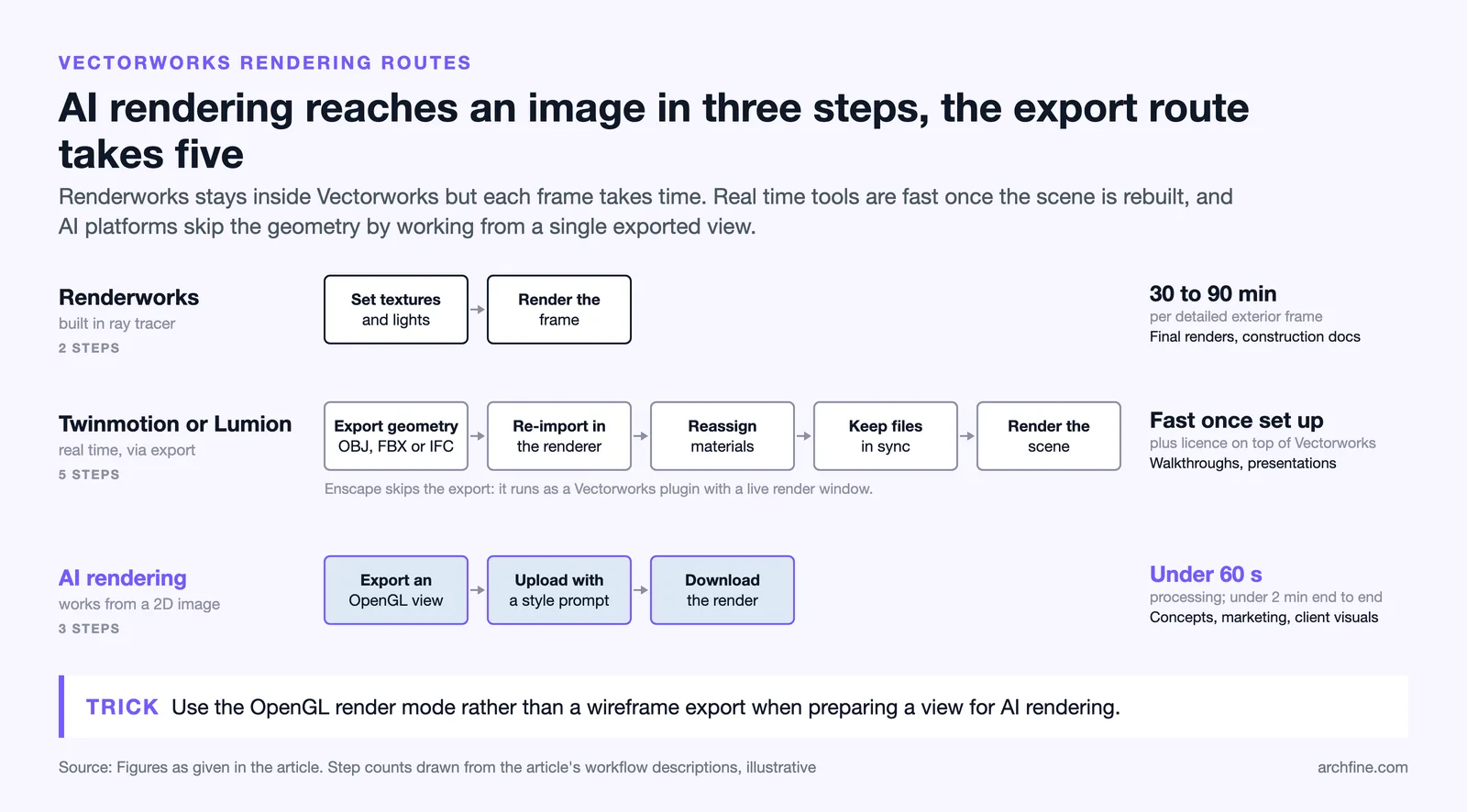
Renderworks is Vectorworks’ native rendering engine, powered by the Maxon Cineware technology. It is included in the full Vectorworks Architect, Landmark, and Spotlight bundles and produces ray-traced renders with accurate lighting, shadows, and reflections. Quality can be very high, particularly with careful texture and light setup, but render times scale significantly with scene complexity. For a well-detailed exterior, a single Renderworks frame at presentation quality can take 30 to 90 minutes on a mid-range workstation.
Renderworks is the right choice when a final deliverable needs full ray-trace accuracy and rendering time is not a constraint. It is less suitable for iterative concept review or client-facing quick presentations where turnaround time matters.
Twinmotion and Lumion via Export
Both Twinmotion and Lumion accept Vectorworks geometry via export (typically as OBJ, FBX, or IFC) and allow designers to build richly detailed scenes using real-time rendering engines. Enscape integrates directly with Vectorworks as a plugin and provides a live rendering window that updates as you work in the model.
These are powerful tools, but they carry real costs. Vectorworks users working with Twinmotion should note that the software starts at $445 per year for a standard license (free for studios under $1 million USD in annual revenue). Lumion Pro subscriptions cost about $1,149 per year for a named user or $1,499 per year for a floating seat (as of October 2026). Enscape Solo is priced at about $47.90 per month billed annually, or $574.80 per year (as of October 2026). These costs are in addition to an existing Vectorworks subscription.
The workflow also adds steps. Exporting, re-importing geometry, reassigning materials, and maintaining file synchronization between Vectorworks and a standalone renderer creates friction in fast-paced design environments.
AI Rendering Platforms
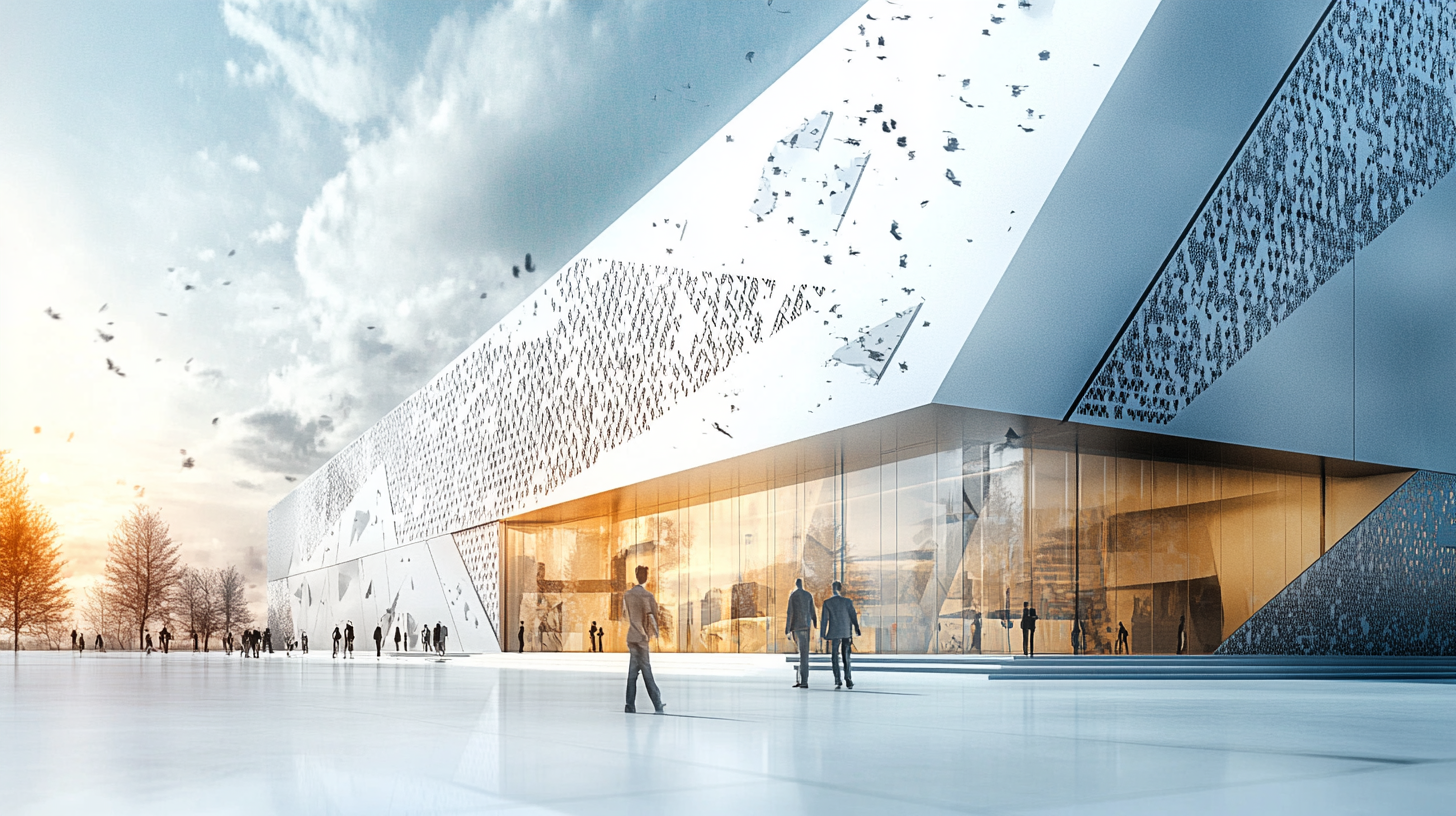
AI rendering platforms take a fundamentally different approach. Rather than importing and re-rendering 3D geometry, they process a 2D image — typically an export or screenshot from Vectorworks — and apply a trained model to synthesize photorealistic detail. The 3D data is consumed and discarded; only the image matters.
This makes AI rendering platforms lightweight by design. No plugin installation, no geometry export, no material library management. A designer exports an image from Vectorworks, uploads it to the platform, adds a style or material prompt, and downloads a photorealistic result. The entire process takes less than two minutes in most cases.
The tradeoff is control. AI rendering platforms do not offer the scene-building depth of Twinmotion or Lumion. They are best suited to concept visualization, marketing images, and early client presentations rather than final construction-documentation renders.
Vectorworks Rendering Options Compared
| Tool | Type | Speed | Quality | Cost (2026) | Best Use |
|---|---|---|---|---|---|
| Renderworks (built-in) | Ray-trace | Slow | High | Included with Vectorworks | Final renders, construction docs |
| Twinmotion (via export) | Real-time | Fast | High | Free (under $1M revenue) / $445/yr | Walkthroughs, design review |
| Lumion (via export) | Real-time | Fast | High | $1,149 to $1,499/yr | Polished presentations, animation |
| Enscape (plugin) | Real-time | Fast | High | ~$47.90/mo billed annually ($574.80/yr) | Live design review, VR |
| ArchFine (AI) | AI-based | Very fast (<60s) | High | Low / SaaS subscription | Concepts, marketing, quick client visuals |
Pricing figures are approximate as of early 2026 and subject to change. Always verify current pricing on each vendor’s website before purchasing.
How to Use AI Rendering with Vectorworks
The workflow for AI rendering from Vectorworks is straightforward and does not require any plugin installation or third-party software license beyond the AI platform itself. The following steps cover the complete process from model to finished image.
Exporting a 3D View or Rendered Image from Vectorworks
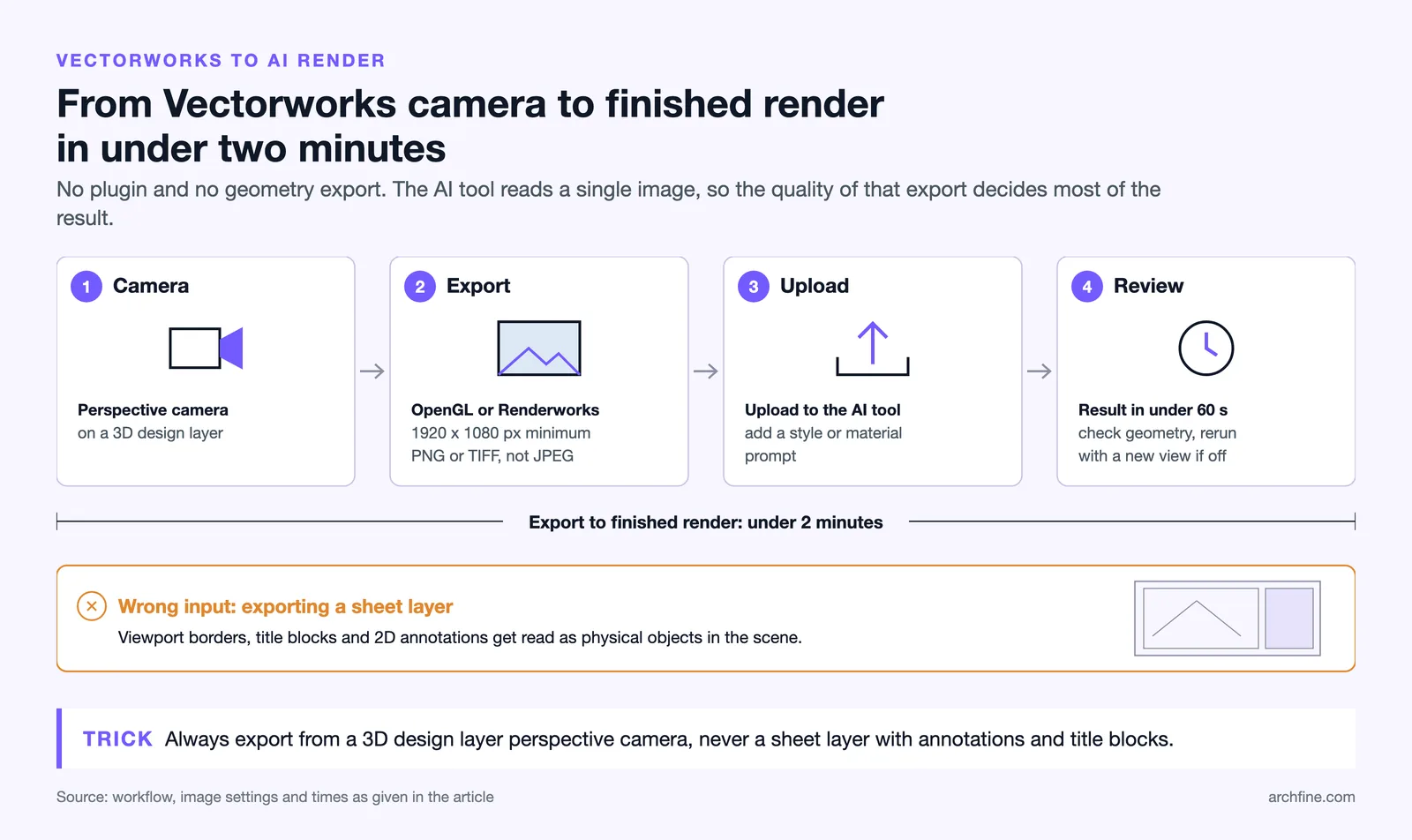
The starting point is a well-composed 3D view in Vectorworks. Navigate to the perspective camera position you want to render, then choose your export method. For most AI rendering workflows, two options work well: an OpenGL render or a Renderworks output saved as a high-resolution image.
✅ Pro Tip
When exporting a Vectorworks 3D view for AI rendering, use the OpenGL render mode rather than a wireframe export. OpenGL applies basic color and material information to surfaces, giving the AI rendering tool significantly more to work with than a raw wireframe. This approach consistently produces cleaner material assignments in the AI output, especially for complex wall assemblies and fenestration patterns.
⚠️ Common Mistake to Avoid
Exporting a Vectorworks sheet layer rather than a design layer 3D view is a common error when preparing for AI rendering. Sheet layers contain 2D annotations, viewport borders, and title block elements that AI tools try to interpret as physical objects in the scene. Always export directly from a 3D design layer perspective camera for the cleanest rendering input.
Export the image at the highest resolution your workflow allows. A minimum of 1920 × 1080 pixels is recommended for AI rendering inputs; larger source images typically produce sharper AI outputs. Use PNG or TIFF for best results, as JPEG compression can introduce artifacts that affect material recognition in the AI model.
For more information on Vectorworks export formats and settings, refer to the Vectorworks documentation and support resources.
Processing Through an AI Rendering Tool
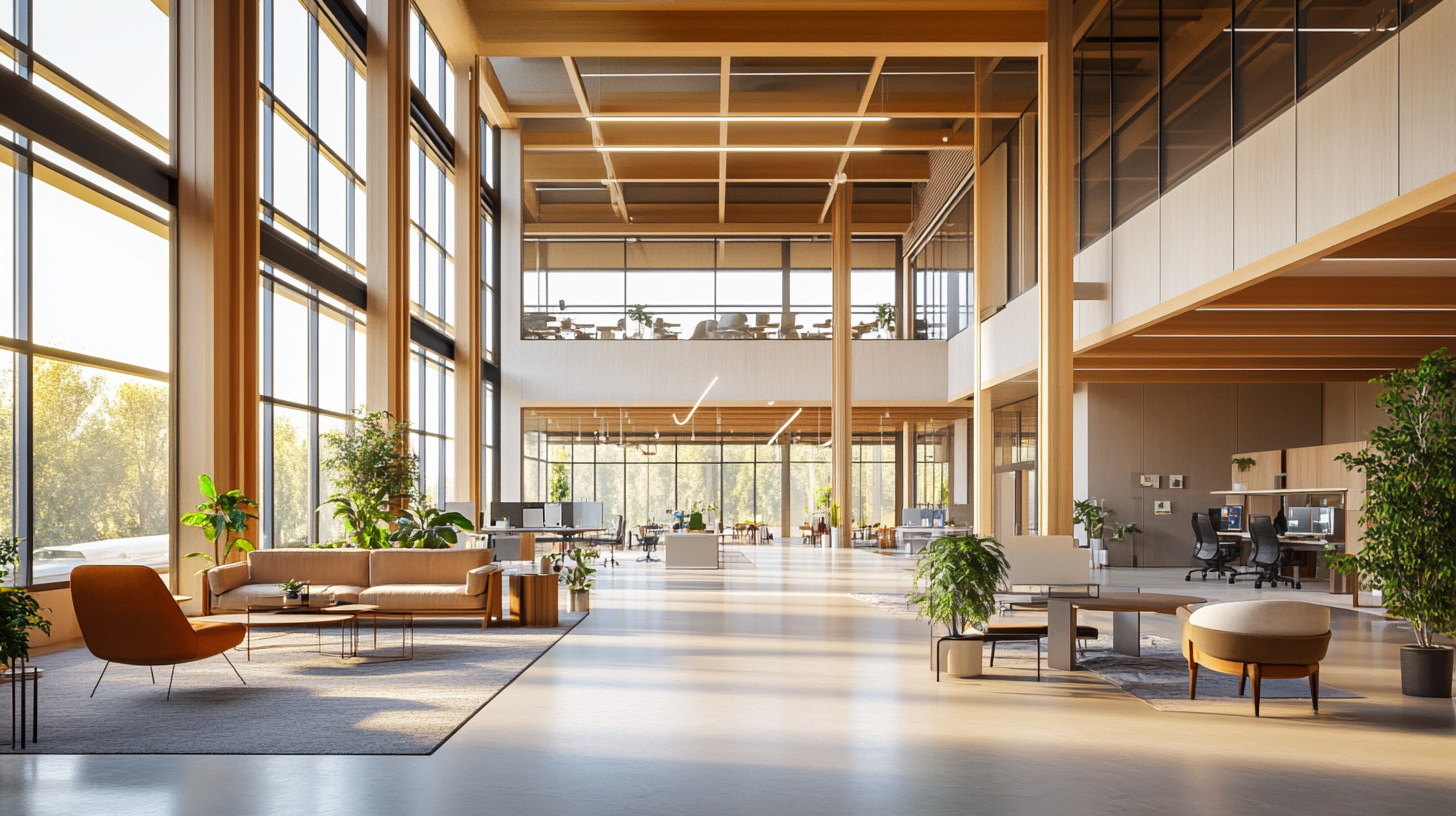
Once you have your exported image, upload it to an AI rendering platform. Most platforms follow a similar workflow: upload the image, select or describe a style target (photorealistic exterior, evening lighting, specific material palette), and submit the job. Processing typically completes in under 60 seconds.
Review the output carefully. AI rendering platforms may misinterpret unusual geometry or unconventional material arrangements. If the first result does not match your intent, adjusting the style prompt or trying a different view angle from Vectorworks will usually resolve the issue. Multiple variations can be generated quickly to explore different looks before committing to a final image.
For a complete render Vectorworks model with AI workflow using ArchFine, create a free account and upload your first image directly from the dashboard.
How ArchFine Works with Vectorworks Outputs
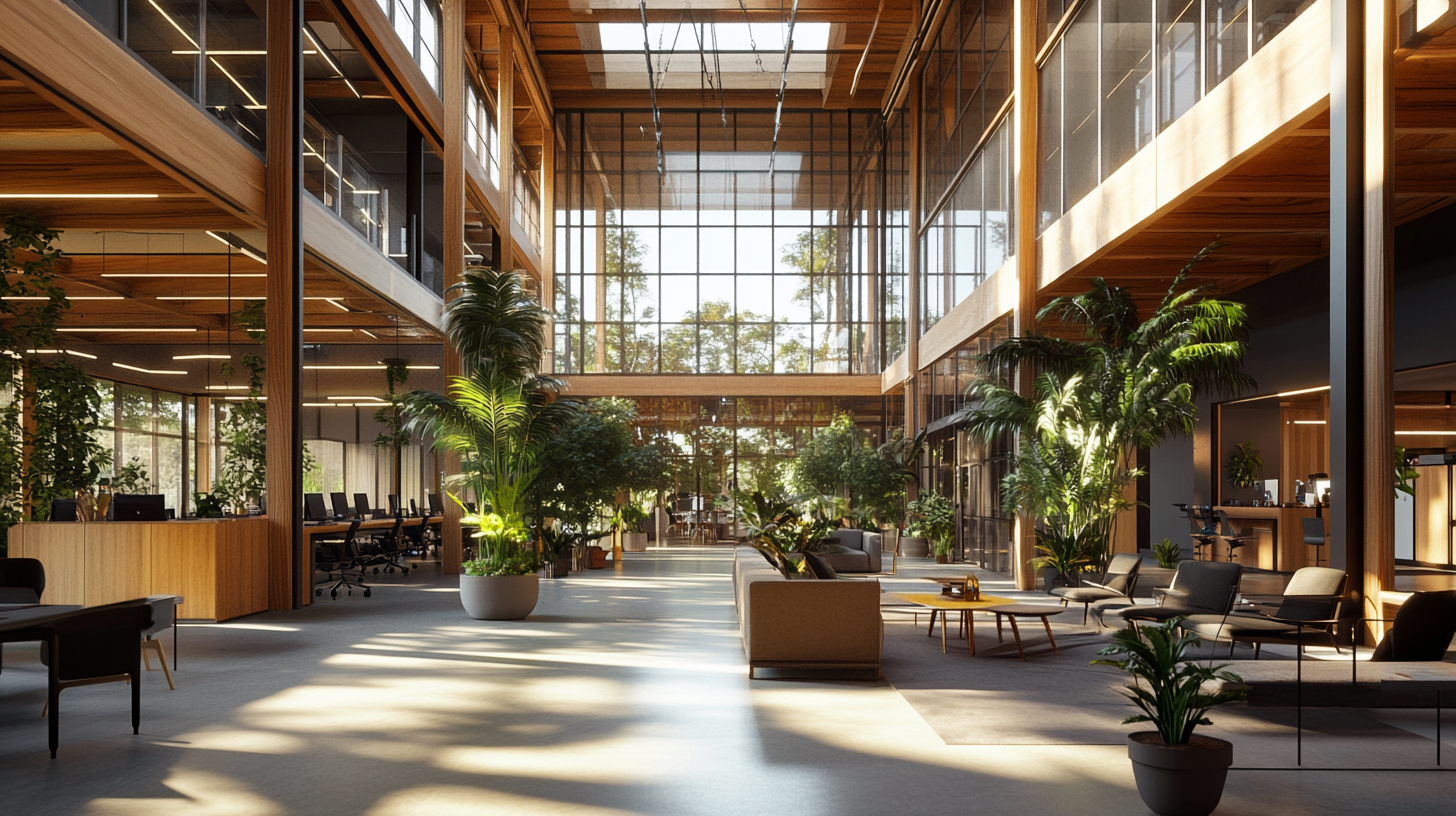
ArchFine is a browser-based AI rendering platform built specifically for architectural visualization. It accepts images from any source — including Vectorworks exports — and returns photorealistic renders in approximately 30 seconds. No plugin installation is required, and the platform runs entirely in the browser, meaning there is no hardware dependency on the designer’s local machine.
The ArchFine workflow for Vectorworks users consists of three steps. First, export a 3D view from Vectorworks using OpenGL or Renderworks at high resolution. Second, upload the image to ArchFine and add a brief prompt describing the material palette or lighting condition you want to achieve. Third, download the finished render. The entire process from export to deliverable typically takes under two minutes.
ArchFine is designed to complement the Vectorworks rendering workflow, not replace it. For final construction documentation or complex night-time scenes with precise lighting requirements, Renderworks remains the more controlled option. For concept visualization, client presentations, competition entries, and marketing images, ArchFine provides the fastest path from Vectorworks model to presentation-quality output. This makes it a practical Vectorworks Renderworks alternative for time-sensitive deliverables.
Because ArchFine processes images rather than geometry, it works equally well with Vectorworks models exported at any level of completion. A rough massing model from early schematic design produces usable concept images; a fully detailed model produces near-photographic results. The platform scales with the project stage rather than requiring a finalized model before rendering can begin.
Vectorworks AI Rendering vs. Renderworks: A Practical Comparison
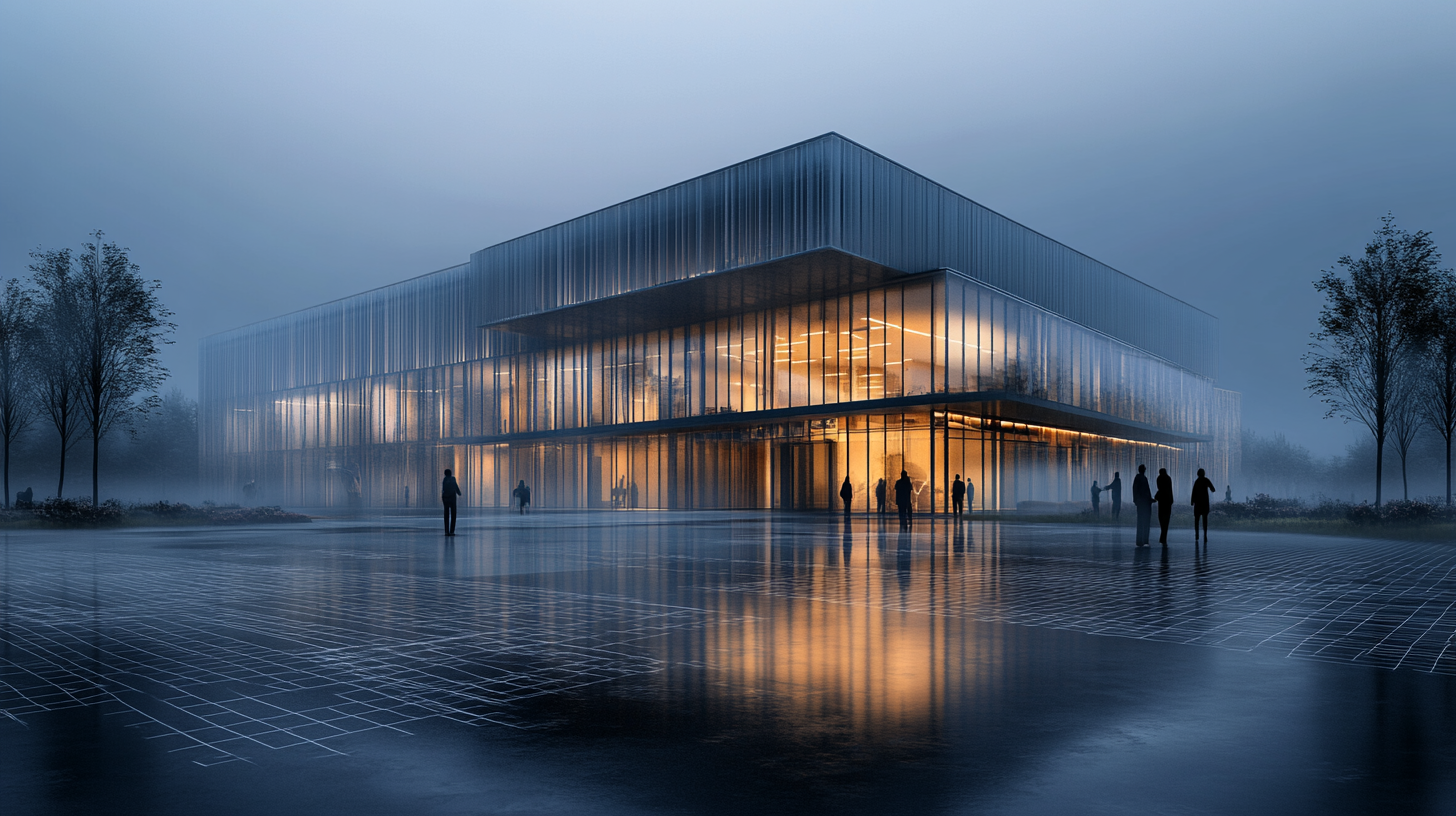
The choice between Vectorworks AI rendering and Renderworks is not binary. Both tools serve different stages of the design process and different output requirements. Understanding where each excels helps designers allocate rendering time more efficiently.
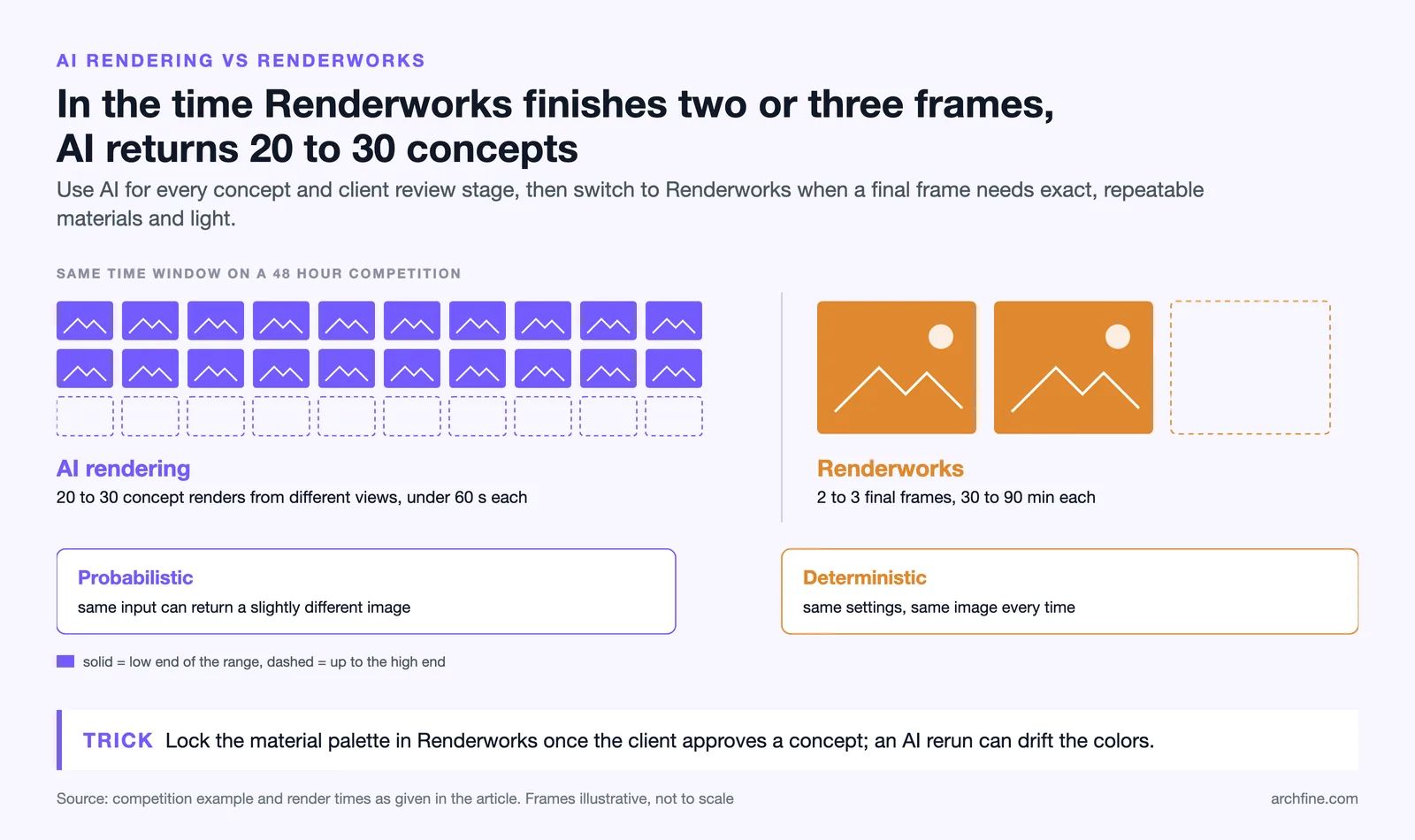
Renderworks produces physically accurate ray-traced images with precise control over every material, light source, and environmental condition. For final deliverables — presentation boards, planning submissions, construction documentation — this level of control is often necessary. Renderworks output is deterministic: the same settings produce the same image every time, which matters when a client needs to approve a specific material or color.
Vectorworks AI rendering, by contrast, is probabilistic. The AI model interprets the input image and synthesizes detail based on training data from architectural photography. Two identical inputs with the same style prompt may produce slightly different outputs. This is a feature in concept work — small variations help designers explore a design direction quickly — but it is a limitation when pixel-perfect accuracy is required.
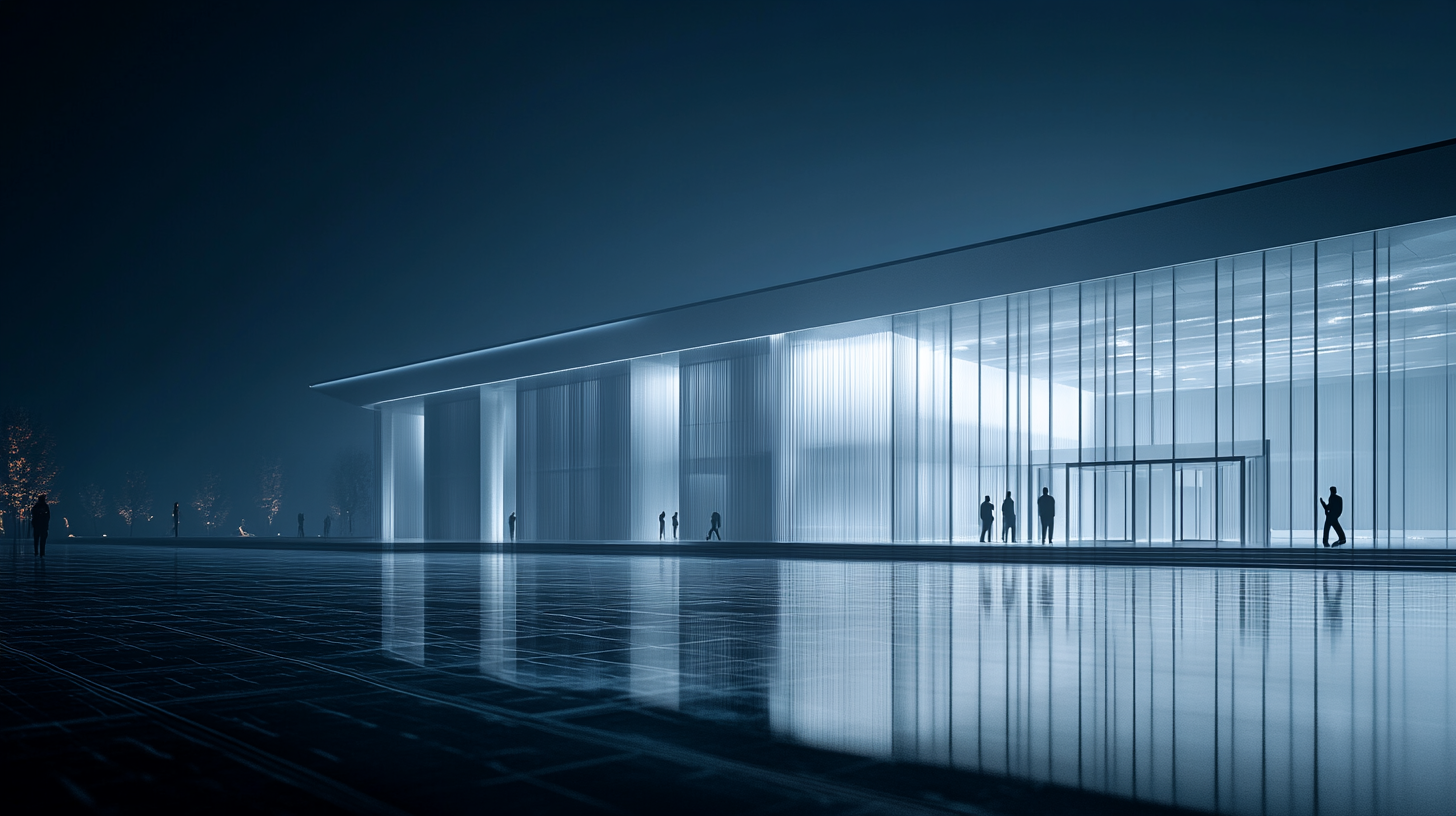
Where AI rendering has a clear advantage is speed and iteration rate. A designer working on a competition entry with a 48-hour deadline can generate 20 to 30 concept renders from different Vectorworks views in the time it would take Renderworks to complete two or three final-quality frames. For fast AI visualization from Vectorworks at the concept stage, AI platforms consistently outperform the built-in engine.
A practical workflow for many studios combines both tools: use ArchFine or a comparable AI rendering platform for all concept and client-review stages, then switch to Renderworks only when a final high-resolution deliverable requires ray-trace accuracy. This approach reduces total rendering time significantly while preserving the quality advantage of Renderworks where it matters most.
For more background on Vectorworks as a platform, the Vectorworks Wikipedia article provides a thorough overview of the software’s history and feature set. The Vectorworks Community forums are also a valuable resource for workflow-specific questions, including rendering optimization and export settings. For broader context on architectural visualization tools and industry usage, ArchDaily covers software comparisons and workflow articles relevant to practicing architects.
📋 Key Takeaways
- Vectorworks AI rendering describes a workflow in which an image exported from Vectorworks is processed by an AI platform to produce photorealistic output. Vectorworks also has its own built-in AI Visualizer, added in Vectorworks 2024 Update 4.
- Renderworks remains the strongest option for final, ray-traced deliverables where precise material and lighting accuracy is required, but render times can be substantial.
- Twinmotion, Lumion, and Enscape provide high-quality real-time rendering via geometry export or plugin, but add cost and workflow complexity on top of an existing Vectorworks license.
- AI rendering platforms such as ArchFine process a static export from Vectorworks and return a photorealistic image in under 60 seconds, making them well suited to concept visualization, client presentations, and competition images.
- The most efficient Vectorworks rendering workflow for most studios combines AI rendering for concept and review stages with Renderworks for final deliverables.
- Always export from a 3D design layer perspective camera in OpenGL mode rather than from a sheet layer to ensure the cleanest AI rendering input.