
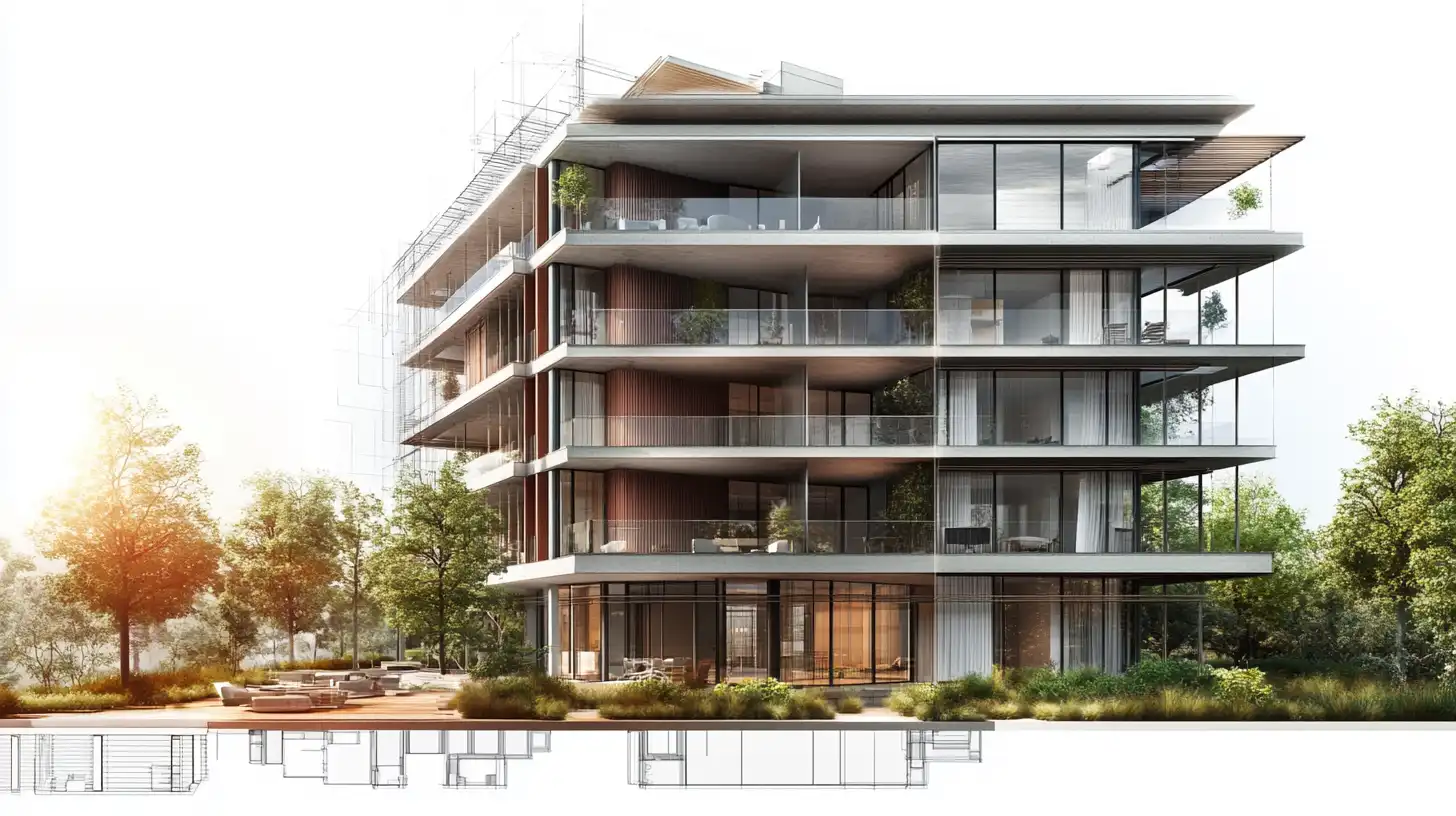
ArchiCAD AI rendering uses AI-based visualization tools to convert ArchiCAD model exports into photorealistic architectural images. Rather than relying solely on CineRender or exporting to a real-time engine like Twinmotion, designers export a 3D view from ArchiCAD and process it through an AI rendering platform to get a finished visual in seconds, without leaving their BIM workflow or setting up complex lighting rigs.
For architects and BIM professionals who need client-ready visuals at concept stage, the standard ArchiCAD rendering workflow often introduces friction. CineRender requires careful scene setup, and dedicated engines like Lumion or Twinmotion demand an additional export pipeline. AI rendering tools are changing this dynamic by fitting into the existing BIM process at the output stage — taking what you already have and producing a photorealistic result almost instantly.
What Is ArchiCAD AI Rendering?
ArchiCAD AI rendering refers to the use of AI-powered visualization platforms to generate photorealistic images from ArchiCAD model exports. The ArchiCAD model itself stays intact in its native environment; what gets processed by AI is a rendered or screencaptured view — typically a high-quality 3D perspective image exported from ArchiCAD’s built-in rendering engine or camera viewport.
The AI tool interprets the geometry, materials, lighting, and depth information embedded in that export and enhances it into a finished architectural visualization. The result is a photorealistic image that communicates the design intent without requiring the designer to configure every material node, HDRI environment, or light bouncing parameter manually.
This approach is particularly effective for early-stage design presentations, client approvals, and competition submissions — contexts where speed matters as much as quality, and where iterating quickly on multiple design variants is a competitive advantage.
ArchiCAD, developed by Graphisoft, was launched for the then new Apple Macintosh, with Graphisoft’s work on it dating back to 1984. It is also widely cited as the first software to introduce the concept of Building Information Modeling (BIM), decades before the term became industry standard.
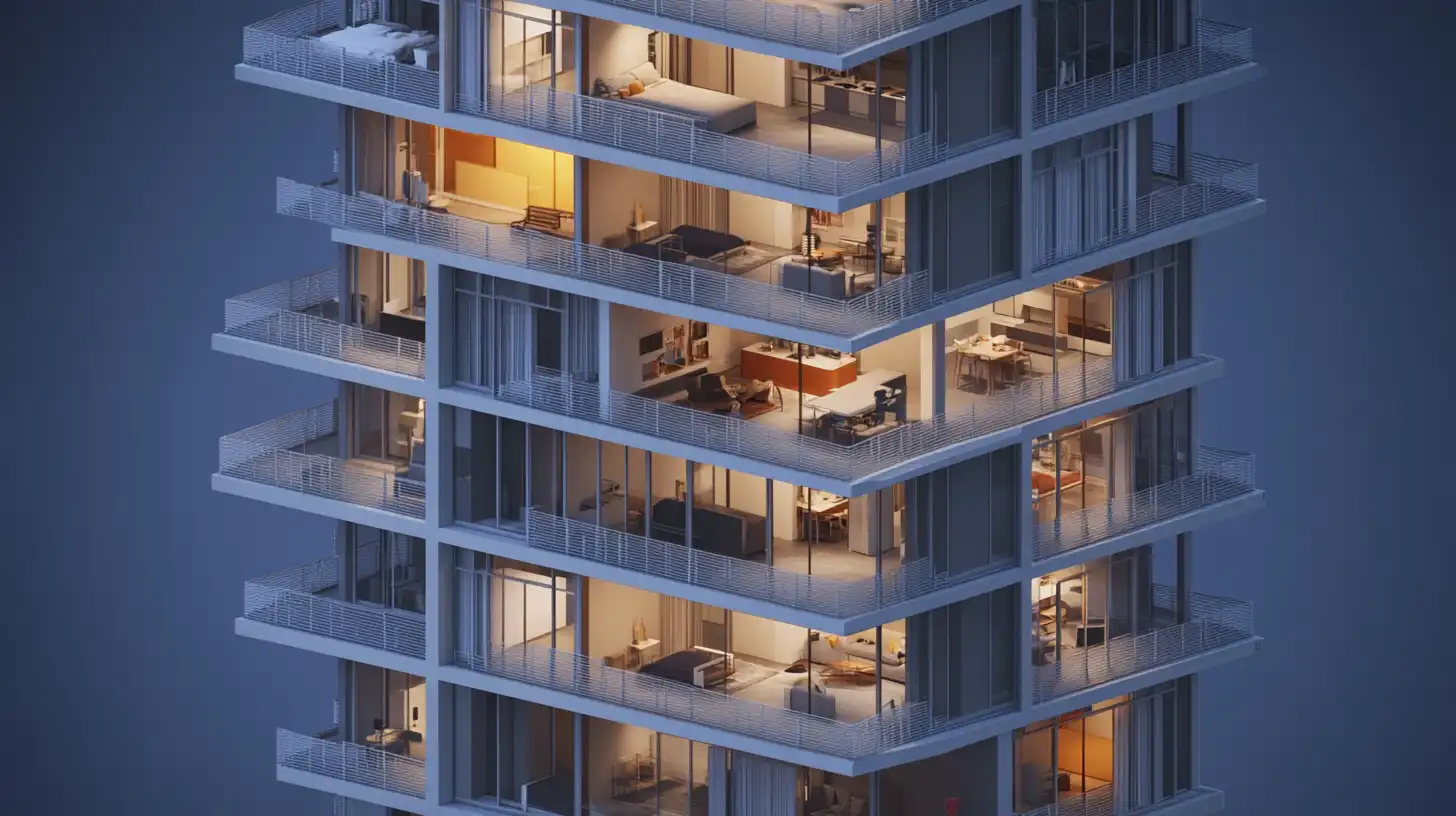
ArchiCAD’s Built-In Rendering vs. AI Tools
Understanding why ArchiCAD AI rendering has become a relevant workflow option means first looking honestly at what the built-in rendering engine offers — and where it falls short for modern production demands.
CineRender: What It Offers and Where It Falls Short
ArchiCAD’s native rendering engine is CineRender, developed in partnership with Maxon (the company behind Cinema 4D). CineRender is a capable photorealistic renderer that handles global illumination, physically-based materials, HDRI lighting, and camera exposure settings. For final-stage rendering of completed design documentation, it produces high-quality output.
The limitations become apparent in a fast-paced workflow. CineRender render times scale with scene complexity — a detailed residential model with accurate material assignments and an HDRI environment can take several minutes to render a single frame at presentation quality. Setting up that scene correctly requires specific expertise: assigning accurate surface materials, configuring light sources, setting up a camera with correct exposure and depth of field, and managing render passes if post-processing is needed.
For teams working to tight client presentation deadlines, or for architects who need to iterate quickly across multiple design options, this setup cost adds up. CineRender is well-suited to its role as a final-stage rendering tool. It was not designed for speed-first iterative visualization workflows, and that distinction matters more now that AI tools have raised the benchmark for what “fast” means.

Where AI Rendering Fills the Gap
AI visualization tools address the gap between a completed BIM model and a polished client-ready visual by automating the enhancement layer. Instead of manually building a render scene from scratch, the designer exports a view from ArchiCAD — one that already contains correct geometry, perspective, and material information — and uploads it to an AI platform.
The AI system applies learned understanding of lighting behavior, surface texture, atmospheric depth, and photographic composition to transform that export into a photorealistic image. The turnaround is measured in seconds rather than minutes. No additional scene setup, no specialized renderer configuration, and no separate software license required beyond the AI platform itself.
The tradeoff is control granularity. CineRender gives the designer precise authority over every render parameter. AI rendering tools operate more like a skilled post-processor: they enhance intelligently, but within constraints defined by the AI model’s training rather than by the designer’s direct input. For concept-stage visuals and client approvals, this tradeoff is overwhelmingly favorable. For final construction documentation or high-specification publication renders, CineRender remains the more appropriate choice.
How to Use AI Rendering with ArchiCAD
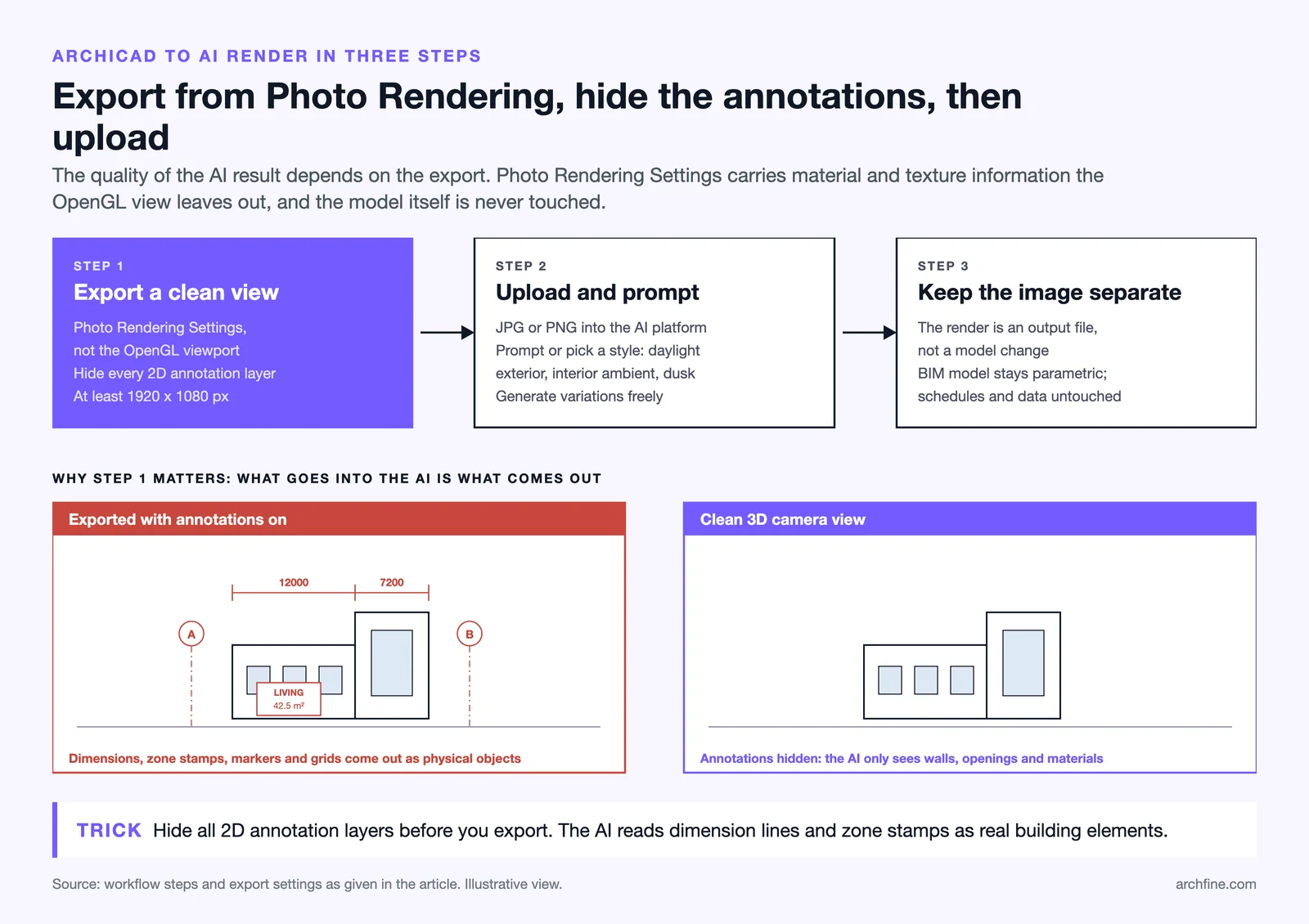
The ArchiCAD rendering workflow for AI-enhanced visuals involves three steps: exporting a clean 3D view from ArchiCAD, processing it through an AI rendering platform, and managing the relationship between the resulting image and the underlying BIM model.
Exporting a 3D View from ArchiCAD
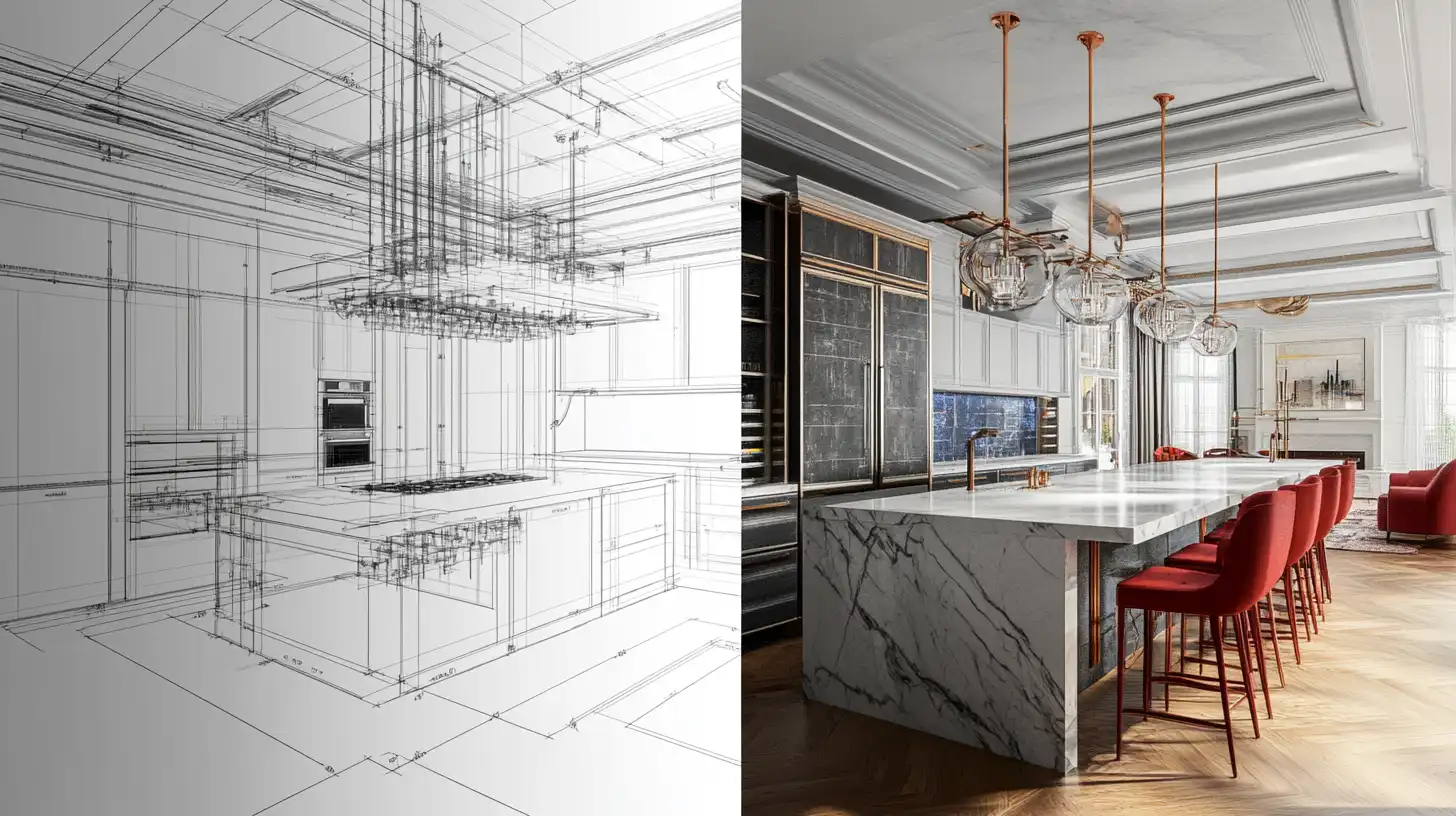
The quality of an AI-rendered result is directly tied to the quality of the ArchiCAD export. A well-prepared export gives the AI tool more material, depth, and lighting information to work with, which produces a more convincing final image.
The recommended export approach is to use ArchiCAD’s Photo Rendering Settings view rather than the OpenGL viewport. The OpenGL view applies simplified material representations and lacks accurate surface texture information, which limits what the AI renderer can extrapolate. Photo Rendering Settings activates surface material assignments and produces an output with more visible texture and material variation that the AI can use as a base for photorealistic enhancement.
Before exporting, hide all 2D annotation layers. Dimension lines, zone stamps, section markers, and grid references are rendered as visible geometry in the export image. AI rendering tools interpret these as physical elements — which introduces artifacts into the final visual that are difficult to correct after the fact. A clean 3D camera view with annotations hidden is the correct starting point.
Export resolution matters. A minimum of 1920×1080 pixels is recommended for standard presentation quality. Higher resolution exports give the AI tool more spatial information to work with and produce crisper results at output.
Exporting an ArchiCAD view that includes 2D overlay elements — dimension lines, zone stamps, or section markers — is a frequent preparation error. These elements appear as visible lines in the exported image, which AI rendering tools interpret as physical objects or structural members. Always hide all 2D annotation layers before export. Clean 3D camera views with annotations off produce consistently better AI rendering results.
Processing through an AI Rendering Platform
Once the ArchiCAD export is ready, uploading it to an AI rendering platform is straightforward. Most platforms accept JPG or PNG input and provide a simple prompt or style-selection interface for directing the output aesthetic — daylight exterior, interior ambient lighting, dusk scene, and similar parameters.
The AI processes the uploaded image, interprets its spatial structure, and generates a photorealistic version. On platforms like ArchFine, this process completes in approximately 30 seconds, producing a visualization suitable for client presentations, social media, and competition boards. Multiple variations can be generated quickly, allowing designers to present different time-of-day, lighting, and material scenarios without regenerating the underlying ArchiCAD model.
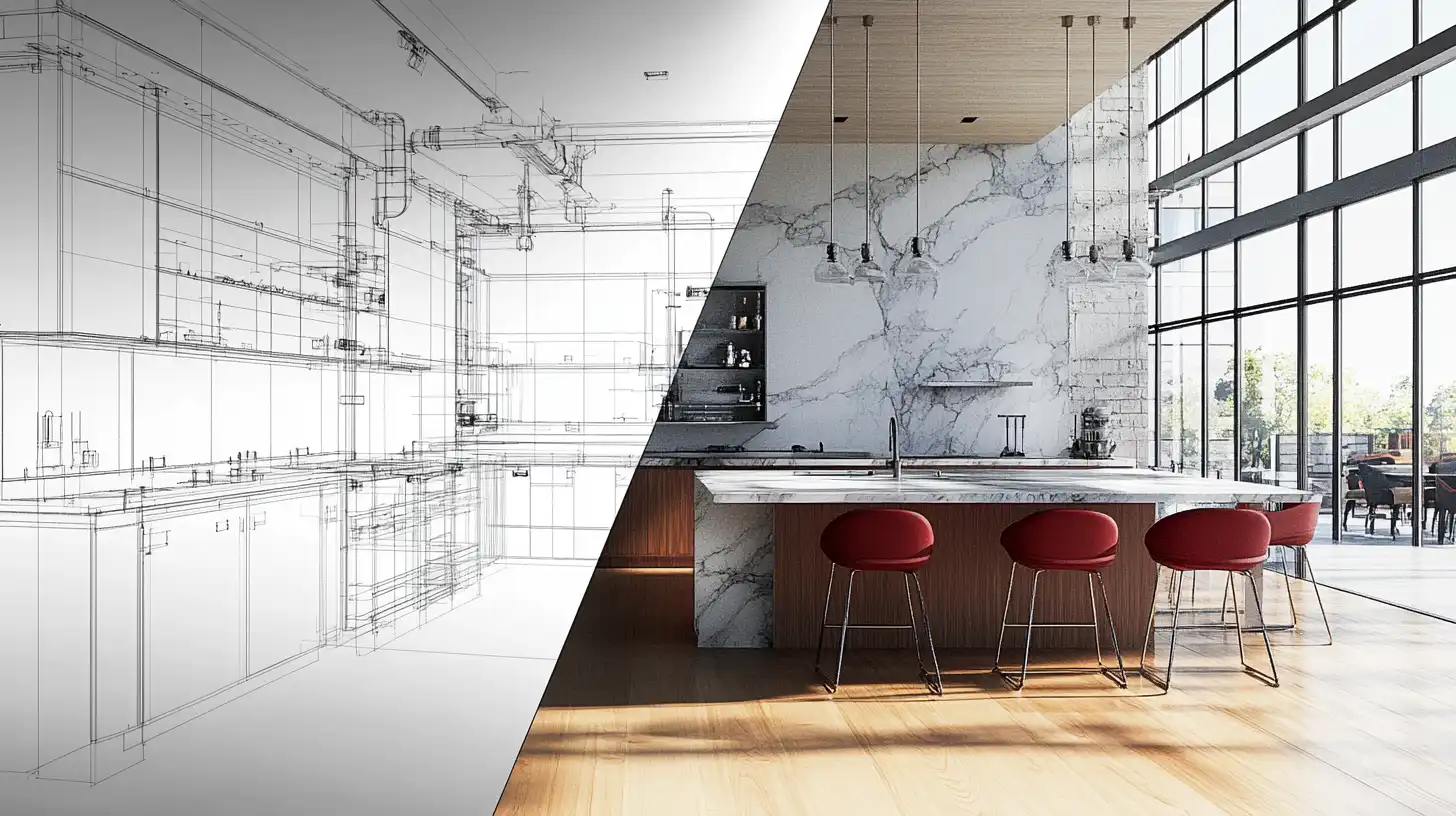
When exporting an ArchiCAD 3D view for AI rendering, use the Photo Rendering Settings view rather than the OpenGL viewport. Photo Rendering Settings activates surface material assignments and produces an output with more visible texture and material variation. The OpenGL view applies simplified materials that give the AI rendering tool less information to produce realistic surface finishes.
Maintaining BIM Data Integrity Alongside AI Visuals
A common concern when introducing AI visualization into a BIM workflow is whether the process compromises the integrity of the underlying model. It does not. ArchiCAD AI rendering operates entirely at the output stage — the exported image is enhanced by the AI tool, while the original BIM model in ArchiCAD remains unchanged and fully parametric.
The AI-rendered image is a visualization artifact, not a model modification. BIM data — element schedules, material specifications, structural parameters, coordination information — is unaffected. Teams can maintain their standard BIM documentation workflow in ArchiCAD while producing AI-enhanced visuals in parallel for client communication and design development. The two outputs serve different purposes and do not interfere with each other.
How ArchFine Works with ArchiCAD Outputs
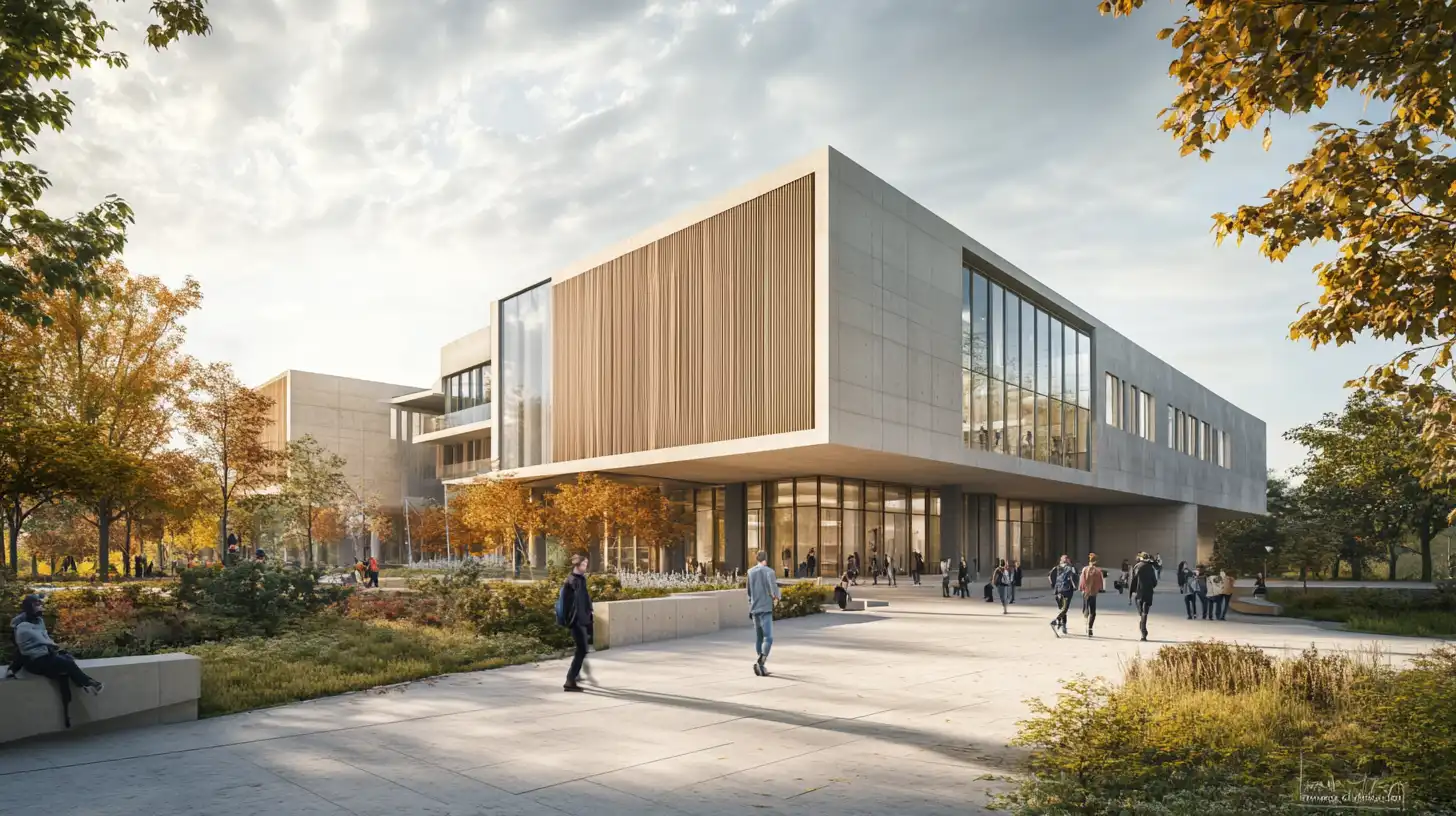
ArchFine is an AI-powered architectural rendering platform built specifically for the architectural visualization workflow. It accepts image uploads — including exports from ArchiCAD — and processes them through a chat-based interface where designers can add prompt instructions to direct the rendering style, lighting, environment, and material treatment of the output.
The platform is designed for speed without requiring photorealistic rendering expertise. There is no scene setup, no material library management, and no render queue to manage. A designer exports their ArchiCAD view, uploads it to ArchFine, adds a prompt describing the desired visual output, and receives a photorealistic result within approximately 30 seconds. This makes ArchFine a practical tool for fast ArchiCAD BIM rendering during design development, where the goal is communicating design intent quickly rather than producing final-stage documentation imagery.
ArchFine’s output is well-suited to concept presentations, early client approvals, social media content, and competition entries — contexts where photorealistic quality matters but production speed is equally critical. Because the workflow is entirely image-based, it integrates cleanly with the existing ArchiCAD export pipeline without requiring additional software plugins or direct model imports. Create a free ArchFine account to test the workflow with your own ArchiCAD exports.
ArchiCAD AI Rendering vs. Twinmotion and Lumion
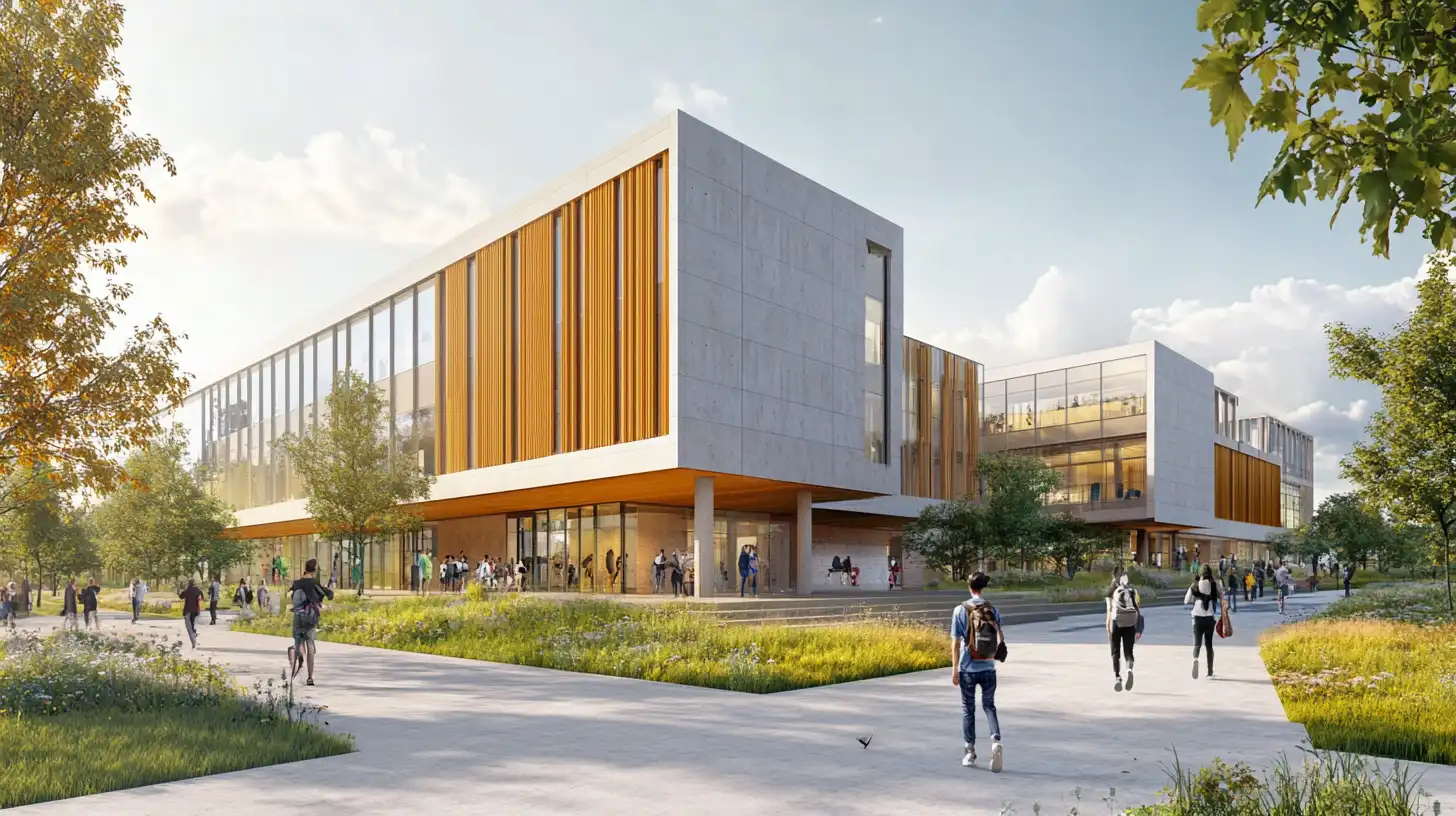
Twinmotion and Lumion are the two most widely used dedicated real-time rendering and visualization environments for ArchiCAD models. Both offer direct ArchiCAD integration: Twinmotion supports a direct link that syncs the ArchiCAD model in real time, and Lumion imports via a compatible file format. Both produce high-quality output and support animation, walkthrough, and immersive visualization formats that AI rendering tools currently do not match.
The comparison matters primarily in terms of workflow entry cost and use case fit. Twinmotion, built on Unreal Engine, is free for individuals and companies under $1 million in annual revenue ($445 per seat per year above that, as of October 2026) but requires model setup within its own environment. Lumion is a premium-priced annual subscription that requires a high-specification workstation to run at full quality. Both involve learning curve investment and ongoing license costs.
AI rendering tools like ArchFine occupy a different position: they are faster to get started with, lower in cost, and optimized for still-image output from existing exports. They do not support real-time walkthroughs or animation. For teams that primarily need still visuals for client communication and marketing, AI rendering tools offer a significantly lower overhead than maintaining a Twinmotion or Lumion license alongside an ArchiCAD subscription.
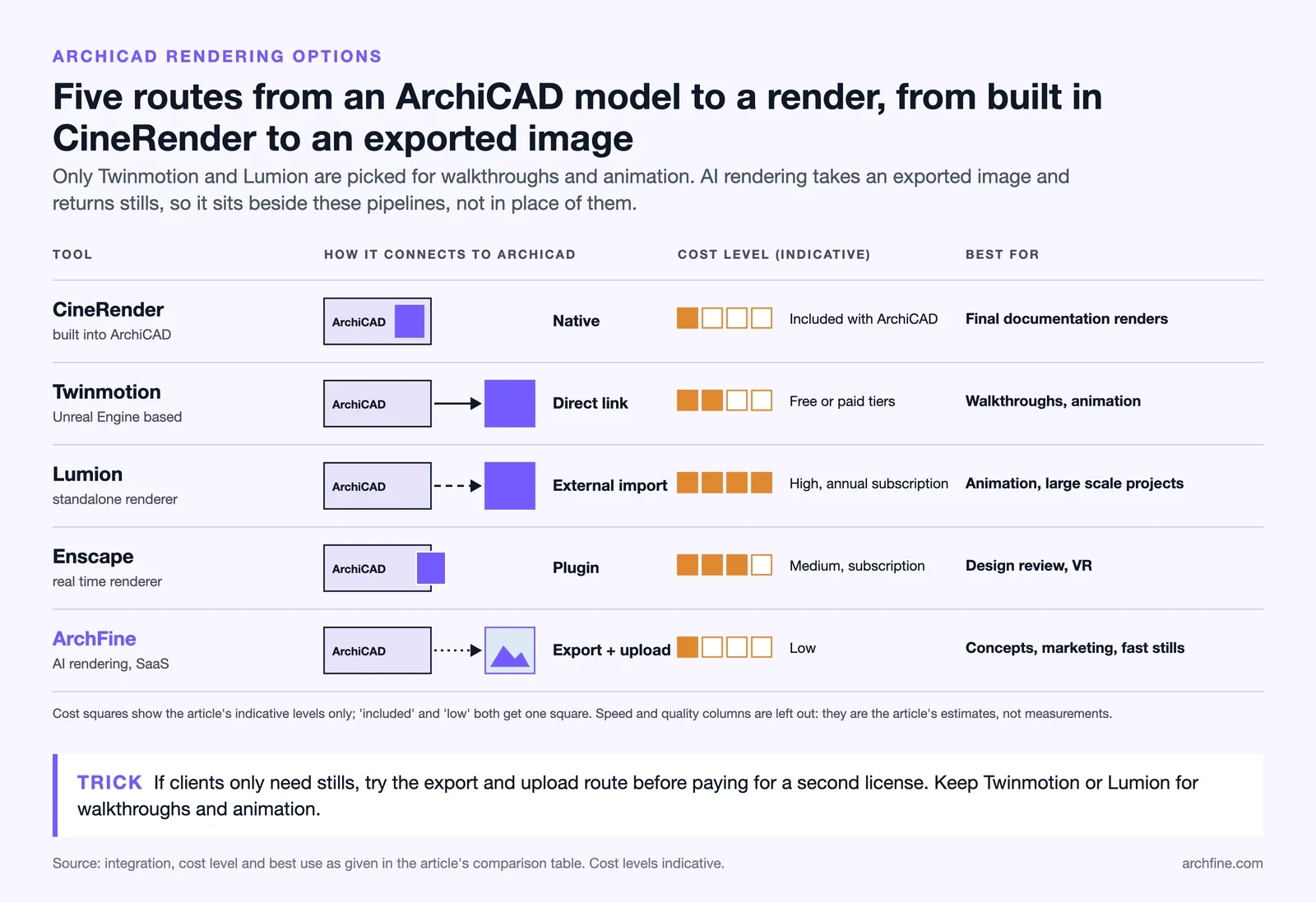
The table below compares the main rendering options for ArchiCAD users across the criteria most relevant to production decisions:
| Tool | Integration | Speed | Quality | Cost | Best For |
|---|---|---|---|---|---|
| CineRender (built-in) | Native | Medium–slow | High | Included with ArchiCAD | Final documentation renders |
| Twinmotion | Direct link | Fast | Very high | Free / Paid tiers | Walkthroughs, animation |
| Lumion | External import | Fast | Very high | High (annual subscription) | Animation, large-scale projects |
| Enscape | Plugin (external) | Fast | High | Medium (subscription) | Design review, VR |
| ArchFine (AI) | Export + upload | Very fast (~30s) | High | Low (SaaS) | Concepts, marketing, fast stills |
Cost levels are indicative. Check official product pages for current plans.
For teams that use ArchiCAD as their primary BIM authoring environment and need to produce still visualizations quickly and affordably, fast rendering for ArchiCAD BIM via an AI tool represents a practical complement to — rather than a replacement for — established rendering pipelines. The best workflow depends on output format requirements, team size, and budget.
Key Takeaways
- ArchiCAD AI rendering works by exporting a 3D view from ArchiCAD and processing it through an AI visualization platform — the BIM model itself is not modified.
- Use Photo Rendering Settings (not OpenGL) for exports to give the AI tool maximum material and texture information.
- Always hide 2D annotation layers before exporting — dimension lines and zone stamps appear as physical objects in AI-rendered outputs.
- AI rendering tools are optimized for still images at speed; Twinmotion and Lumion remain the better choice for animation, walkthroughs, and real-time visualization.
- ArchFine processes ArchiCAD exports into photorealistic renders in approximately 30 seconds via a chat-based prompt interface, with no scene setup required.
- AI rendering integrates cleanly with existing ArchiCAD BIM workflows — it operates at the output stage and does not affect model data, schedules, or documentation.
For a deeper look at ArchiCAD’s capabilities and history, visit Graphisoft’s official site, the Graphisoft Community, or the ArchiCAD Wikipedia article. For broader context on BIM visualization in architectural practice, ArchDaily covers the topic extensively.