AutoCAD AI rendering converts exported CAD drawings, elevations, or 3D model screenshots into photorealistic architectural visuals using AI tools. Since AutoCAD has limited native rendering capabilities, architects and drafters export views or images and process them through an AI rendering platform to produce presentation-quality outputs without switching to a dedicated 3D modeling and rendering application.
AutoCAD remains one of the most widely used tools in architectural and engineering documentation. But when it comes to producing presentation-quality visuals, most practitioners know that the software was not designed with photorealistic rendering in mind. The result is a common workflow gap: detailed drawings exist in CAD format, but getting them in front of clients or review boards requires either a full 3D modeling pipeline or a time-consuming workaround.
That gap is closing. AI rendering tools now allow architects, interior designers, and drafters to take exported AutoCAD views — elevations, 3D perspectives, even axonometric screenshots — and generate photorealistic outputs in a fraction of the time traditional rendering software requires. This article explains the workflow, what types of AutoCAD exports work best, and how platforms like ArchFine fit into a practical rendering pipeline.
What Is AutoCAD AI Rendering?
AutoCAD AI rendering refers to the process of using artificial intelligence tools to convert AutoCAD-exported images into photorealistic architectural visuals. Unlike traditional rendering pipelines that require geometry, materials, lighting rigs, and camera setups inside a dedicated application, AI rendering uses image-to-image diffusion models that interpret spatial and structural information from a source image and generate a high-quality visual output.
The process does not happen inside AutoCAD itself. Autodesk offers some visualization features within the software, but these are limited compared to standalone rendering engines. Instead, the typical workflow involves exporting a view from AutoCAD — a 3D perspective viewport, a facade elevation, or an axonometric drawing — and uploading that image to an AI rendering platform. The AI interprets depth, edge relationships, and structural forms to apply realistic materials, lighting, and environmental context.
The result is a render AutoCAD drawings with AI approach that eliminates the need to rebuild geometry in a program like 3ds Max or Rhino just to produce a single client presentation image.
The Challenge of Rendering Directly from AutoCAD
AutoCAD’s core strength is precision drafting, not visualization. The software supports a basic rendering engine through the Render panel in 3D modeling space, but this functionality requires properly assigned materials, configured light sources, and a reasonably complete 3D model. For most documentation workflows, those elements simply do not exist — the file is a 2D set of drawings, not a textured 3D scene.
This creates a practical barrier. A project team might have complete floor plans, elevations, and section drawings in AutoCAD, but producing a photorealistic exterior render using only the software’s built-in tools would require building a parallel 3D model from scratch. Most firms either skip high-quality renders at early stages or route work through a specialist using different software entirely.
AI rendering tools address this by working with what already exists: clean exported images from AutoCAD that carry enough spatial information for the model to generate a convincing photorealistic output.
⚠ Common Mistake to Avoid
Many users attempt to render a 2D AutoCAD floor plan directly through an AI tool expecting a 3D perspective output. AI rendering tools work with images that already contain perspective, depth, or elevation information. A flat plan view has no spatial depth for the AI to read. Elevations and 3D axonometric exports from AutoCAD work far better as rendering inputs than plan drawings.
How to Use AI to Render AutoCAD Drawings
The process of generating photorealistic visuals from AutoCAD output involves three core steps. Each step affects the quality of the final render, so understanding what the AI tool expects at each stage is important.
Exporting a 2D Plan or 3D View from AutoCAD
The starting point for any AutoCAD AI rendering workflow is a clean exported image. AutoCAD supports several export formats, but for AI rendering purposes, PNG and JPEG exports from the viewport window are the most practical. PDF exports, while common in documentation workflows, are not suitable as direct uploads because image-based AI tools cannot open them; convert the plotted PDF to an image first, as described below.
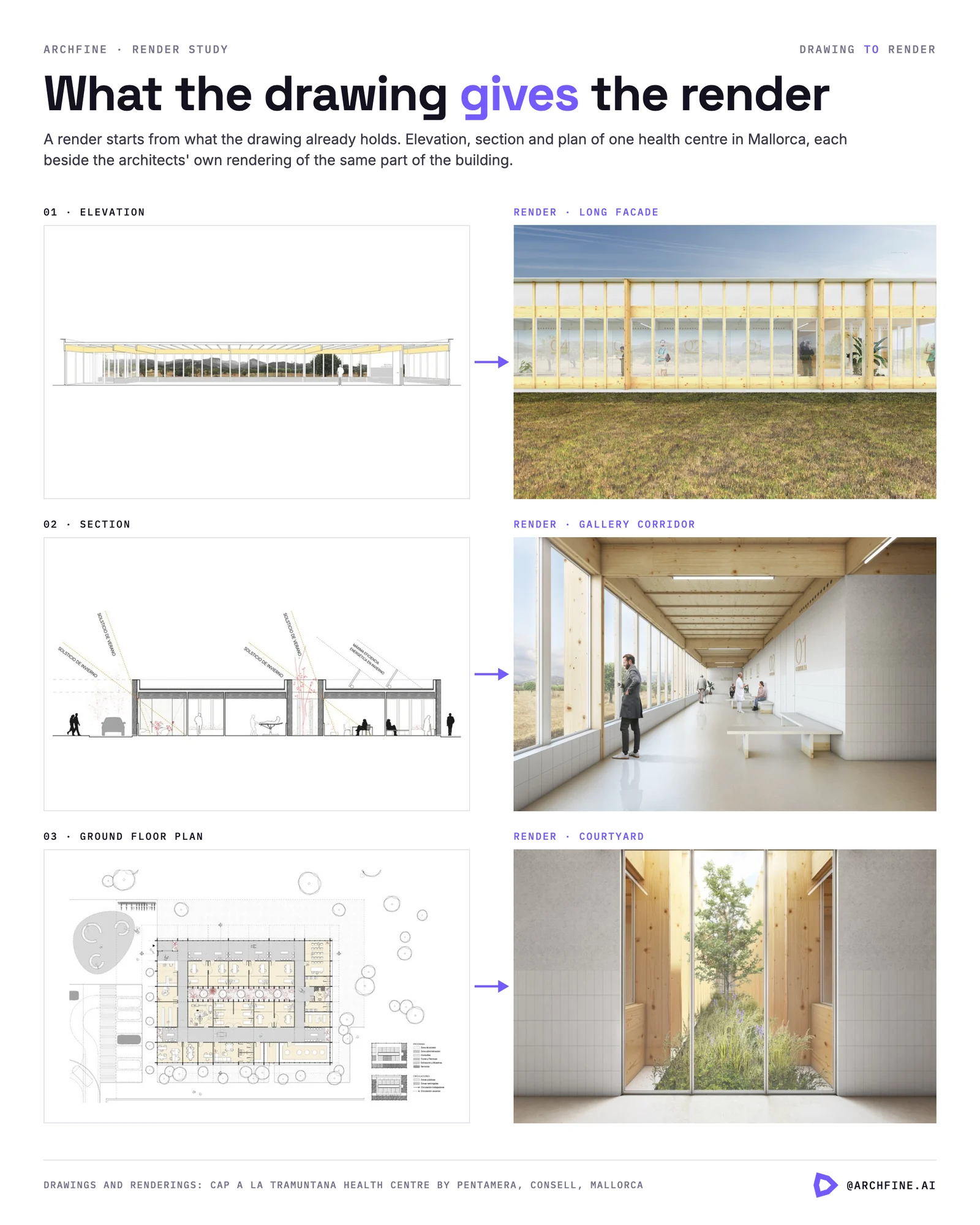
For best results, export from a 3D perspective viewport or a 2D elevation view. A perspective view exports the model as the eye would see it from a camera position, giving the AI depth and foreshortening information to work with. An elevation view provides a flat but spatially readable representation of a facade, which AI tools can render effectively for exterior visualization.
✅ Pro Tip
When preparing an AutoCAD elevation or facade drawing for AI rendering, clean up the layer structure before exporting. Exporting with all layers visible — including dimensions, section marks, and hatch patterns — produces cluttered images that AI tools misread as physical objects. Export a simplified view with only wall lines, openings, and key material zones visible for the cleanest AI render output.
Converting the Drawing to a Render-Ready Image
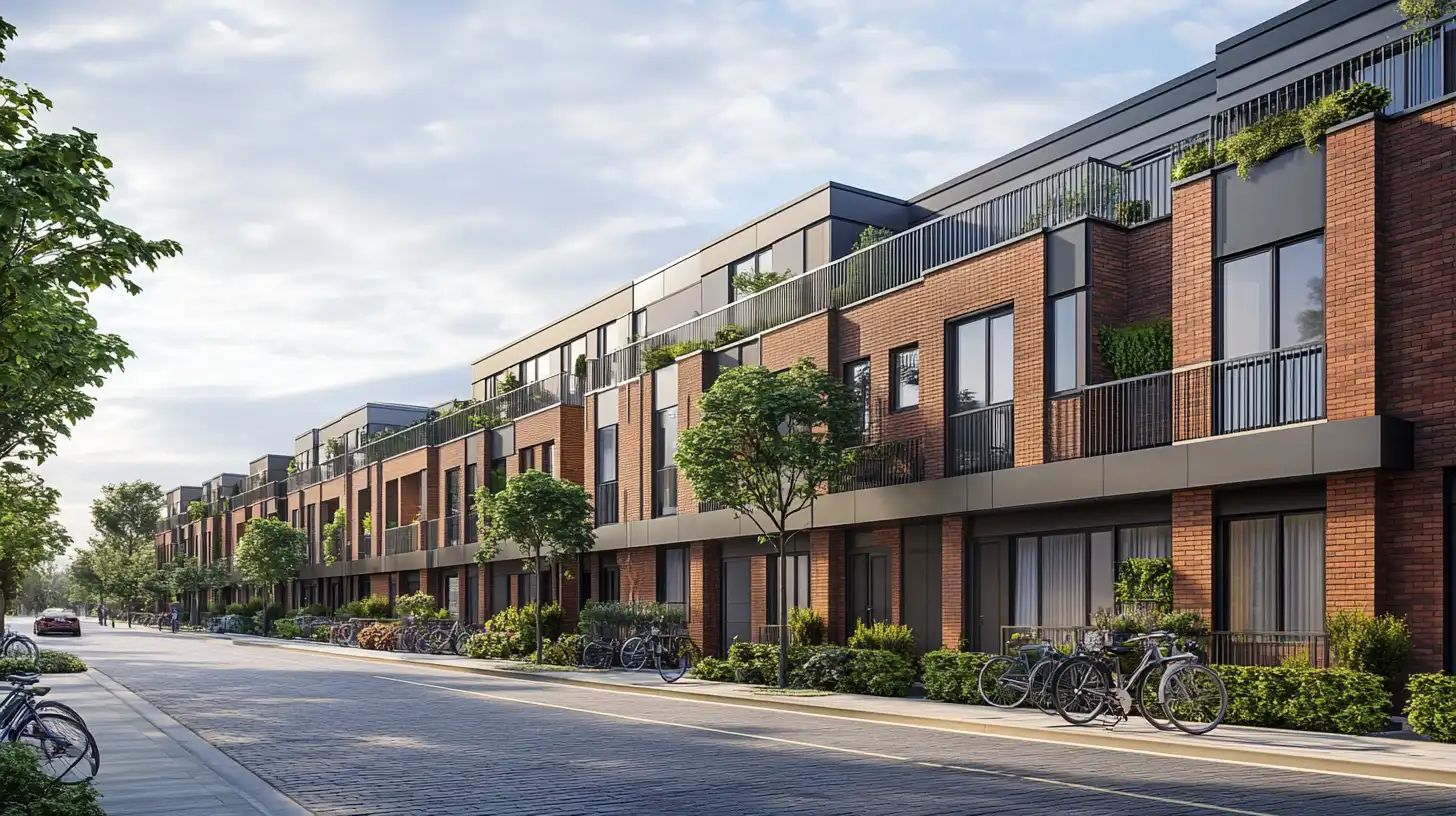
Once the AutoCAD view is exported as a PNG or JPEG, the image may need basic preparation before uploading to an AI rendering platform. This includes checking resolution (higher resolution inputs generally produce sharper AI outputs), ensuring adequate contrast between structural elements and the background, and confirming that the view type is appropriate for the intended rendering result.
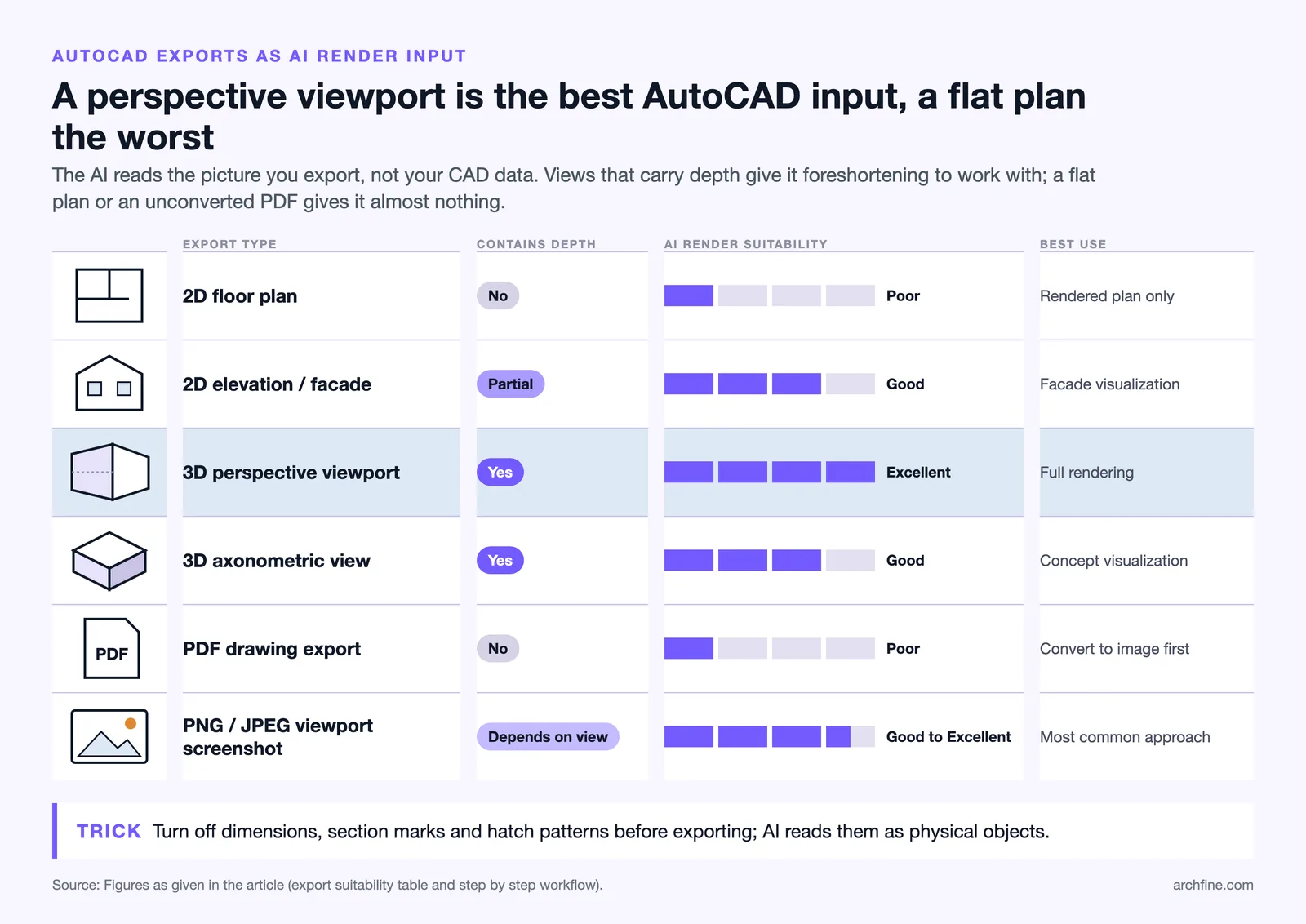
For an AutoCAD to photorealistic render workflow, elevation and perspective exports are the most reliable starting points. The table below summarizes how different AutoCAD export types perform as AI rendering inputs.
| Export Type | Contains Depth | AI Render Suitability | Best Use |
|---|---|---|---|
| 2D floor plan | No | Poor | Rendered plan only |
| 2D elevation / facade | Partial | Good | Facade visualization |
| 3D perspective viewport | Yes | Excellent | Full rendering |
| 3D axonometric view | Yes | Good | Concept visualization |
| PDF drawing export | No | Poor | Convert to image first |
| PNG/JPEG viewport screenshot | Depends on view | Good to Excellent | Most common approach |
Applying AI Rendering for Photorealistic Output
With a clean export ready, the image is uploaded to an AI rendering platform along with a text prompt describing the desired visual outcome — the material palette, time of day, surrounding environment, or architectural style. The AI model processes the structural information from the CAD export and applies photorealistic materials, lighting, shadows, and context to produce a render.
This is where the quality gap between AI tools becomes apparent. Platforms trained specifically on architectural imagery and calibrated for building facades, interiors, and landscape context produce more accurate and usable results than general-purpose image generation tools. For an AutoCAD visualization tool focused on architectural output, specialized training data makes a measurable difference in structural fidelity.
Workflow: AutoCAD to AI Render Step by Step
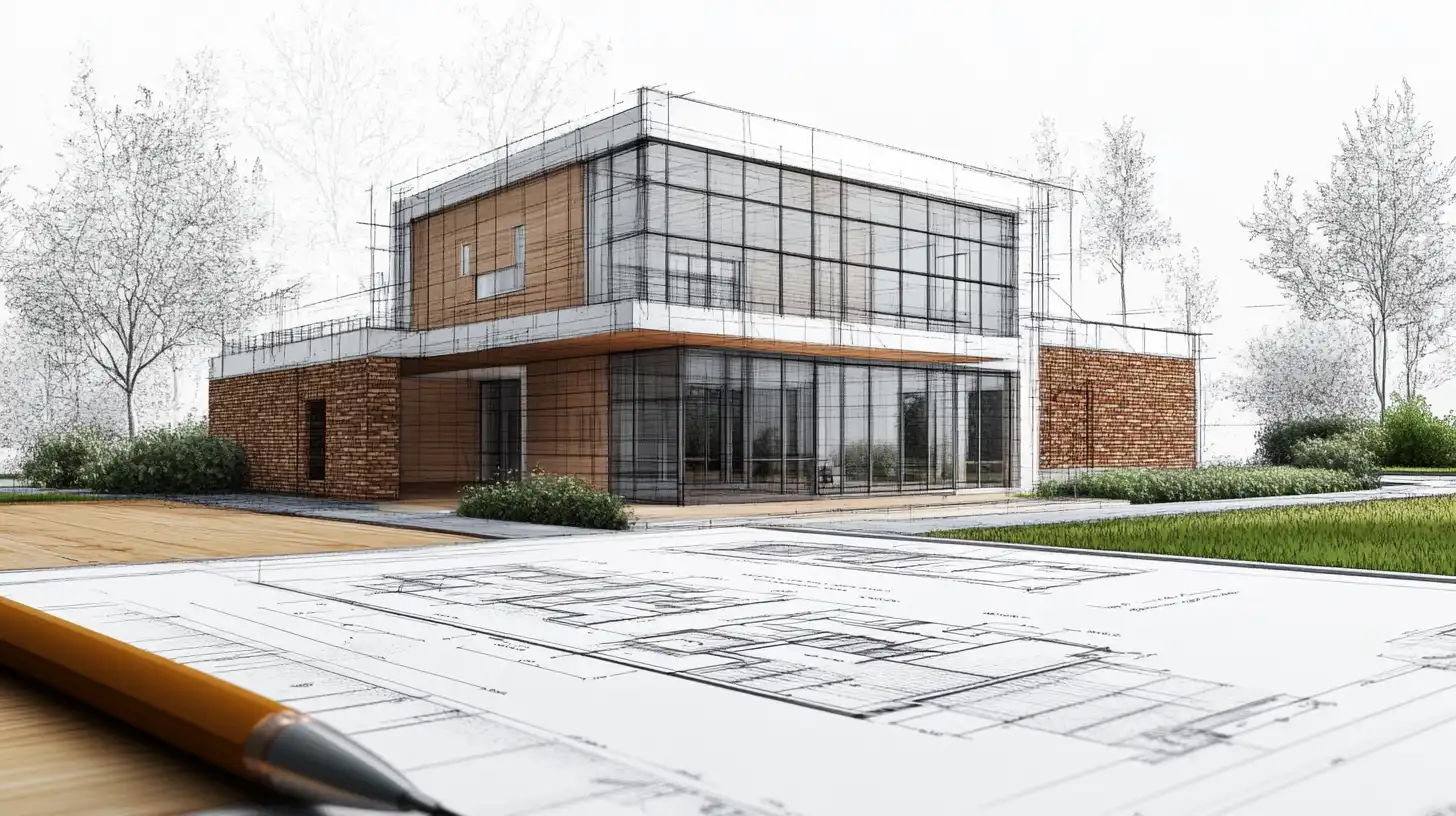
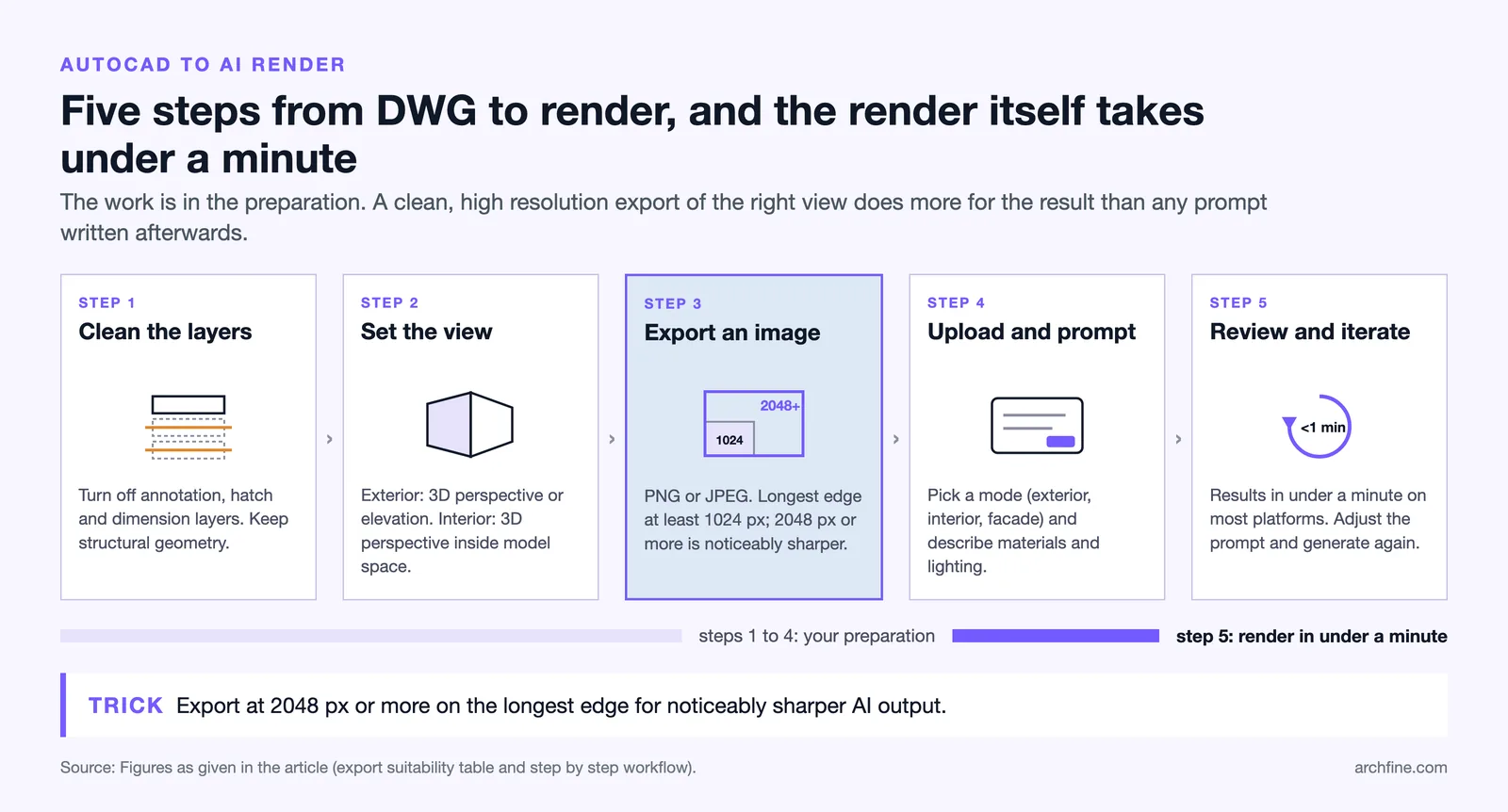
The following sequence summarizes a complete AutoCAD rendering workflow using an AI platform:
- Prepare the AutoCAD file. Clean up layer visibility. Turn off annotation layers, hatch overlays, and dimension lines. Keep structural geometry visible.
- Set the viewport and view type. For exterior renders, use a 3D perspective or elevation view. For interior renders, use a 3D perspective inside the model space.
- Export as PNG or JPEG. Use the highest resolution the project allows. A minimum of 1024px on the longest edge is recommended; 2048px or higher produces noticeably sharper AI outputs.
- Upload to an AI rendering platform. Select the appropriate rendering mode (exterior, interior, facade) and write a prompt describing material and lighting preferences.
- Review and iterate. Most AI platforms produce results in under a minute. Review the output, adjust the prompt or reference style if needed, and re-generate until the result meets presentation standards.
This workflow allows a drafter or architect to move from an AutoCAD drawing to a presentation-quality render without leaving the familiar documentation environment or rebuilding geometry in a separate application.
💡 Did You Know?
AutoCAD was first released by Autodesk in 1982, making it one of the oldest commercially available CAD applications still in active widespread use. Despite decades of newer tools entering the market, it remains one of the most commonly specified software platforms in architectural construction documentation workflows globally.
DWG, DXF or Image: Which File Actually Leaves AutoCAD
This is the step where most of the confusion sits, because the file you work in is not the file an AI renderer can read. A DWG holds vector geometry on layers. A DXF holds the same information in an interchange format. Neither is an image, and no image-based AI tool opens either of them.
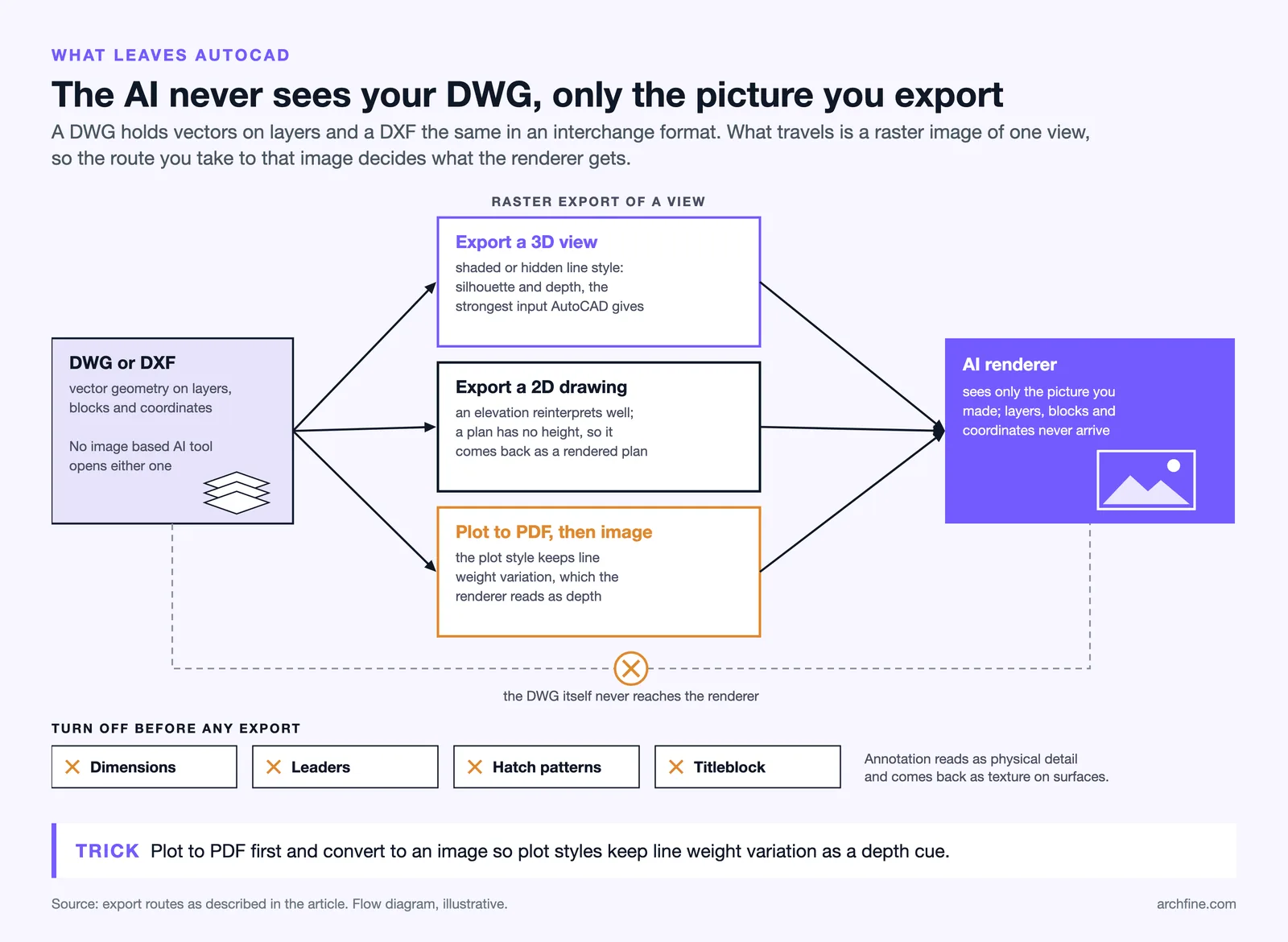
What travels is a raster export of a view. That has a practical consequence worth stating clearly: the AI never sees your CAD data, so nothing about layers, blocks or coordinates carries through. It sees the picture you made of them, which is why the picture is worth spending two minutes on.
Exporting from a 3D view
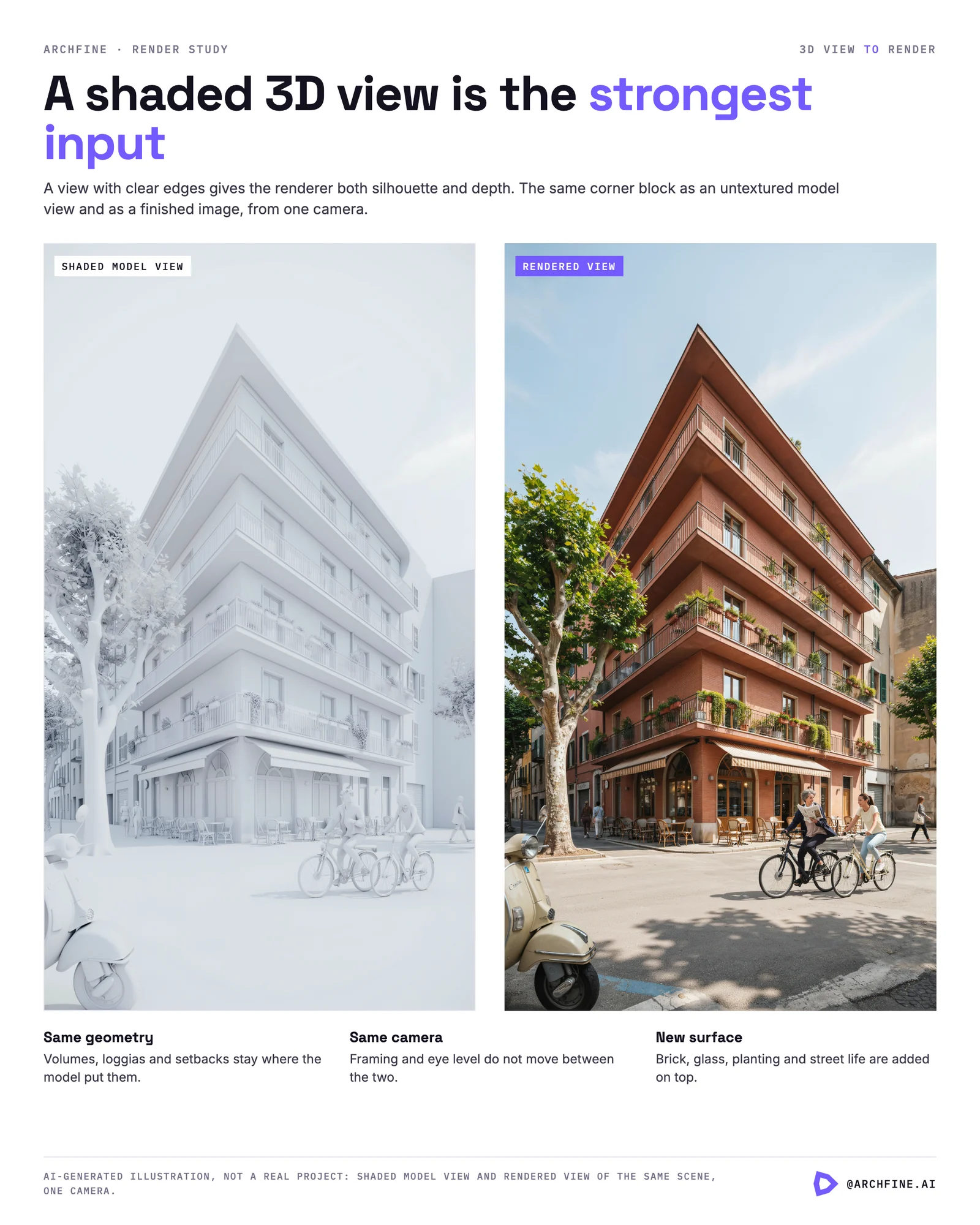
If your drawing contains 3D geometry, set the view you want, use a visual style with clear edges, and export at the largest sensible resolution. A shaded or hidden-line view gives the renderer both silhouette and depth, which is the strongest input it can get from AutoCAD.
Exporting from 2D drawings
A plan or elevation is a legitimate input, but it produces a different kind of output. An elevation reinterprets well because it already contains the facade composition. A plan does not contain height at all, so what comes back is a rendered plan rather than a view of the building. Both are useful, and they answer different questions.
PDF as an intermediate
Plotting to PDF first and converting to an image is often better than exporting directly, because the plot style controls line weight the way a printed sheet would. That weight variation is a depth cue, and flattening it to a uniform line removes information the renderer would otherwise use.
Whichever route you take, turn off dimensions, leaders, hatch patterns and the titleblock before exporting. Annotation reads as physical detail and comes back as texture on surfaces. This is the single most common reason a first attempt looks wrong.
How ArchFine Works with AutoCAD Outputs
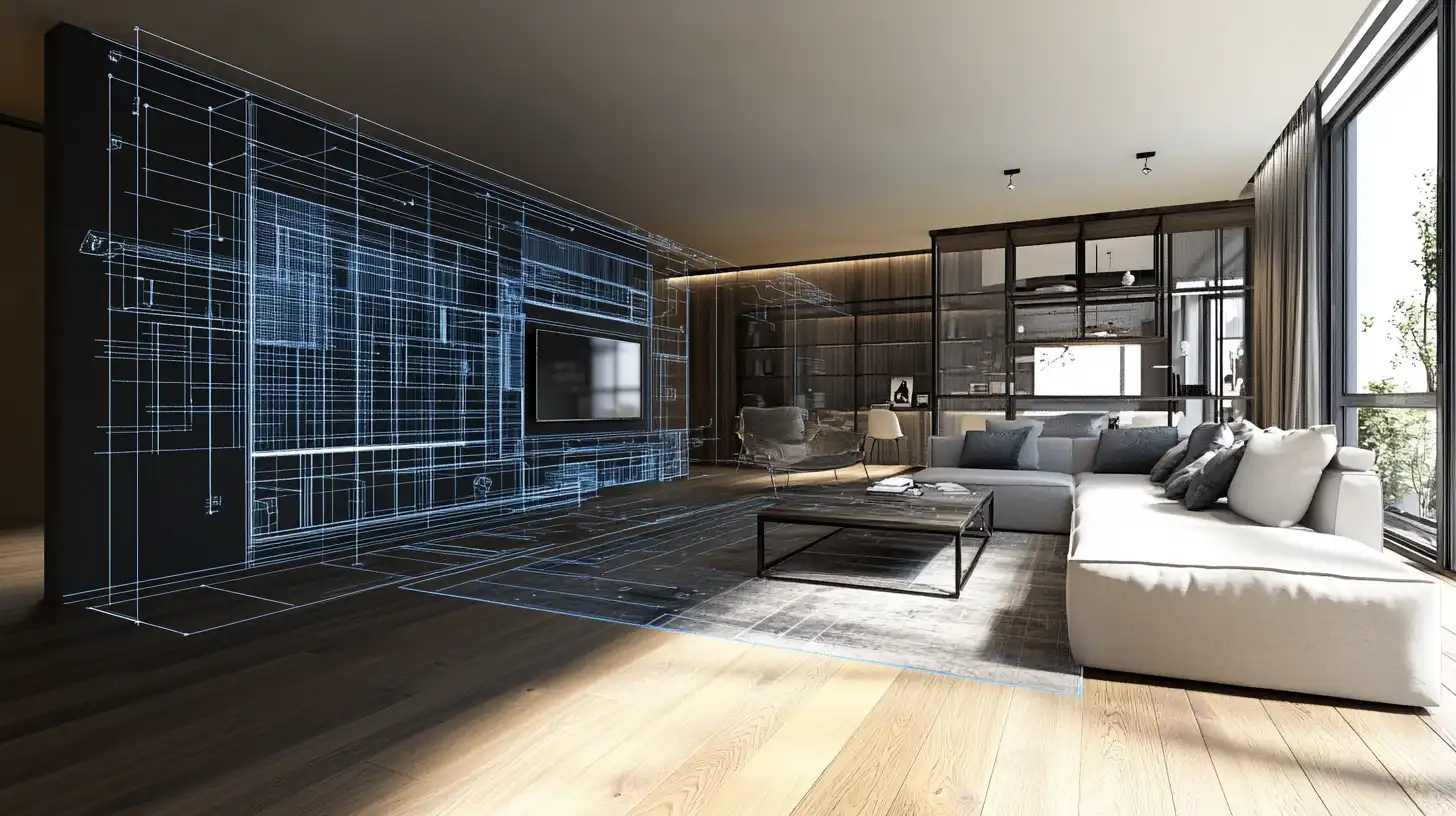
ArchFine is an AI rendering platform built specifically for architectural visualization. The platform accepts image uploads — including PNG and JPEG exports from AutoCAD — and uses a prompt-based interface to generate photorealistic renders in approximately 30 seconds.
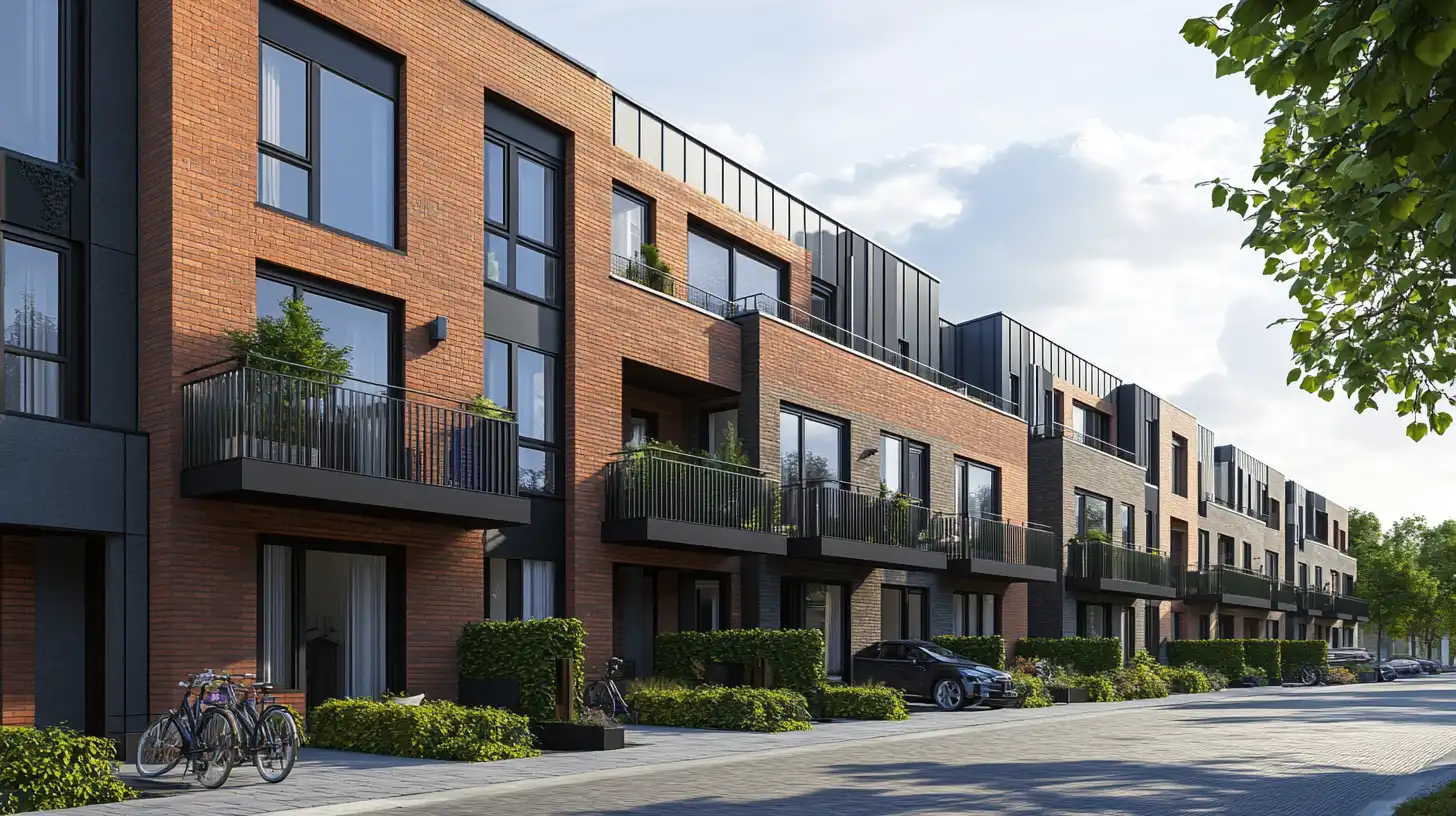
ArchFine AutoCAD rendering works by treating the exported drawing as a structural reference. The AI reads edge lines, openings, and spatial relationships from the uploaded image, then applies photorealistic materials and environmental context based on the user’s text prompt. A facade elevation exported from AutoCAD, for example, can be processed into a rendered exterior showing brick, glass, and concrete finishes under realistic lighting conditions — without any 3D modeling involved.
The platform supports a range of architectural rendering modes, including exterior facades, interior scenes, landscape views, and concept-stage massing studies. For teams already producing documentation in AutoCAD, ArchFine fits directly into the existing workflow without requiring a software transition or additional modeling time. The best render tool for AutoCAD integration is one that accepts what the documentation workflow already produces — which is what ArchFine is designed around.
Users can generate multiple variations from the same source export, adjusting prompts to explore different material palettes or environmental contexts before selecting a final version for client presentation.
AutoCAD AI Rendering vs. 3ds Max for AutoCAD Visualization
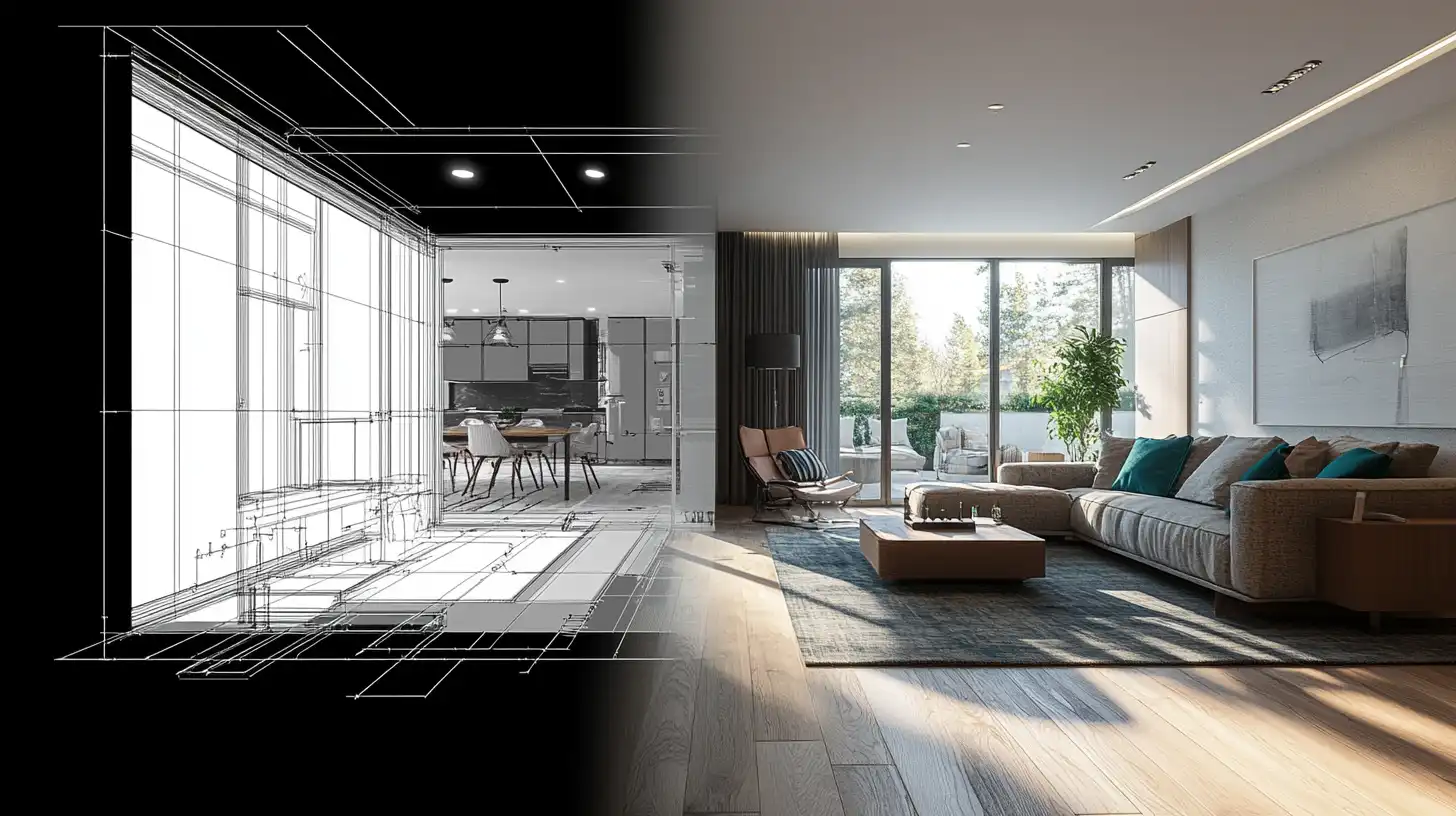
The traditional alternative to AI rendering for AutoCAD projects is a pipeline involving 3ds Max, V-Ray, or a similar dedicated rendering application. This approach produces high-quality results but carries significant overhead: geometry must be rebuilt or imported, materials must be assigned, lighting must be configured, and render times can range from minutes to hours depending on scene complexity and hardware.
AI visualization from AutoCAD trades some of that control for speed and accessibility. The tradeoff is real — AI tools do not yet match the precision of a fully specified 3ds Max scene for complex geometry or custom material definitions. But for early-stage client presentations, feasibility studies, or marketing visuals where turnaround time matters, the AI workflow produces results that are difficult to distinguish from traditional renders at standard viewing scales.
A practical breakdown of the comparison:
- Speed: AI rendering from an AutoCAD export takes under a minute. A comparable 3ds Max render requires hours of setup plus render time.
- Cost: AI rendering platforms operate on subscription or per-render pricing with no hardware requirements. 3ds Max licensing and capable workstations represent a significant capital investment.
- Output fidelity: 3ds Max with V-Ray produces higher geometric precision and material accuracy for complex scenes. AI rendering is faster but less controllable at the detail level.
- Skill requirement: AI rendering platforms require no specialist knowledge beyond basic prompt writing. 3ds Max requires trained operators familiar with 3D modeling, material editors, and lighting setups.
- Use case fit: AI tools are well-suited for early design stages, client check-ins, and marketing visuals. Traditional rendering is more appropriate for final construction documentation visualization or high-budget campaigns requiring maximum fidelity.
For most architectural practices, the two approaches are complementary rather than competitive. AutoCAD AI rendering handles the high-volume, fast-turnaround work; traditional rendering handles the high-stakes final deliverables.
🔑 Key Takeaways
- AutoCAD AI rendering converts exported CAD images into photorealistic visuals without requiring 3D modeling or dedicated rendering software.
- 3D perspective viewports and elevation exports produce the best AI rendering results. Flat 2D plan views do not contain the spatial information AI tools need.
- Cleaning up AutoCAD layer structure before export — removing dimensions, hatches, and annotation layers — significantly improves AI render output quality.
- Platforms like ArchFine accept PNG and JPEG exports directly from AutoCAD and generate photorealistic renders in approximately 30 seconds using a prompt-based workflow.
- AI rendering is not a full replacement for 3ds Max in high-fidelity production scenarios, but it is a practical and fast option for early-stage visualization, client presentations, and marketing outputs.
- The convert AutoCAD to render workflow via AI requires no specialist rendering knowledge and integrates directly into existing documentation pipelines.
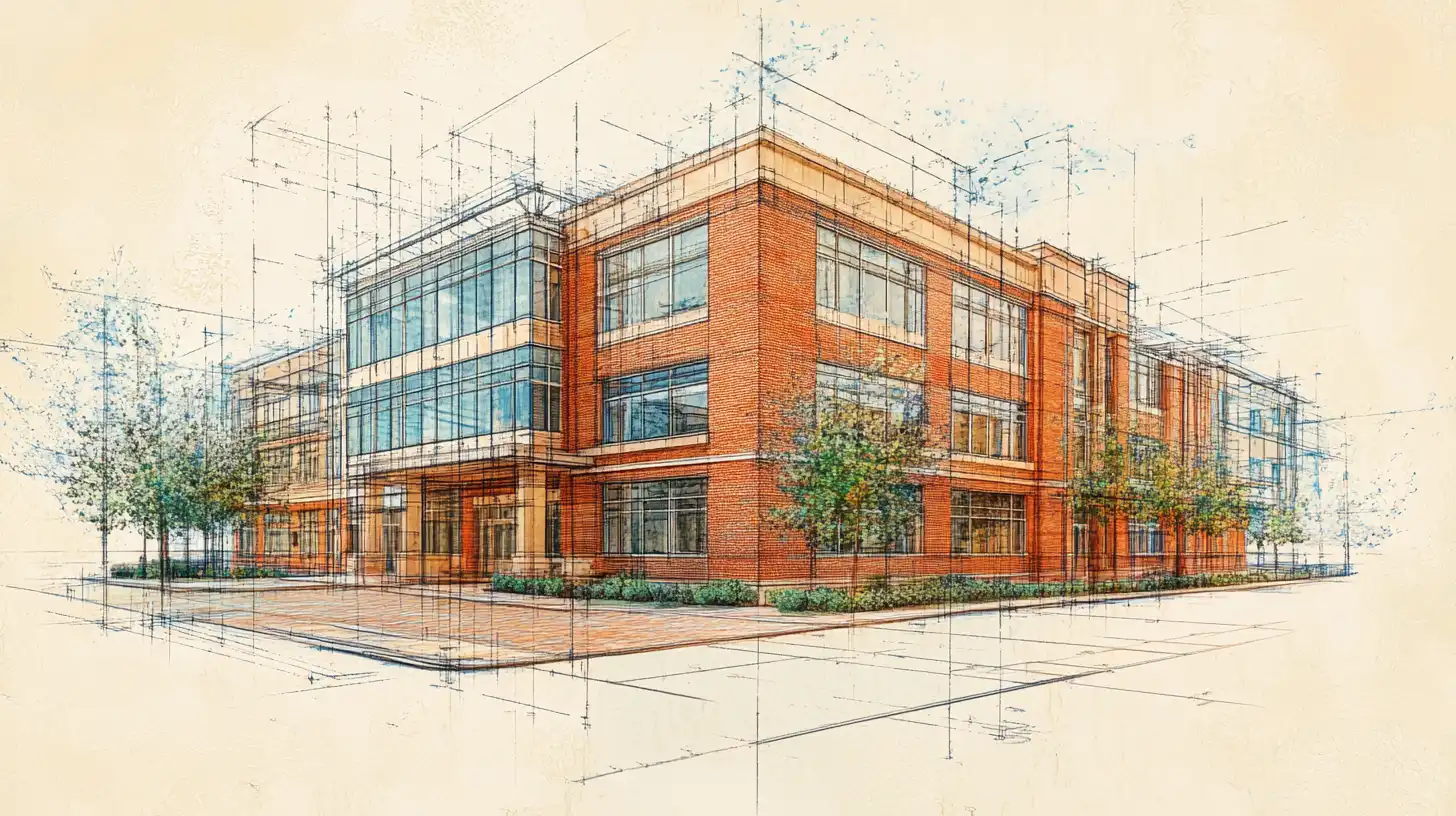
AutoCAD remains the industry standard for architectural documentation, and AI rendering is increasingly the fastest route from those drawings to presentation-quality visuals. The combination of precise CAD drafting and AI-powered rendering removes the longest step in the traditional visualization pipeline while keeping the workflow accessible to practitioners who are not 3D rendering specialists. For teams looking to convert AutoCAD to render outputs without rebuilding models in separate software, AI platforms represent a practical and growing part of the architectural workflow.