Concrete Meditation Pavilion

Concrete Meditation Pavilion

Minimalist Sacred 19 seconds ArchFine Pro 6 May 2026

Prompt Used

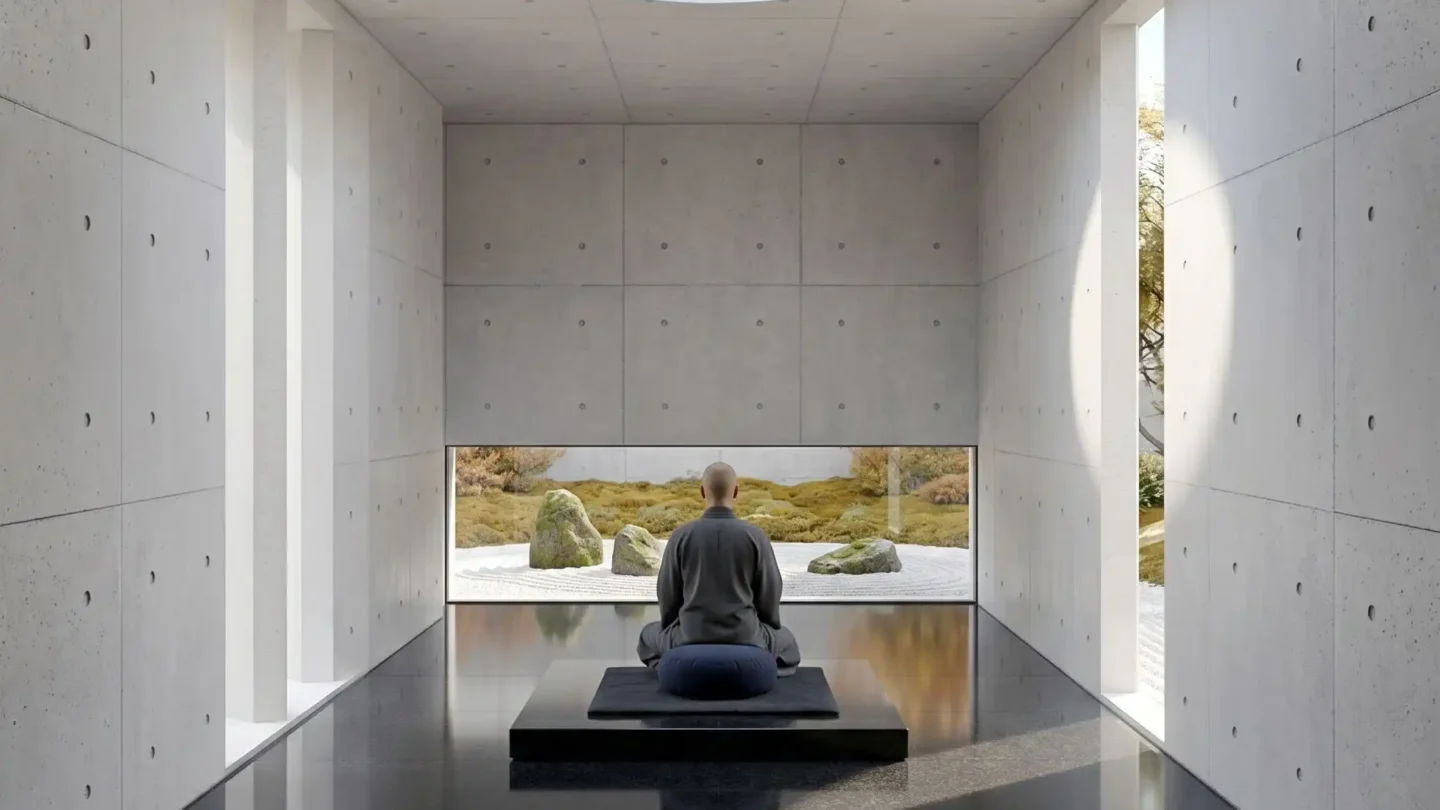
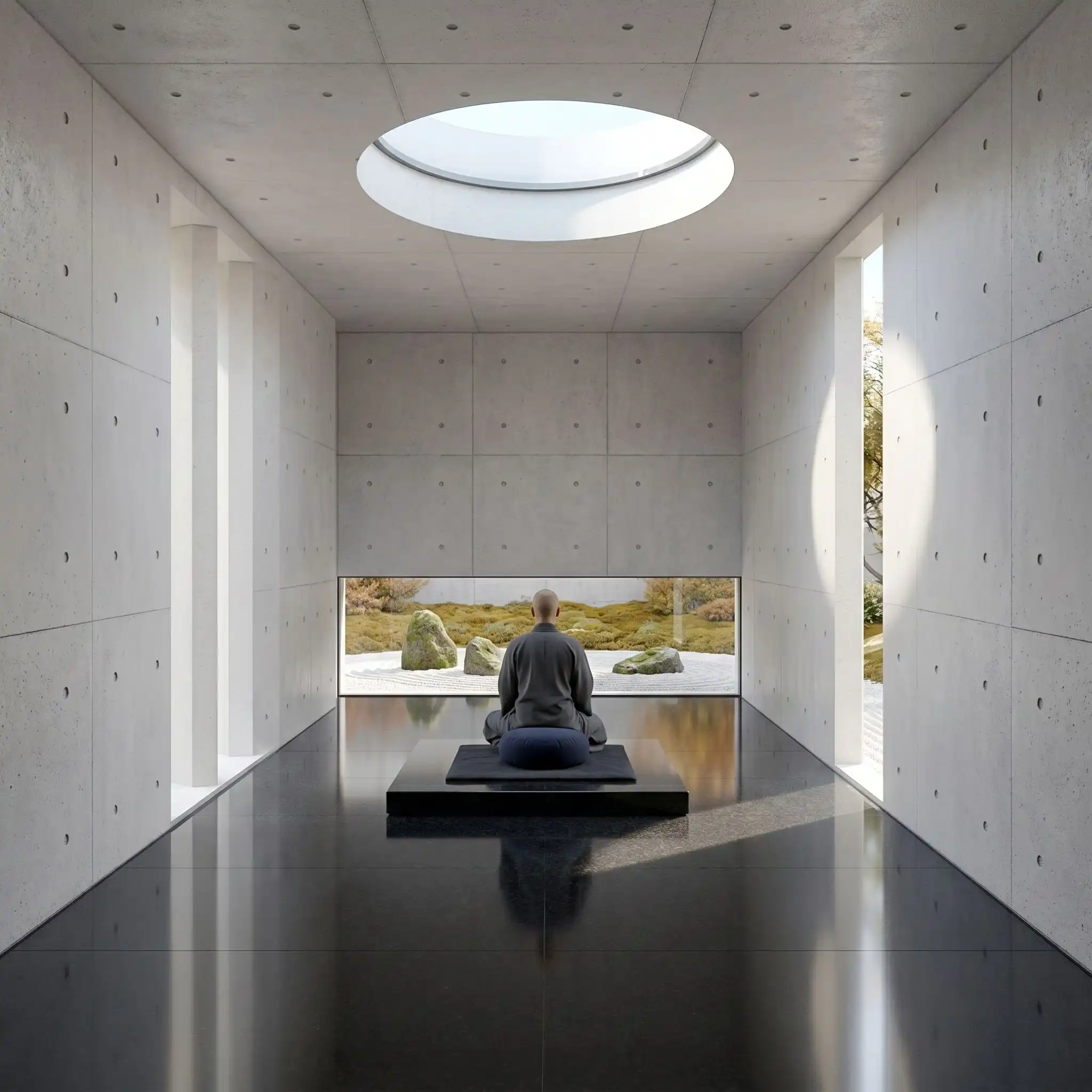
A photorealistic render of a standalone meditation pavilion in the grounds of a Zen Buddhist temple complex in Kyoto, a new building commissioned as a contemporary interpretation of the traditional meditation hall (zendo) in raw cast concrete, positioned at the edge of a karesansui (dry stone garden) at the rear of the temple grounds. Form: A simple square plan (8m x 8m exterior, 6.4m interior) with a flat concrete roof slab (220mm thick) supported on four perimeter walls with no internal columns. The walls are 250mm thick in-situ concrete, cast in a single pour using a very precise smooth-faced formwork (phenolic film-faced plywood, 2400mm x 1200mm sheets, the panel joints arranged in a precise 1200mm x 1200mm grid, the tie holes in a 400mm x 400mm offset pattern, all left visible as part of the finished surface). The concrete is white Portland cement with white sand aggregate, giving a near-pure white surface that will slowly weather to a warm pearl gray. Openings: The building has no windows in the conventional sense. On the south facade, a single wide horizontal slot (4800mm wide x 400mm tall) is cut at seated eye height (900mm above floor level), framing a precise horizontal view of the karesansui garden raked gravel and the moss-covered stone beyond — a landscape reduced to an abstract horizontal band. On the east facade, a narrow vertical slot (200mm wide x 2400mm tall) cuts through the full wall thickness, admitting a single blade of morning light that travels across the interior floor during the first two hours after sunrise. The entrance: a single pivot door (800mm x 2200mm) in 25mm thick matte black-painted steel plate, flush with the exterior wall face. Interior: The floor is polished black granite (absolute black, 600mm x 600mm, honed, mirror polished — the interior light and the single meditating figure reflected in the floor surface). The ceiling is the underside of the concrete slab — the same white concrete with the formwork grid pattern, lit by a single recessed circular opening (400mm diameter) at the center of the ceiling, backed with clear glass admitting a column of sky light at noon. The walls are the same white concrete. No furniture except a single cushion (zafu, round, dark navy blue, 350mm diameter, 200mm height) on a square black-dyed linen mat (1000mm x 1000mm) centered on the floor, occupied by a single meditating figure in dark gray robes, seated in lotus position facing the south slot and the garden view. Garden view through the slot: The horizontal slot frames the karesansui garden — raked white gravel in a flowing wave pattern, three large moss-covered stones (approximately 600mm, 400mm, and 300mm height) emerging from the gravel in an asymmetric grouping, a low clipped azalea in the background. Camera angle: Interior perspective from just inside the entrance pivot door looking across the empty black granite floor toward the south slot and the garden view, the meditating figure at the center of the composition. The narrow east light blade visible on the right wall. Focal length equivalent 28mm. Aspect ratio 3:2. Time of day: 8:30 AM, late autumn, morning light blade from the east slot traveling across the floor.

Before & After

Before - original sketch
Before
After - AI render
After

Ideal for sacred, contemplative, and temple precinct architecture projects. Upload site plans or temple layout drawings.
Getting Started with This Prompt

1

Grab the Prompt

Tap the copy button above and the entire prompt will be saved to your clipboard, ready to use.

2

Launch Your Renderer

Head over to Archfine AI or any compatible visualization tool you prefer working with.

3

Add Your Design

Drop in your floor plan, elevation sketch, or any reference image - then paste the prompt.

4

Render & Refine

Run the generation and review the output. Swap out a few keywords to explore completely different aesthetics.

Want a faster workflow? Archfine AI lets you skip prompt editing entirely - just upload and render.

How to Get Stronger Renders

1

Describe the Scene

Mention specific materials, time of day, weather, and camera perspective. The more context the AI has, the more realistic the output becomes.

2

Run Multiple Passes

Each generation is unique. Changing even a single adjective can shift the entire mood - so experiment freely and compare outcomes.

3

Blend Prompts Together

Borrow phrases from other entries in our collection and merge them. Hybrid prompts often deliver the most original visuals.

4

Start with a Clean Drawing

Crisp linework and high-contrast sketches give the AI a clear foundation. Blurry or cluttered inputs lead to softer, less defined renders.

Common Questions About This Prompt

Am I allowed to edit or customize this prompt?

Of course. Think of it as a foundation you can build on. Adjust the style, swap materials, change the lighting setup, or rewrite entire sections to fit your specific project needs.

Which rendering platform does this prompt work with?

It has been fine-tuned for Archfine AI, but the descriptive structure translates well to other popular AI visualization engines. You may need minor adjustments depending on the tool.

Does using this prompt cost anything?

Every prompt in our library is completely free. You can copy, adapt, and use them across personal portfolios, client presentations, or commercial marketing materials without restrictions.

What kind of input image gives the best output?

Clean line drawings with strong contrast tend to perform best. The AI reads edges, proportions, and spatial relationships from your input - so a well-drawn elevation or section will consistently outperform a rough napkin sketch.

Can I use the rendered image commercially?

Yes. Renders generated through Archfine AI on any paid plan come with full commercial usage rights. Use them in proposals, publications, social media, or anywhere else your work needs to shine.

Try this prompt yourself

Upload your own sketch and use this prompt to generate a stunning render.

Try on Archfine